

How do I know if my ads are getting invalid traffic?
Connect your ad account and look: Tapper tracks every ad click that reaches your site, decides whether it is valid and shows you the invalid share per campaign, keyword, device and country. You do not need to guess from your spend or your bounce rate. During a free trial Tapper runs in monitoring-only mode, so you see exactly what it would have excluded before Tapper excludes anything.
What invalid traffic is
Invalid traffic is any click on your ad that was never going to become a customer: competitor clicks, bot traffic, click farms, and visitors hiding behind VPNs and proxies. Most paid accounts receive some of it. How much varies with your industry, your campaign types and the platforms you run on, which is why Tapper measures it on your own account instead of quoting an average.
See it first without blocking anything
Every new rule set starts with Monitoring-only mode switched on, and on a free trial the switch stays on. In this mode Tapper records every invalid click but writes no exclusions to your ad platforms from what it detects. A notice on every page of the app says Monitoring only.
While you are in monitoring-only mode the app relabels what it shows you:
| Blocking workspace | Monitoring-only workspace |
|---|---|
| Total Blocks | Total Invalid |
| IP Blocks | Invalid IPs |
| Audience Blocks | Invalid Audience Exclusion Users |
| Saved Spend | Wasted Spend (shown in red) |
| Block reason | Invalid traffic reason |
| Exclusions page | Invalid Traffic page |
The numbers are the same measurement either way: what Tapper found, and what it would have excluded. See Monitoring-only mode: why nothing is blocked yet and what changes when blocking starts.
Where to look
1. The dashboard Overview
Open Dashboard in the sidebar. The Invalid Traffic % tile is the headline number: its sub-line reads "Distinct blocked visitors / Clicks". Next to it, Total Clicks ("Tapper-tracked clicks") and Valid Clicks ("Clicks − distinct blocked visitors") show the size of the problem in absolute terms. The default date range is the last 7 days in your workspace time zone; use the date button to widen it.
2. The Invalid Traffic tab
Under Dashboard, open Invalid Traffic. This is the page to screenshot when someone asks whether your ads are affected.
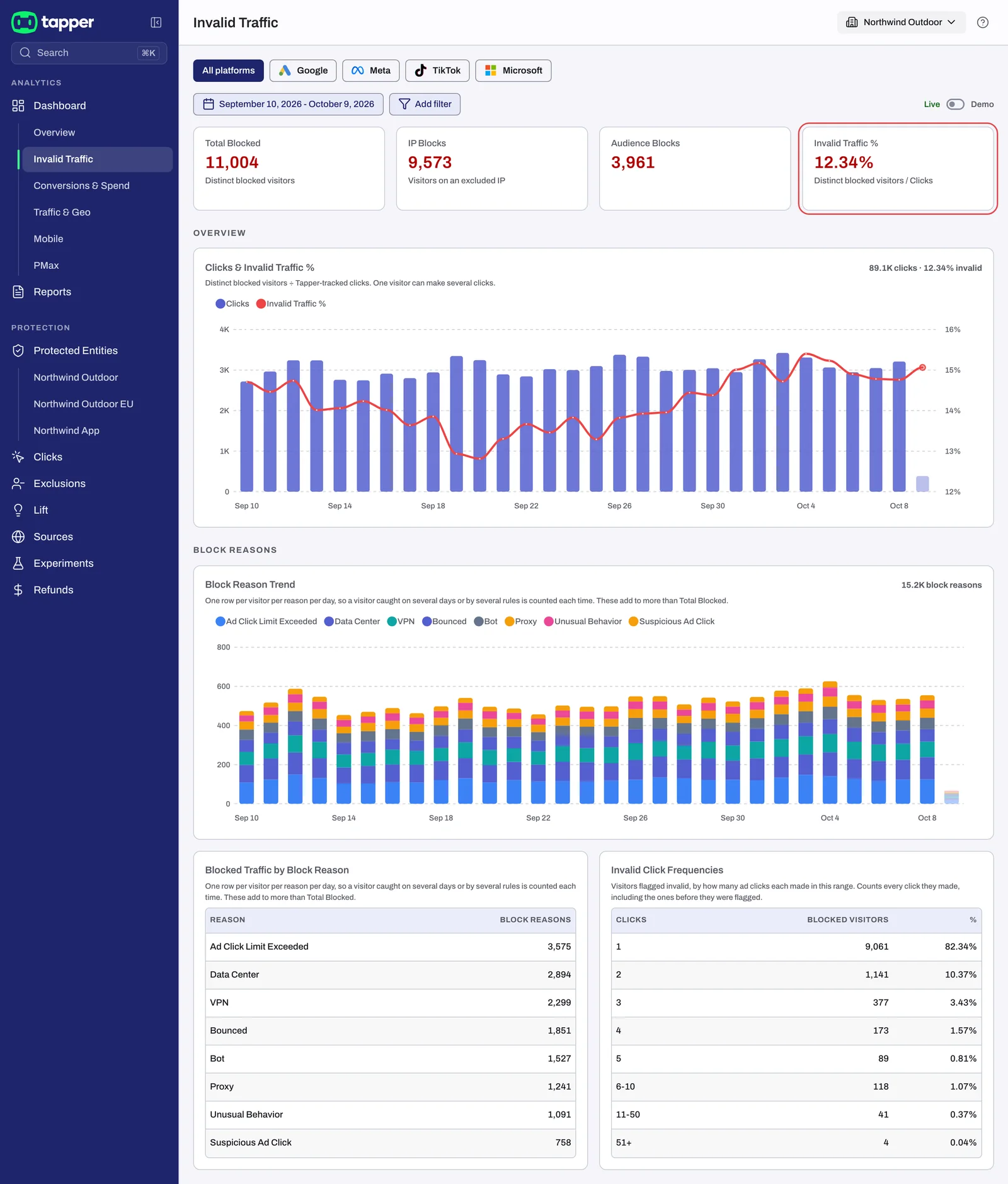
- The tiles Total Blocked ("Distinct blocked visitors"), IP Blocks, Audience Blocks and Invalid Traffic %.
- Blocked Traffic by Block Reason and Block Reason Trend: which kinds of invalid traffic you get and whether they are growing.
- Invalid Click Frequencies: how many invalid visitors clicked once, twice, up to 51+ times.
- Top Blocked Campaigns and Keyword-level Invalid Traffic: where it lands.
For a walk-through of every card see Reading the Invalid Traffic tab: reasons, click frequencies and IP types.
3. The Clicks page
Clicks in the sidebar lists individual ad clicks with their Block reason (labelled Invalid traffic on a monitoring-only workspace). Filter by Blocked (Invalid traffic on a monitoring-only workspace) to see only the invalid ones. On Google Ads and Meta Ads rows, hover for View details to open the visitor drawer.
4. The Sources page
Sources in the sidebar answers a different question: is invalid traffic reaching you from a platform you have not connected yet? Tapper recognizes Meta clicks from the fbclid in the landing URL and TikTok clicks from the ttclid, so it can count them before an account is connected. For each unconnected platform the page shows Platform, Clicks, Blocked-equivalent and Invalid rate over the last 30 days, with a Connect button next to each row. Only an Owner or Admin can open it. Microsoft Ads traffic is not recognized this way yet. Details in The Sources page: traffic from platforms you have not connected.
5. The monthly report
After each month closes, Reports holds a monthly performance report with, for each platform, an IVT Rate card and an Invalid Traffic Types section, so you can show the trend to a client or a manager. See Monthly reports: what is in your report and how to download it.
Reading the numbers
- Invalid Traffic % is distinct blocked visitors divided by Tapper-tracked clicks, capped at 100%. One visitor can make several clicks, so the invalid share of visitors and the invalid share of clicks differ.
- The data behind the dashboard updates every 4 hours. If you connected an account this morning, give it a few hours before reading the tiles.
- If the Overview shows no clicks at all, the problem is usually the monitoring script or the tracking template, not the absence of invalid traffic. Start with No clicks on the dashboard: what to check.
Related
Was this helpful?
Related articles
Still need help?
Chat with our team and mention this article.