

Start here: set up Block + Lift in five steps
Tapper is the intelligence layer that scores customer value potential and turns it into smarter campaign optimization across Google, Meta and TikTok. A new workspace is set up in one wizard of five steps: Choose products, Name workspace, Connect ad account, Website monitoring and Detection rules. If you choose Lift only, the wizard has three steps and ends after you connect an ad account: Lift puts no tag on your website and no audiences or tracking templates in your ad accounts. On either choice, an app measured with Adjust adds a Connect Adjust step after naming. For the Lift only setup, see Get started with Lift.
Before you start
- Only a workspace Owner or Admin can connect an ad account.
- Have the sign-in that can reach your ad accounts ready (Google, Facebook, TikTok for Business or Microsoft).
- For Block + Lift, know who can add a tag to your website, by pasting it into the page or through Google Tag Manager. Step 4 needs them.
Step 1: choose your products
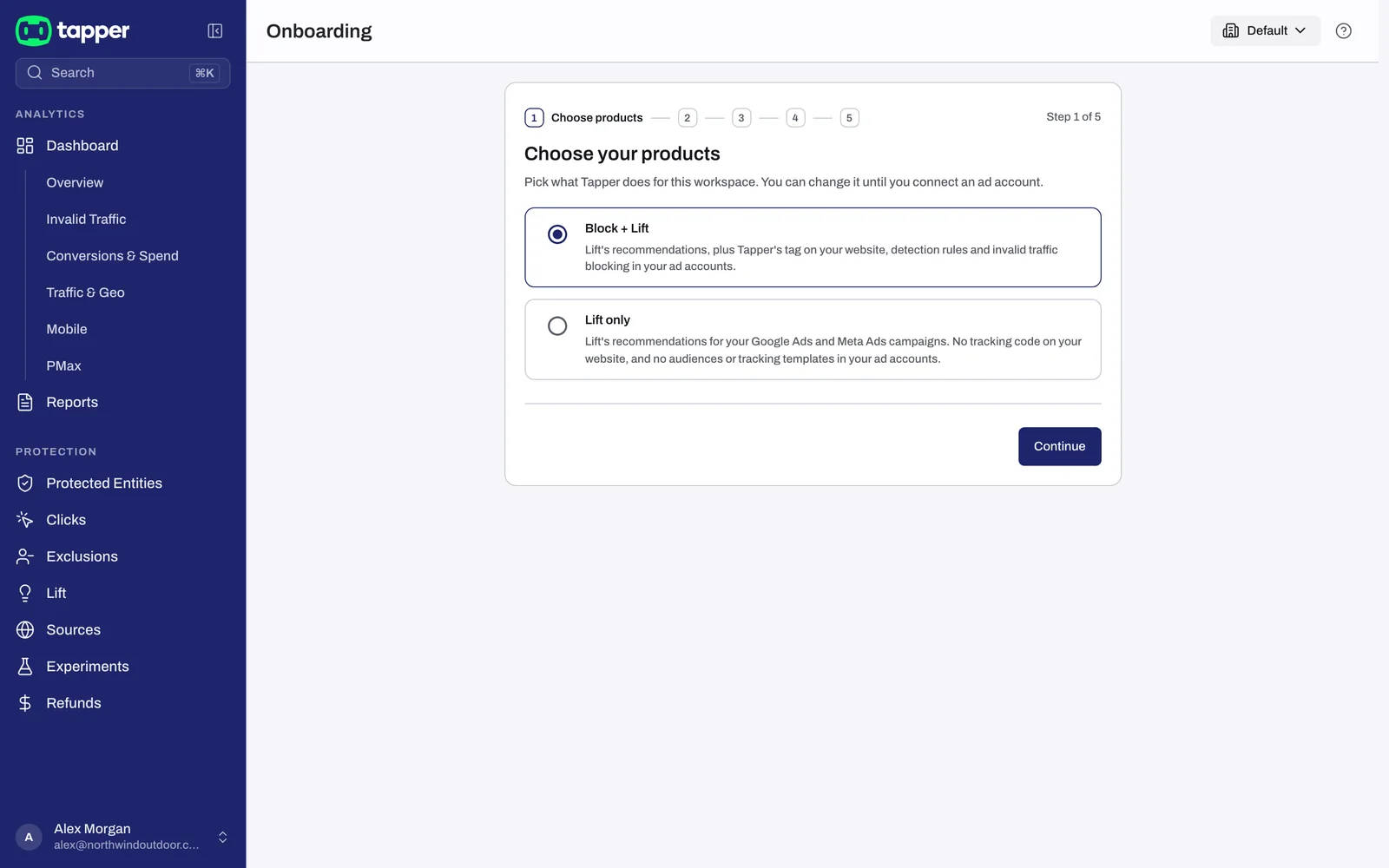
- Pick Block + Lift or Lift only. Block + Lift is preselected and reads "Lift's recommendations, plus Tapper's tag on your website, detection rules and invalid traffic blocking in your ad accounts." Lift only reads "Lift's recommendations for your Google Ads and Meta Ads campaigns. No tracking code on your website, and no audiences or tracking templates in your ad accounts."
- Press Continue.
You can change the choice until you connect an ad account. After that, contact Tapper to change products. Details: Choose your products: Lift only or Block + Lift.
Step 2: name your workspace
- Enter a Workspace name. It is also the name of your first entity.
- Pick a Time zone. Your analytics and every date Tapper shows you use it; you can change it later in Settings.
- Pick an Industry (required).
- With Block + Lift, add your Protected domains, the domains where the monitoring script runs, as
yourdomain.comorwww.yourdomain.com. With Lift only, the field is Your website (optional). - Press Continue.
Continue saves the name and time zone, creates the entity and adds each domain. With Block + Lift it also creates your industry's preset invalid click threshold rules and one aborted ad clicks rule: 5 aborted clicks within 24 hours. If an entity with that name already exists, the wizard reuses it. Details: Name your workspace, pick its time zone, industry and domains and Protected entities: what they are and how to add one.
Step 3: connect an ad account
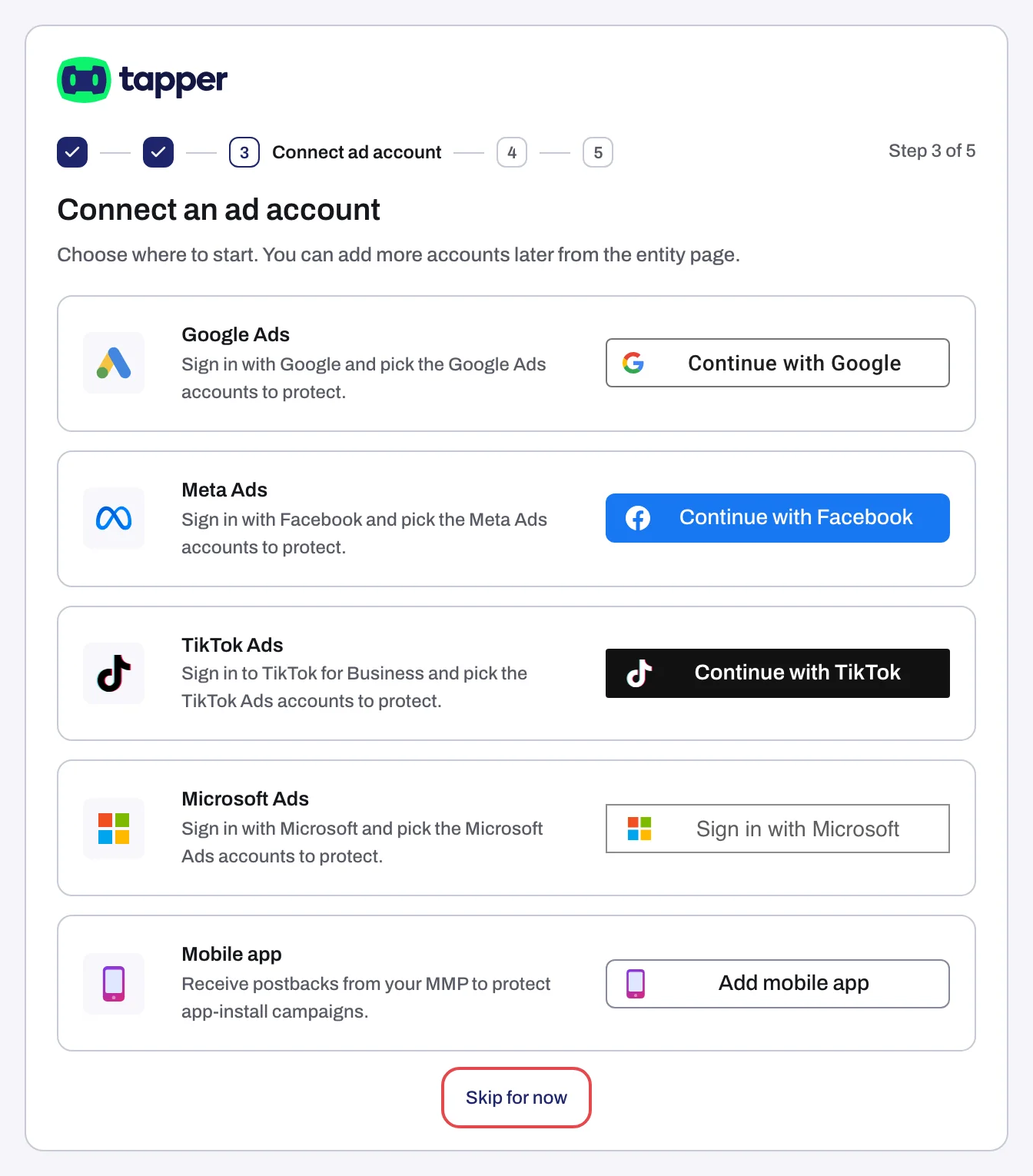
This is the only step without a forward button. Choose a platform, or press Skip for now to leave the wizard without writing anything; you can connect later from the entity page.
- Press the button on the platform's row: Continue with Google (Google Ads), Continue with Facebook (Meta Ads), Continue with TikTok (TikTok Ads), Sign in with Microsoft (Microsoft Ads) or Add mobile app (Mobile app, shown only with Block + Lift).
- Sign in inside the popup. If the popup is blocked, the sign-in runs in the same tab.
- On Choose the accounts to protect (Lift only: Choose the accounts to connect), tick the accounts and press Continue (on Lift only the button reads Finish, because connecting is the last step there).
What Tapper writes when you connect with Block + Lift:
- Google Ads: Tapper replaces the account-level tracking template with its own, creates its conversion actions, user lists and audiences, then syncs your campaigns. Nothing is applied by hand in Google Ads and there is no access request to approve. See Connect Google Ads and What Tapper creates in your Google Ads account.
- Meta Ads: Tapper creates the custom audience "Tapper - Invalid Traffic Audience". The ad account needs a Meta pixel and accepted Custom Audience terms, and each ad needs a URL parameter so clicks match the right ad. See Connect Meta Ads and Add the ad_id parameter to your Meta ads.
- TikTok Ads: the ad account needs a TikTok Pixel on your website. Tapper creates the audience "Tapper - Invalid traffic". See Connect TikTok Ads.
- Microsoft Ads: connecting syncs your campaigns and spend. See Connect Microsoft Ads.
- Mobile app: Tapper receives postbacks from your MMP. See Connect a mobile app through your MMP.
Step 4: install website monitoring
Block + Lift only.
- Copy the Monitoring script with Copy monitoring script, or press Google Tag Manager to open Google Tag Manager and install it as a tag there. It goes right after the opening
<body>tag on every page of the domains you listed in step 2. - If your site sends a Content-Security-Policy header, allow the sources listed on the page, or browsers block the monitoring script and Tapper sees no visits.
- Add the Conversion script to your thank-you page, or list your Conversion pages, so Tapper counts conversions. It is a separate snippet from the monitoring script.
Everything on this page lives on the entity's Website monitoring tab afterwards. Details: The monitoring script: what it does and where to find it, Install the monitoring script with Google Tag Manager and Install the conversion script.
Step 5: set your detection rules
Block + Lift only. Everything here can be changed later on the entity page. It is the entity's Web detection rules form, limited to the default rule set.
- Review the preset Invalid click threshold rules from your industry and the Detection features switches. The switches have no Save button: a switch saves when you click it, and a number field saves shortly after you stop typing. Edits to the threshold rows are saved with Update threshold rules.
- Press Finish.
Details: Web detection rules: every setting on the tab.
What happens next
- With Block + Lift, Tapper shows "Setup complete" and opens the entity's protection tab for the platform you connected. The entity's status chip reads Protected once it has at least one domain and one connected ad account (or mobile app integration); until then it reads Setup incomplete.
- With Lift only, the wizard ends once you connect and opens the Lift page. The first recommendations appear there within a few hours.
- If some accounts did not link, the message is "Some accounts did not connect". Retry the others from the entity page.
- Tapper syncs your campaign structure at connect and then every 6 hours. For when clicks, spend and recommendations appear, see When your data shows up after connecting.
If you stop partway
Setup progress is saved on the workspace, not on your user, so the wizard resumes at the step where it stopped. The Protected Entities page shows the banner Finish setting up this workspace until the wizard is done.
Related
Was this helpful?
Related articles
Still need help?
Chat with our team and mention this article.