

Nothing is being blocked: what to check
Tapper shows invalid clicks on your dashboard, but your ad accounts show no exclusions from Tapper. The sidebar may read Invalid Traffic where you expected Exclusions, or the Exclusions page says No exclusions in this range.
Why it happens
Tapper Block detects invalid traffic as soon as the monitoring script and an ad account are in place, but it writes an exclusion only when every link is there: a paid plan with blocking turned on, a rule set that covers the traffic, a campaign, ad set or ad group that is protected, a platform Tapper enforces on and a working connection. A missing link stops the exclusions without stopping detection, which is why the dashboard still fills up.
Fix it
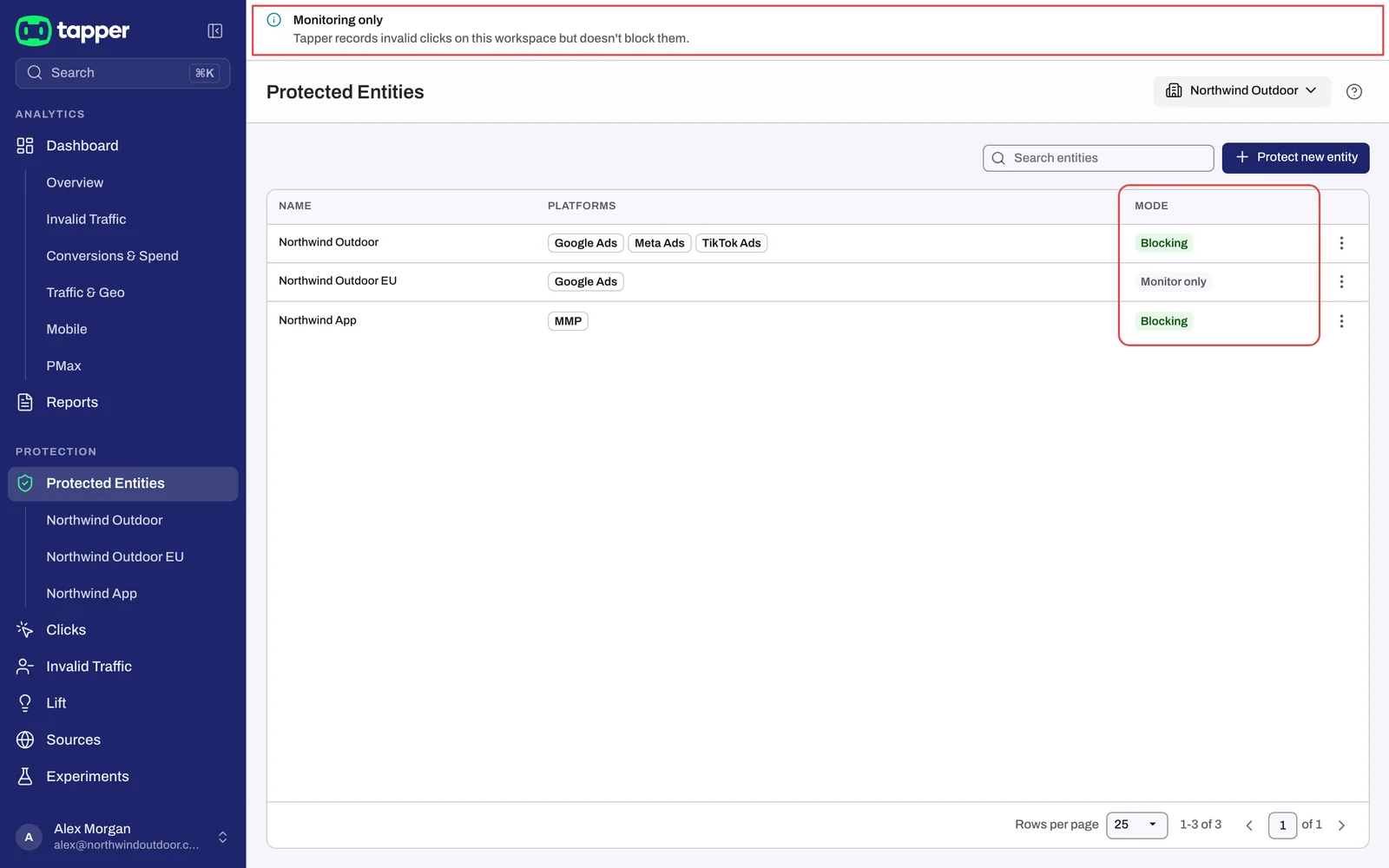
- Check for monitoring-only mode. A notice at the top of every page reads Monitoring only, and the Mode column on Protected Entities reads Monitor only. Every new rule set starts this way. During the free trial and on the Free plan the Monitoring-only mode switch is disabled, because blocking is a paid plan feature: open Settings, Billing, and use Talk to sales. On a paid plan, an Owner or Admin turns the switch off in the Blocking section of the entity's Web detection rules tab. See Monitoring-only mode: why nothing is blocked yet and what changes when blocking starts.
- Check the workspace's products. On a Lift only workspace there is no Block at all: no Exclusions page, no Web detection rules tab and no Protection switches. Blocking needs Block + Lift. See Lift only: what your workspace includes and leaves out.
- Check every rule set. Each rule set has its own Monitoring-only mode switch, and the traffic a set covers is blocked only when that set's switch is off. A custom set that is not assigned to any campaigns, ad accounts or platforms covers nothing yet, so its settings apply nowhere and the Default set handles the traffic. Link it under Applies to, or turn blocking on in the Default set. See Rule sets: apply different rules to platforms, ad accounts or campaigns.
- Check the Protection switches. On the Google protection tab, open Manage campaigns: a campaign with its Protection switch off loses Tapper's audience exclusions and value rules. Performance Max campaigns never take IP exclusions, so look for Tapper's audience exclusion chip (Audience Exclusion or Audience Segment Exclusion) on their row instead. On Meta protection (Manage ad sets) and TikTok protection (Manage ad groups), nothing is protected until its Protection switch is on; nothing turns them on for you. While none is protected, Protect all switches on every ad set or ad group that matches the current filter.
- Check the platform. Meta and TikTok have no IP exclusions, so look for Tapper's audience exclusion on the ad set or ad group rather than IP exclusions.
- Check the account's status chip. On the platform tab, an account card reading Needs reconnect, Not active or Needs attention is in error, and Tapper's syncs skip it until it is fixed. Tapper does not email you when this happens. Click Reconnect, or follow the sentence on the card. See Reconnect an ad account that stopped working.
- Allow for the dashboard's delay. Dashboard figures update every 4 hours. Check the Exclusions page, or the campaign in Google Ads, for what has already been written.
If it still happens
Contact Tapper support with the entity's name, the platform, and the visitor id of one click you expected to be excluded. On the Clicks page, View details on a Google Ads or Meta Ads row opens a drawer whose header shows it. See How to get help from Tapper.
Related
Was this helpful?
Related articles
Still need help?
Chat with our team and mention this article.