

Choose your products: Lift only or Block + Lift
Every new workspace starts with one decision: what Tapper does for it. You make it on the first step of the setup wizard, Choose your products, and you can revisit it in Settings until you connect an ad account.
The two choices
Both choices include Tapper Lift. The difference is Tapper Block, which the app also calls Protection.
| Choice | Description | What it means for you |
|---|---|---|
| Block + Lift | "Lift's recommendations, plus Tapper's tag on your website, detection rules and invalid traffic blocking in your ad accounts." | Lift plus Block: the monitoring script on your website, detection rules on each entity, and exclusions written to your ad accounts. |
| Lift only | "Lift's recommendations for your Google Ads and Meta Ads campaigns. No tracking code on your website, and no audiences or tracking templates in your ad accounts." | Lift alone. Tapper connects to your ad accounts without installing anything: no tracking template, no audiences, no pixel requirement. |
Block + Lift is preselected for every workspace that has not chosen yet. If you press Continue without touching it, nothing is written and the workspace keeps both products.
Tapper Vantage is enabled by Tapper for your workspace, alongside either choice. See Tapper Vantage: what it is and how it works.
Choose in the wizard
- The wizard starts on step 1, Choose your products.
- Select Block + Lift or Lift only.
- Click Continue.
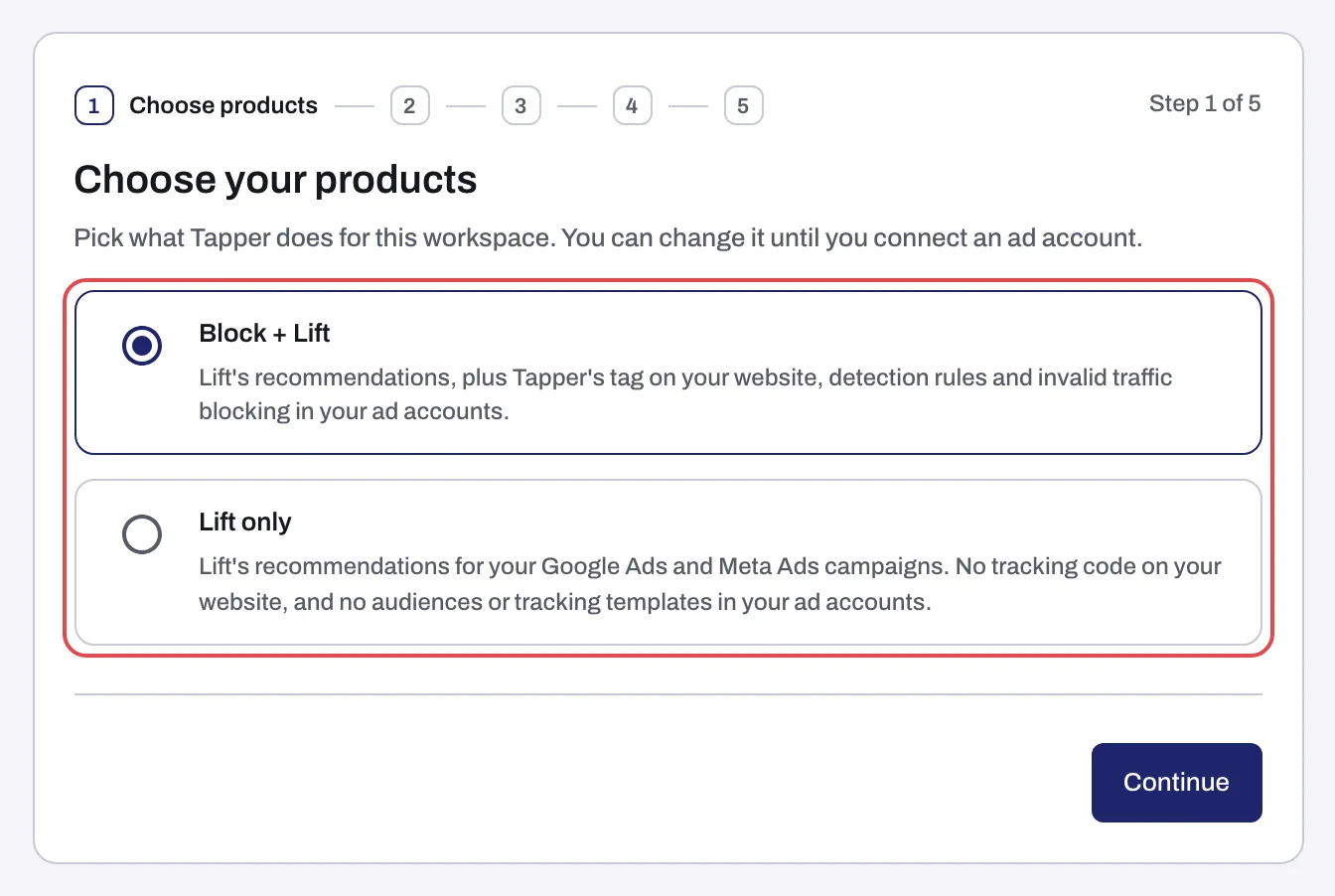
The choice also sets the length of the wizard. With Block + Lift the five steps are Choose products, Name workspace, Connect ad account, Website monitoring and Detection rules. With Lift only there is no monitoring script to install and no detection rules to set, so the wizard has three steps and ends after Connect ad account, landing on Lift. The next step is the same for both: Name your workspace, pick its time zone, industry and domains. When you answer there that you advertise an app measured with Adjust, a Connect Adjust step follows it, on either choice.
If the wizard cannot save the step, press Continue again.
What a Lift only workspace does not show
A Lift only workspace hides every Block surface instead of dimming it. You will not see:
- The sidebar rows Clicks, Exclusions (or Invalid Traffic), Sources, Experiments, Refunds and Click Stream.
- The dashboard tabs other than Overview. The Dashboard row has no child rows, and
/dashboardshows a Lift dashboard built around recommendations and account changes. - The entity tabs Web detection rules, Web click tracking, Website monitoring, the three Mobile app tabs, Auto IP blocking and Click simulation. An entity opens on Google protection. A link to a hidden tab shows "Not part of Lift".
- The Block controls on the Meta protection, TikTok protection and Microsoft protection tabs: no audience card, no Protection column, no bulk actions. Those tabs connect accounts and show their campaigns.
- The Monitor-only notice and the config alignment banner.
- The Mobile app row on the connect step.
When Tapper enables Vantage for a Lift only workspace, the Tapper goals section appears on the Google protection tab.
Two more things to know. Every Lift only entity is created with a default rule that is monitor only, and it cannot be switched to blocking. And Lift checks Google Ads, Meta Ads and TikTok Ads accounts: a Microsoft Ads account on a Lift only workspace gives you its spend data and no Lift recommendations.
The full picture is in Lift only: what your workspace includes and leaves out.
Change the choice in Settings
You can change products in Settings only while no ad account is connected, and only as a workspace Owner or Admin. If two-factor authentication is on for your account, you must have entered your code at sign-in before the change is accepted.
- Open Settings and stay on General.
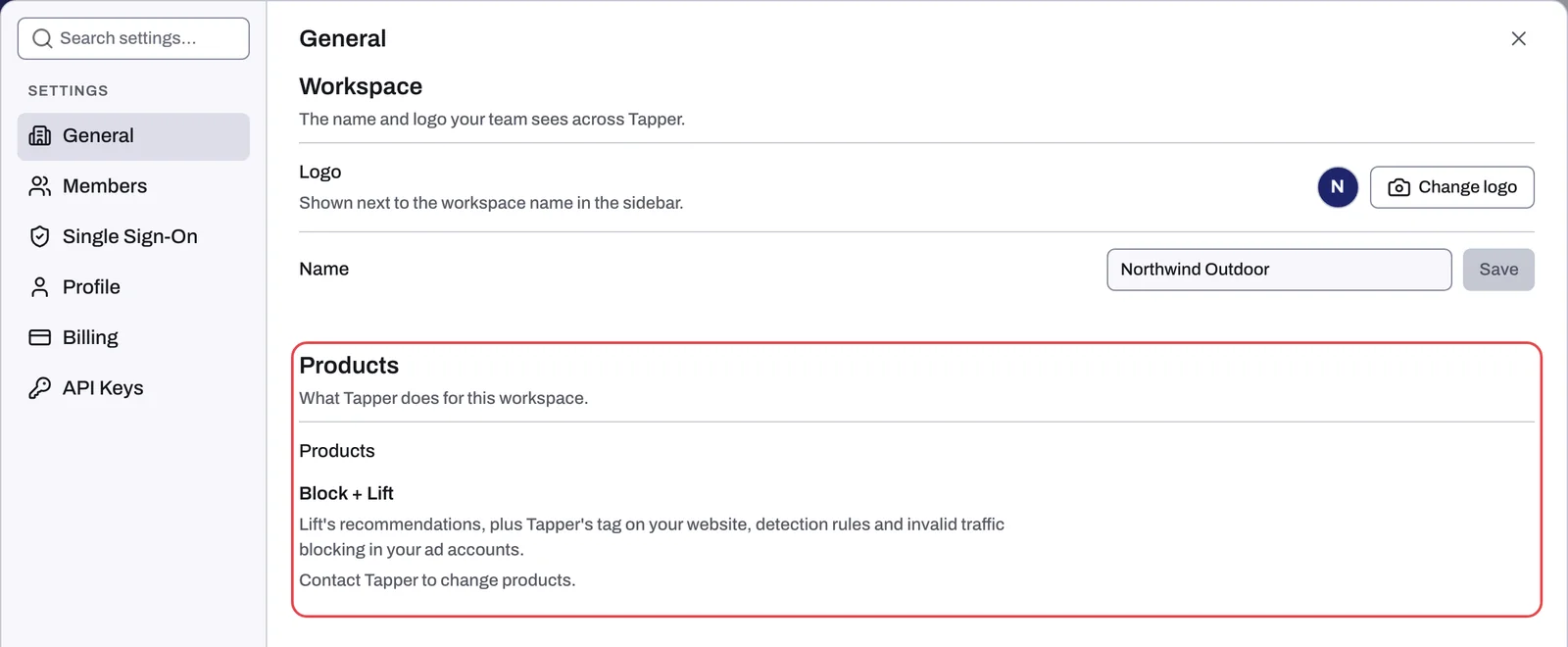
- Find the Products section. Until an ad account is connected, it lists both choices with their descriptions, your current one selected.
- Select the other choice and click Save products.
Editor members see the current choice but cannot change it. Once an ad account is connected, nobody can change it here.
Why the choice locks
The choice can be changed only while the workspace has no live ad account on any platform and no live mobile app (MMP) integration. Once an ad account is connected, the Products section in Settings is read only and says "Contact Tapper to change products." The wizard step refuses the change in the same way.
What is at stake is what connecting writes. With Block + Lift, connecting a Google Ads account sets Tapper's tracking template, conversion actions and audiences in the account, and a Microsoft Ads account gets a tracking template, a UET tag and remarketing lists. With Lift only, none of that is written. Once an account is live, the change goes through Tapper instead of the Products section.
To change products on a connected workspace, write to support@tapper.ai with your workspace name and the choice you want. See How to get help from Tapper.
Related
Was this helpful?
Related articles
Still need help?
Chat with our team and mention this article.