

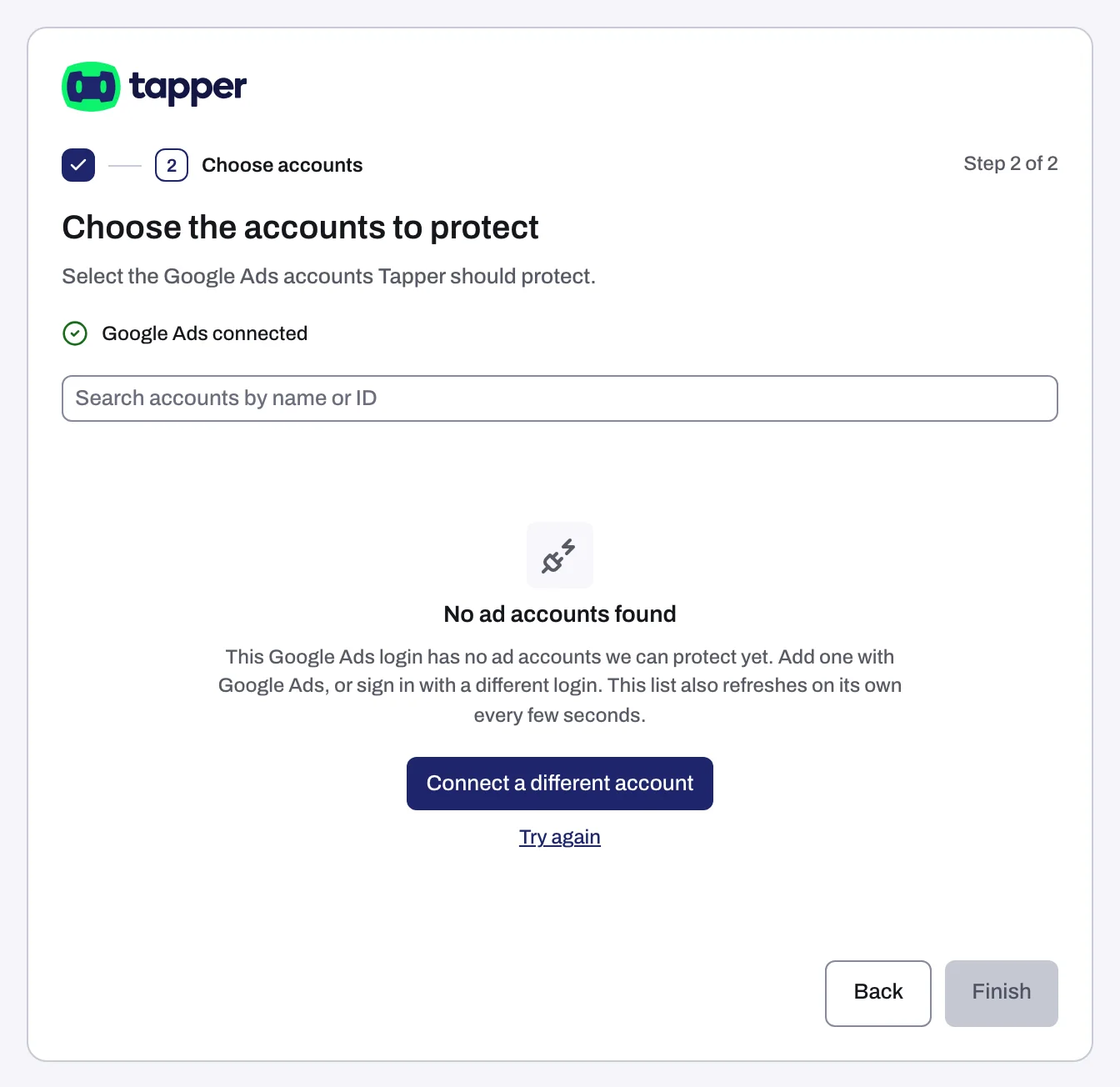
No Google Ads accounts found, or the list did not load
On this page
After you sign in with Google, Choose the accounts to protect (Lift-only: Choose the accounts to connect) lists every Google Ads account your login can open, directly or through a manager account (MCC). Manager accounts are expanded into their client accounts and never listed themselves.
No ad accounts found
The list is empty when you signed in with a different login from the one with access, or the login has no Google Ads account, or only a manager account with no client accounts.
- Wrong login: click Connect a different account and sign in with the right one.
- No access: have someone add your login in Google Ads and accept the invitation (how). No account yet: create one in Google Ads.
- Stay on the page: the list checks again on its own, without a new sign-in. Or click Try again.
No accounts match your search
Click Clear search, then search by the account name or its ID.
Couldn't load your Google Ads accounts
- "Your Google Ads sign-in has ended. Sign in with Google Ads again.": click Connect again.
- Any other reason: click Retry. If it still fails, click Connect again.
If the page sat open a long time, start with Connect again: your sign-in is held for 30 minutes.
Google Ads is limiting requests
"Google Ads is limiting requests right now, so ... wasn't connected. Try again in a few minutes.": wait, then click Retry the failed accounts (or Retry).
An account you picked is refused
- This Google Ads account is already connected: it is on this entity already, on the Google Ads page of Setup > Ad accounts.
- On a Lift-only workspace: "This account is connected in another Tapper workspace. Disconnect it there first." An Owner or Admin there disconnects it, then you connect it here.
If it still happens
- One account is missing: the login cannot reach it, or it is a manager account (pick its client accounts instead).
- The list keeps failing after Connect again: write to support@tapper.ai with the Google login you used and the exact message.
Related
Was this helpful?
Still need help?
Chat with our team and mention this article.