

Connect Meta Ads
On this page
Connecting Meta Ads is a Facebook sign-in and a pick from a list. With Block, Tapper creates an audience of invalid visitors in each ad account, and you choose which ad sets exclude it. On a Lift-only workspace Tapper creates nothing. Either way Lift checks the accounts daily (Connect Meta Ads for Lift).
You need to be a workspace Owner or Admin, with a Facebook profile that has Advertiser or Admin access to each ad account. With Block, each ad account also needs a Meta pixel and accepted Custom Audience terms (Before you connect Meta).
Start from the wizard's Connect an ad account step, or the Meta Ads page of Setup > Ad accounts: Add ad account (or Connect Meta Ads while it has none). See Add another ad account to an entity.
Steps
1. Sign in with Facebook
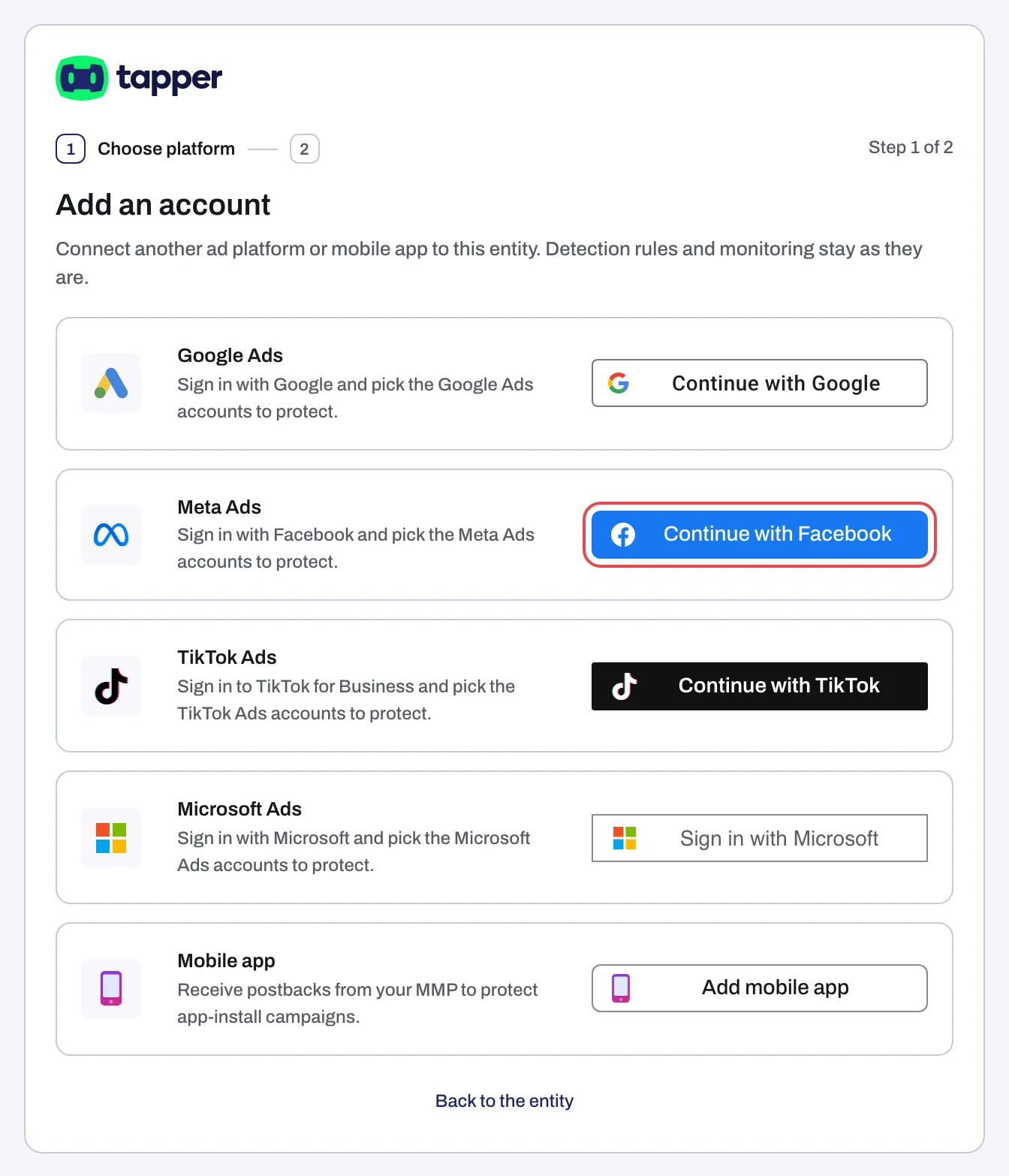
- On the Meta Ads row, click Continue with Facebook. A popup opens, or the same tab if popups are blocked.
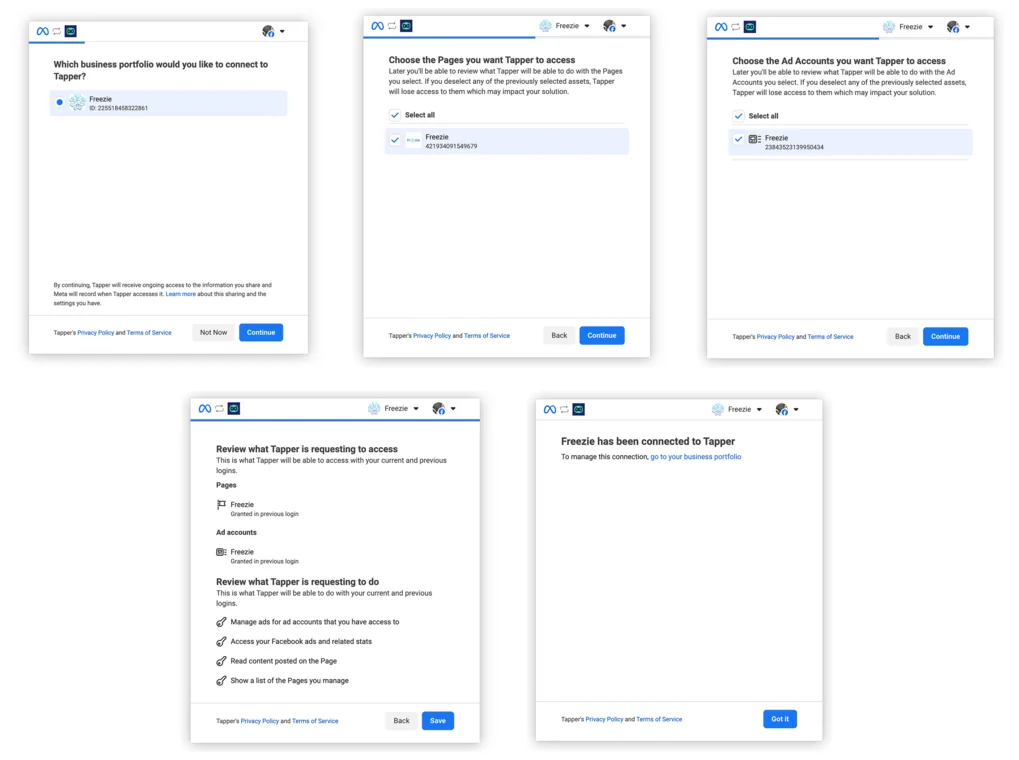
- Log in. If Meta asks for a business portfolio, Pages and ad accounts, include every ad account you want and click Continue on each screen.
- On Review what Tapper is requesting to do, keep Manage ads for ad accounts that you have access to; Tapper needs it. The others are Access your Facebook ads and related stats, Read content posted on the Page and Show a list of the Pages you manage. Click Save.
- Click Got it. Your sign-in is held for 30 minutes.
2. Choose the ad accounts
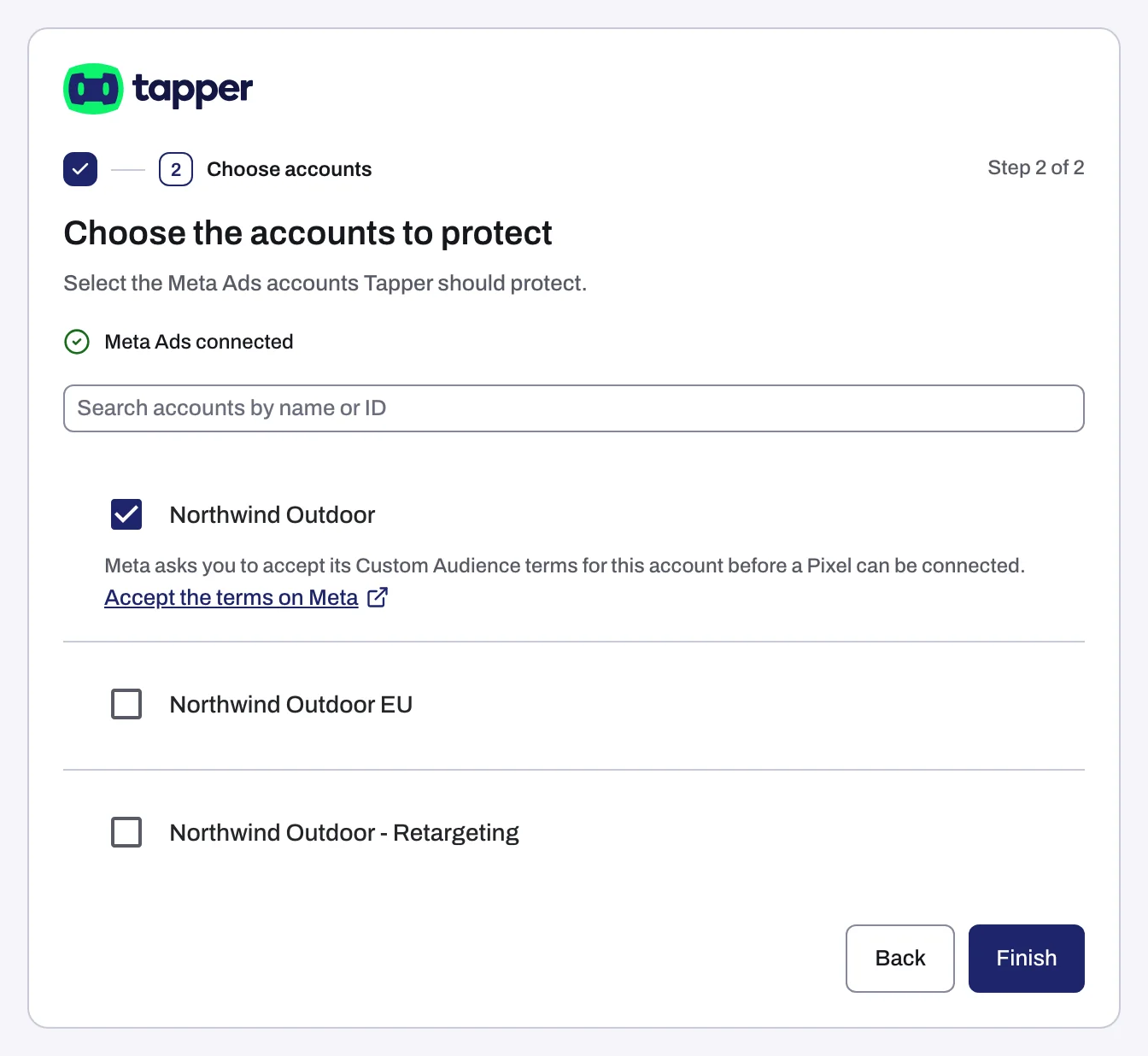
- Choose the accounts to protect (Lift only: Choose the accounts to connect) shows one flat list, by name or Account and its ID. Tick each account.
- With Block, click Accept the terms on Meta for each ticked account and accept them on Meta.
- Click Continue (wizard with Block) or Finish (adding to an entity, or a Lift-only wizard).
Linking takes up to 90 seconds. In the wizard with Block you then go on to install website monitoring; on an entity, Done takes you back. For a partial result, see Meta Ads account could not be connected.
3. Switch on protection for your ad sets
With Block, protection is per ad set, and connecting switches none on. On the Ad sets tab of the Meta Ads page, switch Protection on for each ad set, or click Protect all for every ad set matching the filter. Each one then excludes Tapper's invalid traffic audience. See Protect Meta ad sets and, before switching on many at once, Meta ads and the learning phase after you turn protection on.
What Tapper creates
| Workspace products | What happens when you connect |
|---|---|
| With Block | Tapper creates Tapper - Invalid Traffic Audience on each ad account. It is excluded only from the ad sets you switch on. |
| Lift only | Nothing is created and no pixel is needed. Lift lists its recommendations in Recommendations. |
What happens next
- The Meta Ads tab lists each account under Meta Ads accounts with Connected, its Account ID and Manage ad sets.
- Ad sets sync at connect and every 6 hours, or on Refresh ad sets.
- Add the
ad_idparameter so Tapper ties each click to the exact ad (how). - In a free trial Tapper records invalid clicks without blocking them (Monitor-only). See also When your data shows up after connecting.
If something fails, see Connection failed, Sign-in cancelled or Connection status unknown for the popup and Meta Ads account could not be connected for every other reason. A row that later shows Needs reconnecting or Needs attention: Reconnect an ad account that stopped working.
Related
Was this helpful?
Still need help?
Chat with our team and mention this article.