

Getting the most from Tapper Lift for online stores: a guide for agencies
On this page
Lift works best when it sees the store and the ad accounts together, and when your campaigns use the groups it builds. Most steps are done once. Every screen named here is in The Products page: your products, grouped.
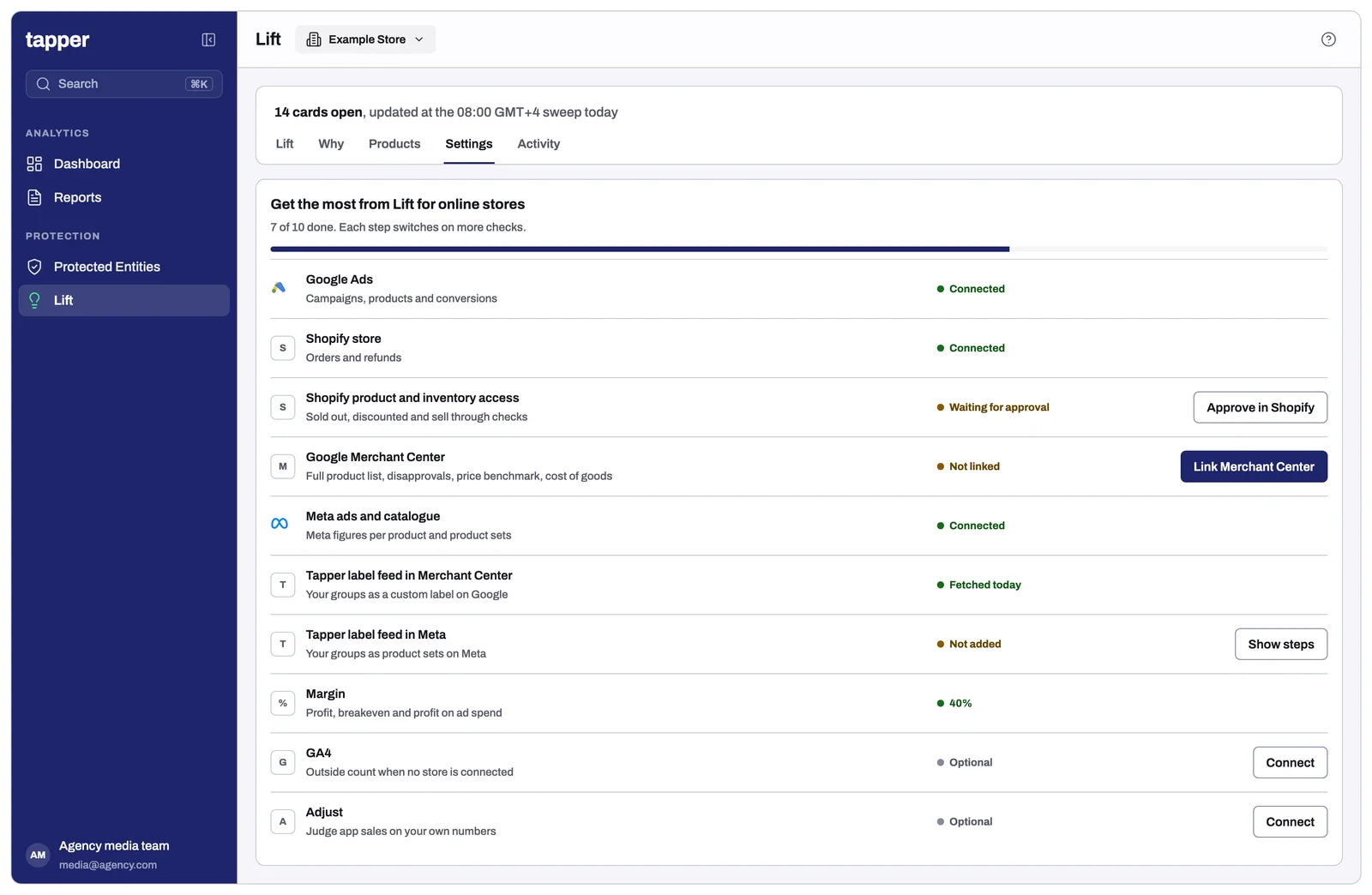
1. Connect what Lift reads
- Google Ads. Every account that runs Shopping or Performance Max for the store. The Products page runs for each account whose products had spend in the last 30 days.
- Shopify. Puts the client's own sales in the table, plus the Store match tile, Your store against Google, refunds, and the Comes back and Slow seller groups. Connect it under Setup > Data sources: see Install Tapper on a Shopify store.
- Meta. With catalogue ads, the Meta tab shows Meta's spend, purchases and purchase value per product.
2. Confirm the settings
On Business details, for each Google Ads account:
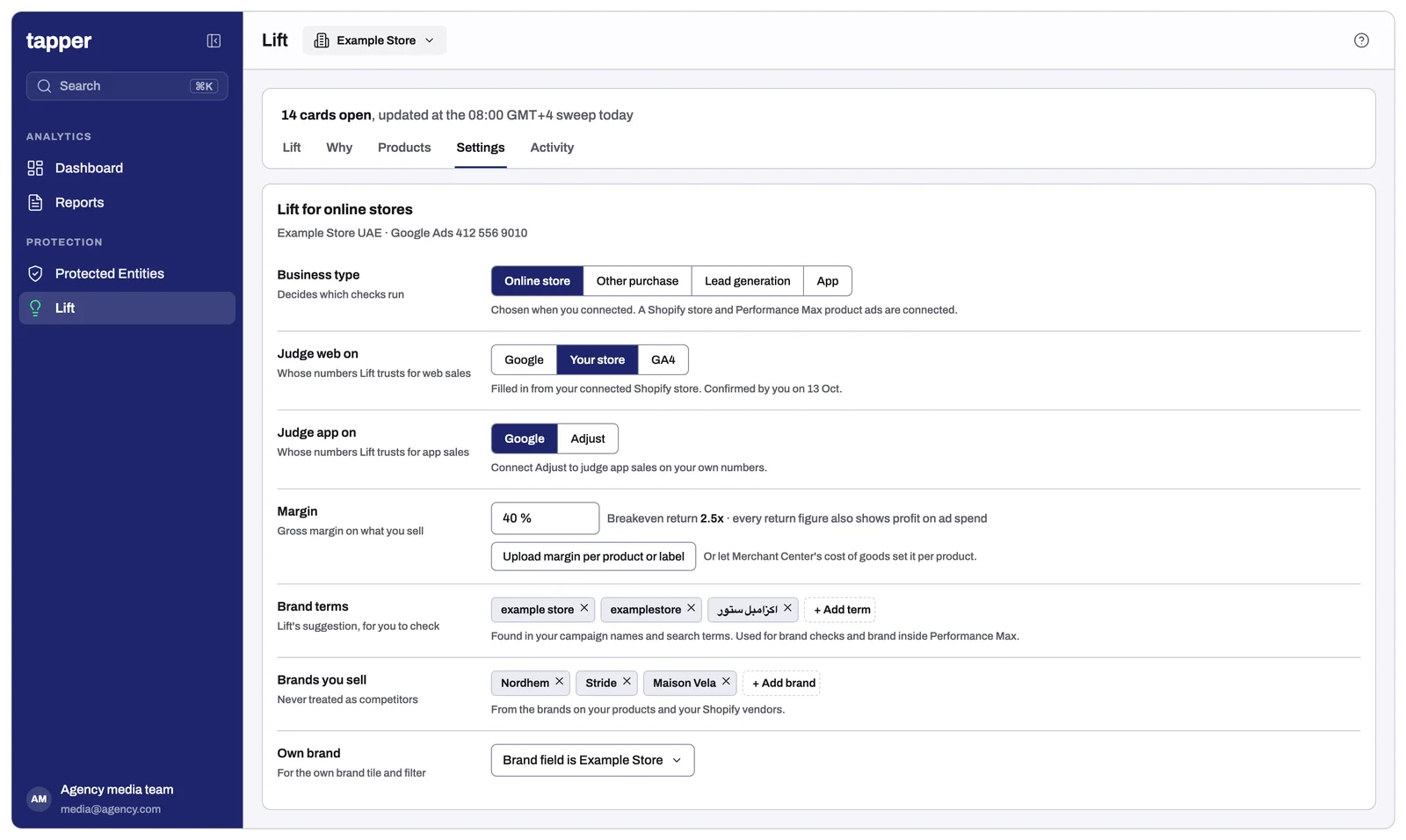
- Business type (General): Online store (you sell products from a catalogue or product feed). It decides which checks run.
- Contribution margin (Google Ads > Judging): each product's panel then shows its Profit.
- Margin by custom label (same tab): if margins vary a lot.
- Brand terms (Google Ads > Brand terms): check the list and add spellings in Arabic and other languages. This enables Own brand, Third party and No brand.
3. Prepare the product feed
- Match product IDs to the store. Store sales show only when the feed ID matches the store's. A low Store match means they differ; fixing that helps Lift's accuracy more than anything else here.
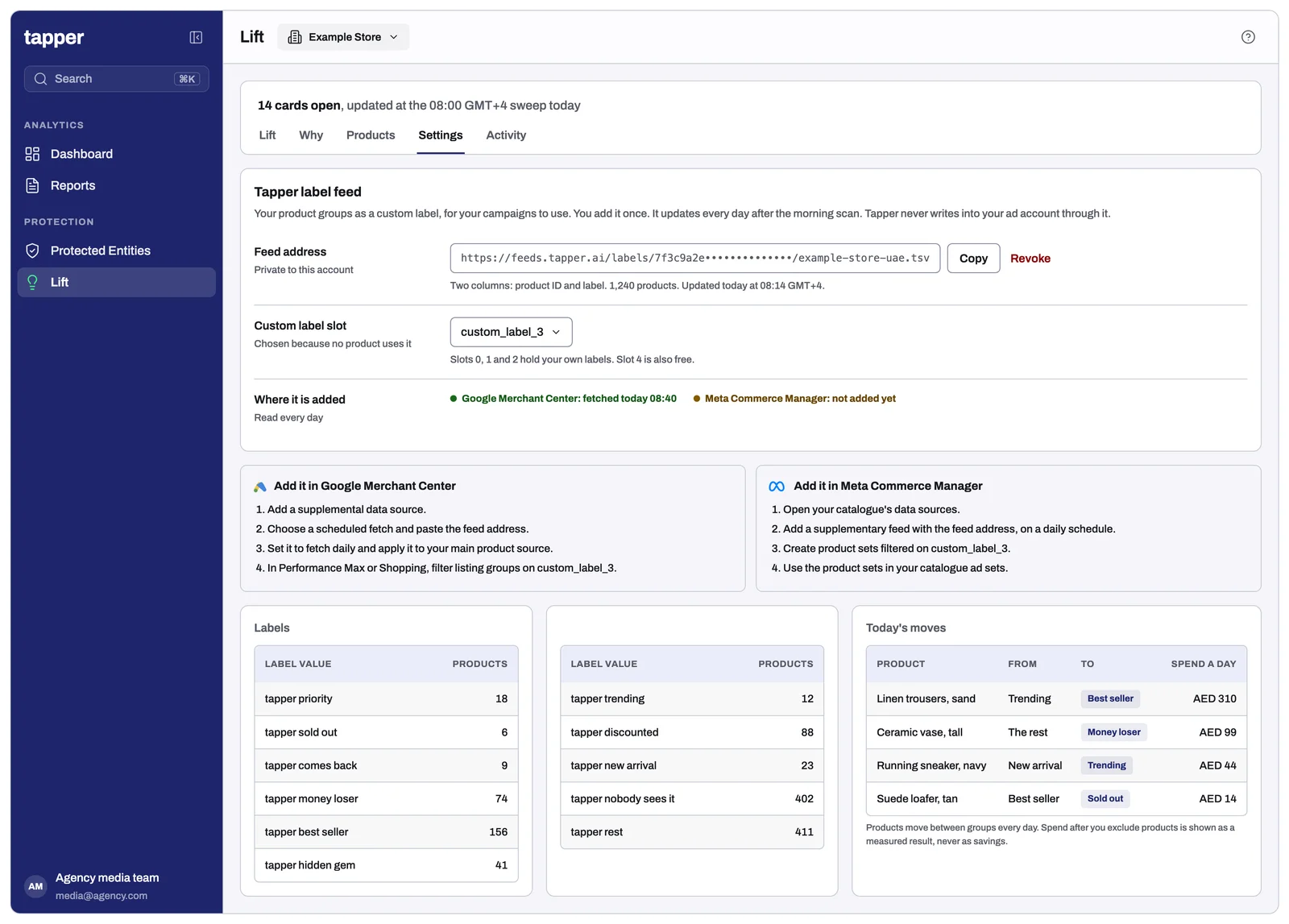
- Keep one custom label slot free (custom_label_0 to custom_label_4). Custom label slots on the Label feed screen shows which are free.
- Use real categories in product type and sensible titles. Problems in the product feed flags promotions or dates as the product type, and titles under 30 or over 150 characters.
4. Clean up conversion tracking
- In sales campaigns, make purchase the only primary conversion action. Set add to cart, checkout and app installs to secondary.
- Remove, or set to secondary, test or staging actions, old Universal Analytics goals and actions that have recorded nothing for a long time.
- File each action under the category it records.
- While Purchases that may be counted twice, Conversion values that cannot be right or Google's conversion count drifting from yours is open, money cards on the campaigns it names read Check first. Hold target and budget changes there until it is fixed. See Conversion tracking in The checks Lift runs on Google Ads.
5. Add the label feed and build on it
This turns Lift's groups into campaign structure. Create the feed and add it to Merchant Center as in Set up the label feed in Google Merchant Center and Meta; its status turns to Read by Merchant Center within a day.
What to do with each group, keeping the client's total budget the same:
| Group | What to do |
|---|---|
| Best seller | Own asset group (Performance Max) or listing group, out of the catalog wide group, so they keep their share when budget runs short. See the plan gives each campaign's starting split. |
| No sales | Exclude through the listing group, or move to a campaign with a stricter target. The label never takes out a product that sells: Under target has its own label. |
| Under target | Keep and watch. The Campaigns column shows each campaign against its target. |
| Hidden gem, Trending and New arrival | Own asset group so Google shows them. |
| Nobody sees it | For products that matter, an asset group with a lower target forces some exposure. |
| Comes back | Lower the bid or exclude products refunded much more than the rest. Google counts the sale but never sees the refund. |
| Slow seller | Clearance candidates: own asset group or listing group, budget unchanged. |
| Priority | The client's push products, as their own asset group. |
Labels follow products between groups after each daily scan, so listing groups need no editing. The Group column says since when a product is in its group.
6. Keep the merchandising list
Ask the client's category or ecommerce manager which products to mark, under Lift > Products > Merchandising list:
- Push: must-sell products, such as new ranges and hero products. They go into Priority.
- On hold: out of every group and the label feed, such as gift cards or items being withdrawn.
- Clearance: end of season or overstock.
Format and upload: The merchandising list. Refresh it before each season or promotion; the screen says how many lines end soon.
7. Work the page every week
- Start with the four cards on the Products page.
- Then the conversion tracking cards in Recommendations: until fixed, other cards' money reads Check first.
- Mark as done when you act on a card.
- Not for this account when a check does not fit, such as a placement kept for reach. It is listed under Business details > Google Ads > Checks switched off, where it can be undone.
- A Performance Max network not paying its way: there is no per-network switch, so use placement exclusions, the asset mix and brand exclusions.
8. Give it time
Groups appear after the first daily scan. New arrivals are named after 14 days of reading the account's products. Trending compares the last 7 days with the 7 before. Comes back needs refunds on at least 5 orders in 60 days.
Checklist
- Google Ads and Shopify connected; Meta too, with catalogue ads.
- Business type, contribution margin and brand terms confirmed.
- Store match is high.
- A custom label slot is free.
- Purchase is the only primary action in sales campaigns.
- The label feed reads Read by Merchant Center.
- Best sellers have their own asset group; no sales products are excluded through the label.
- The merchandising list is set, with end dates.
Related
Was this helpful?
Still need help?
Chat with our team and mention this article.