

Lift emails: settings alerts and the weekly summary
On this page
Lift sends two emails: a settings alert when it flags a setting on your Google Ads accounts, and a weekly summary of what it found on every platform. Each is a ready-made alert rule of the workspace: while switched on, it emails the people it names, or the Owner and Admins when it names nobody. Anyone it emails can stop it for themselves. Neither email changes an ad account.
Turn the emails on
- Under Analytics in the sidebar, select Dashboard.
- Beside the Lift heading, Alerts are off for these accounts shows while either email does not reach you. Press Turn on.
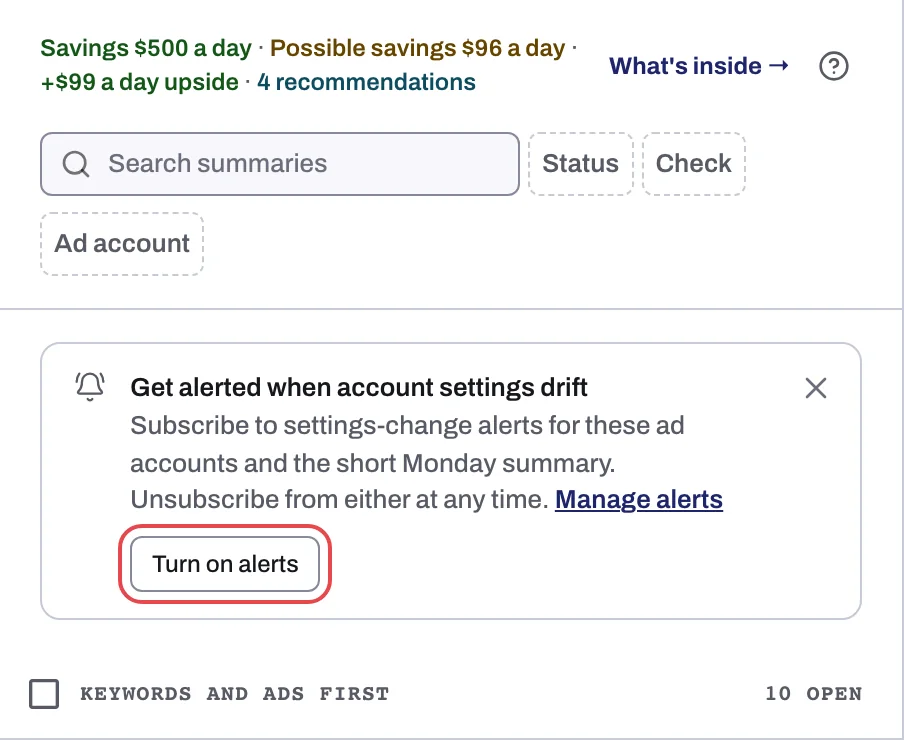
One press covers both emails, and the confirmation links to Settings > Alerts (Manage alerts). It lifts any stop of yours in every workspace. Where you are Owner or Admin, it also switches on a Lift rule the workspace does not have yet, and adds you where the rule names people. It never switches on a rule someone switched off: an Owner, Admin or Manager does that in Alerts > Rules. As a Manager or Viewer, you get the emails only if the rule names you. The line goes once both reach you.
Turn an email off
In Settings > Alerts > Emails, each alert that emails you has one row per workspace. Switch a Lift email off or on and press Save. The switch applies in every workspace you belong to.
The settings alert ends with an Unsubscribe link for that email only. It works without signing in and stops it everywhere. The weekly summary has no such link, but your mail app's own Unsubscribe beside the sender stops it the same way. Turn on on the dashboard turns both back on.
Choose who receives an account's emails
The rules are Lift: settings changed and Lift: weekly summary. An Owner, Admin or Manager changes one:
- Under Alerts in the sidebar, select Rules and open the Lift rule.
- Make sure it is switched on: a switched-off rule emails nobody. Under Who is told, and how, People lists who gets it (anyone in the workspace, or a group); empty means the Owner and Admins. Under What it watches, Where narrows it to some ad accounts. Under When, Send sets the timing.
- Press Save.
The settings alert
Google Ads only. Lift flags an account when its daily check sees a new or returning Campaign settings finding (such as Search Partners on), or a setting back on after being switched off.
You get at most one a day, sent shortly after the day's first flagged account, listing every account flagged that day in every workspace whose rule emails you. Later flags go in the next day's email. Days count in UTC.
- One account: subject "{account}: {N} setting changes need review" ("{account}: 1 setting change needs review" for one). It lists every open settings finding on the account, each with its campaign in parentheses.
- Several: "Setting changes need review on {N} ad accounts". Accounts with the most findings first, up to 5 findings each, then "And {N} more on the Recommendations page." Up to 15 accounts in full; one line names the rest.
Review settings opens Recommendations on its Campaign settings findings; with several entities, pick the account's entity in the switcher. To stop Lift flagging a setting you run on purpose: Account settings Lift watches.
The rule sends In the daily digest by default. Send can also be Right away (one email per account when flagged, at most once in 24 hours per account), In the weekly digest (Monday 09:00 in the workspace time zone) or On a schedule.
The weekly summary
Every Monday at about 09:00 in the workspace's time zone (Workspace time zone), even in a week with nothing open. If several workspaces' rules email you, one email covers them all, sent at the first one's Monday 09:00. Send > On a schedule picks another day and time.
Subject: "{workspace} | Tapper Lift: this week's checks", or with several, "Tapper Lift: this week's checks on {N} workspaces", each workspace in its own part, never added together.
| Part | What it shows |
|---|---|
| Opening line | What Lift found, or checked, this week. |
| Savings | Savings a day and a month, as on the Lift page, split into ready to act on and to check first. One line per currency, never converted. With none, "No new savings this week." |
| Each ad account | Platform and name, up to 5 findings in the card's words, then "And {N} more on the Lift page." and one Action: the change to make first. Nothing open reads "Checked {N} campaigns: no wasted spend found." Up to 10 accounts per workspace in full. |
| What we need from you | The next step with a link, such as "Apply or dismiss the changes above on the Lift page.", or "Nothing this week." |
It lists open cards only, so a card marked as done, dismissed or resolved drops out of the next one.
What no email covers
These two are the only Lift emails. None goes out for a new recommendation, a fix applied, failed or reverted (see Results > Activity), a setting change on Meta Ads or TikTok Ads, a day an account's rows leave the list, or a lost connection (Tapper marks it Needs reconnecting, Not active or Needs attention: see Reconnect an ad account that stopped working). Lift has no Slack or chat alerts. The dashboard's Campaign settings need review notice is in Lift on the dashboard, and the monthly report email mentions Lift when the report has a Tapper Lift section (Monthly reports).
If an email does not arrive
- The Lift rule is switched off in Alerts > Rules, the most common reason. Turn on does not switch it back on; an Owner, Admin or Manager does.
- The rule's People do not name you (empty means only Owner and Admins), or Where leaves the account out.
- You stopped it: Alerts are off for these accounts still shows. Press Turn on, or check Settings > Alerts > Emails.
- An account is missing from the summary: it lost its connection, until reconnected.
- No settings alert: the account is not on Google Ads, or nothing opened or switched back on. Look for the one daily email listing every flagged account.
- Recommendations shows blurred with Unlock recommendations: no Lift email goes out meanwhile.
- A new workspace with empty Recommendations: contact your Tapper contact, see No Lift recommendations yet.
Each sent email shows in Results > Activity > Changes as Email sent, with its ad account. Email links open Lift in the workspace you have open; if the email is about another, switch and press the link again.
Related
Was this helpful?
Still need help?
Chat with our team and mention this article.