

Blocking-lift experiments: measure what blocking saves
On this page
A blocking-lift experiment measures what Tapper's blocking is worth on one Google Ads campaign. Tapper sets up a Google Ads campaign experiment: your live campaign stays protected, and Google's copy of it runs with Tapper's exclusions removed.
You compare the cost per acquisition (CPA) of the two. Experiments are part of Tapper Block.
How it works
- The control (the base) is protected. It is your real campaign, with Tapper's exclusions in place throughout.
- The treatment (the trial) is not. It is Google's copy with Tapper's exclusions removed. It gets the traffic share you choose, is exposed to invalid traffic and spends real budget while the experiment runs.
- Audience and IP exclusions are measured. Placement exclusions apply to the whole account, so they affect both halves the same way.
- Tapper adds no IP or audience exclusions to Video or Hotel campaigns.
- So nothing differs between the two halves in a test on either: choose a Search or Display campaign instead.
- Blocking has to be on. In monitor-only the protected campaign blocks nothing, so the test cannot show a difference. See Switch blocking on or off.
Before you start
- You are an Owner, Admin or Manager of the workspace, and it includes Block.
- The entity has a connected Google Ads account. Without one, the tab reads Connect Google Ads to start protection.
- The account has a Search, Display, Video or Hotel campaign. Other types, Performance Max included, cannot be split.
Create an experiment
- If your workspace has two or more entities, pick one in the entity switcher.
- Open Analytics > Experiments, then the Google Ads experiments tab.
- The page's tabs are:
- Vantage tests
- Google Ads experiments
- Meta Ads experiments
- TikTok Ads experiments
- Microsoft Ads experiments
- Deployment A/B tests
- The page's tabs are:
- Under Blocking-lift experiments, click Create experiment. The Create blocking-lift experiment dialog opens. With no experiment running, the card reads No active experiments.
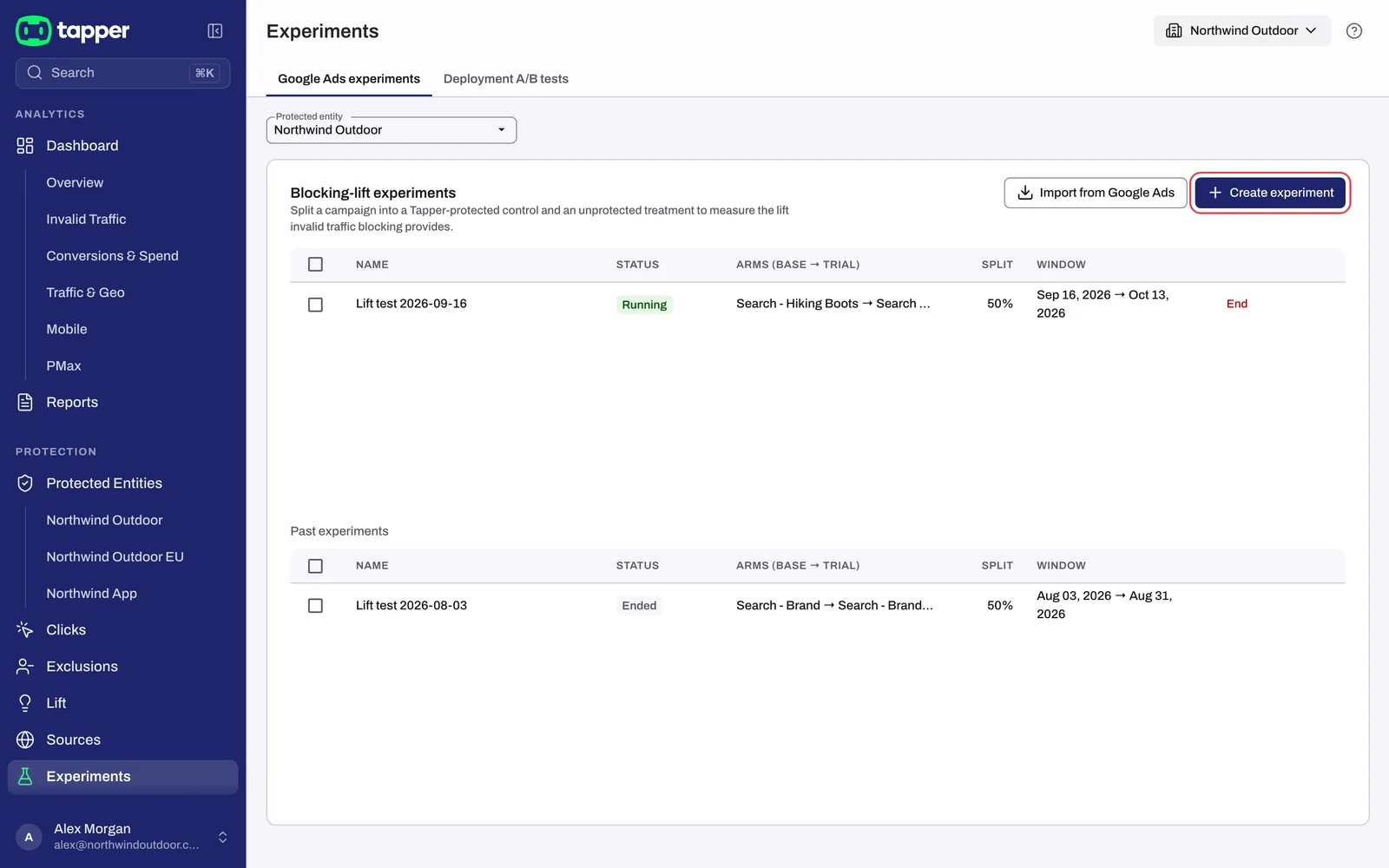 Example: drawn with made-up figures.
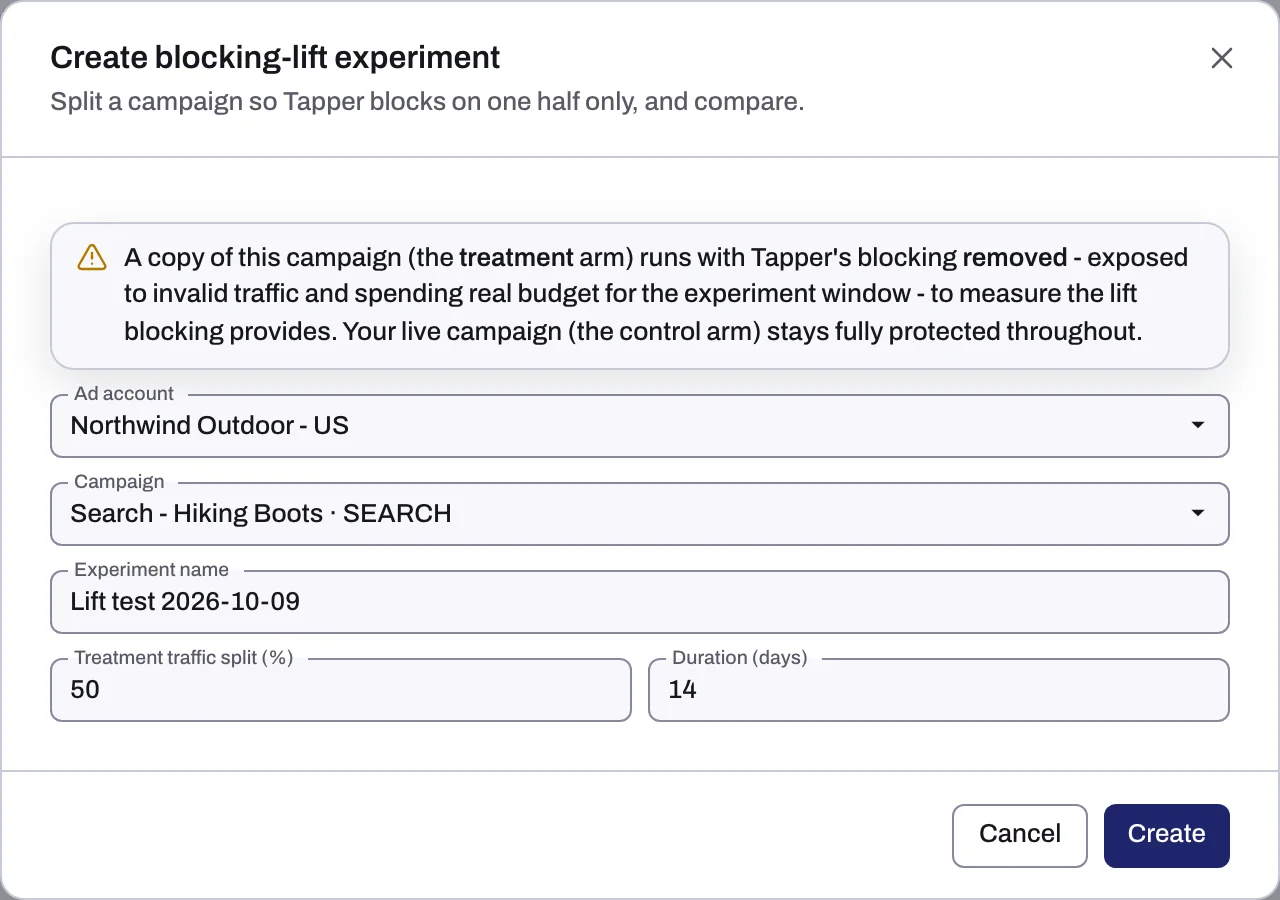
- Read the warning at the top: the treatment runs without Tapper's blocking and spends real budget; your live campaign stays fully protected.
- Fill in the fields:
| Field | Default | What to know |
|---|---|---|
| Ad account | The connected Google Ads account that runs the campaign | |
| Campaign | Only Search, Display, Video and Hotel campaigns are listed | |
| Experiment name | "Lift test" followed by the date | Any name you will recognize |
| Treatment traffic split (%) | 50 | 1 to 99: the share of traffic that goes to the unprotected copy |
| Duration (days) | 14 | At least 1 day; the field suggests up to 90 |
- Click Create.
Import a Google experiment
Import from Google Ads, beside Create experiment, opens Import experiments from Google Ads: "Adopt a test you built in Google Ads so Tapper reports on it."
The dialog lists the experiments in your Google Ads account, with the columns:
- Experiment
- Campaigns (control → treatment)
- Type
- In Google Ads
- In Tapper
Tick the ones to adopt and click Import.
Importing changes nothing in Google Ads. It records the experiment in Tapper, and Tapper stops adding its exclusions to each treatment campaign, so the control campaign stays protected and the treatment campaign runs without Tapper.
The status and dates keep following your Google Ads schedule. An experiment already listed reads "Already in the dashboard."
Follow your experiments
The list has the columns:
- Name
- Status
- Arms (base → trial)
- Split
- Window
Status is one of:
- Draft
- Scheduled
- Starting
- Running
- Ended
- Graduated
- Cancelled
- Failed
Ended, Graduated and Cancelled experiments move to Past experiments.
- End appears on Draft, Scheduled, Starting and Running experiments. End experiment? explains that ending clears the control and treatment tags and stops the treatment campaign. Click End experiment to confirm.
- Delete appears on a failed experiment. Delete experiment? asks first; click Delete to confirm and it leaves the list.
Read the results
Click an experiment to open Experiment results on a page of its own (Google Ads experiments at the top takes you back).
The header shows the base campaign (protected) against the trial campaign (unprotected), the split, the dates and progress (day N of M). Only days on which both campaigns ran are compared.
Until then the page shows No results; first results are expected within 24 hours of the start. Then a verdict sits at the top:
| Verdict | When it shows |
|---|---|
| Protection is winning so far | Protected CPA is clearly lower than unprotected CPA |
| The unprotected campaign is ahead so far | Protected CPA is clearly higher than unprotected CPA |
| No clear CPA difference so far (No clear CPA difference once it has ended) | The two CPAs are close to each other |
| Too early to call (Not enough data to call once it has ended) | Either half has too few clicks or conversions to compare |
The verdict leaves out the most recent days.
Below it, tiles compare:
- CPA
- CPC
- Conversion rate
- Conversions
- Visitors
- Spend
- Flagged visitors share
Charts follow, such as:
- Performance over time
- Google invalid click rate - both arms
- Invalid traffic by reason - Base (enforced)
Data refreshes every hour.
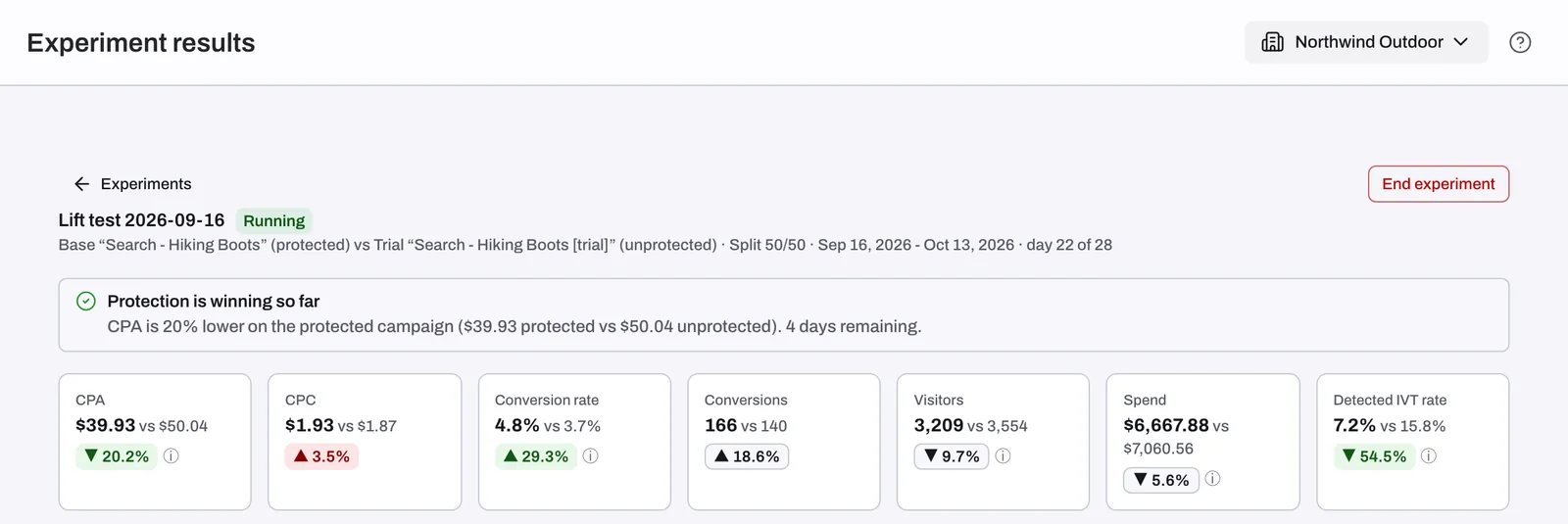 Example: drawn with made-up figures.
Meta, TikTok and Microsoft
Each platform has its own tab on the Experiments page, with Create experiment and the lists Current experiments and Past experiments:
- Meta Ads experiments: "Split one ad set's traffic in a Meta split test, one half with Tapper's blocking and one without." The list adds a What it tests column.
- Microsoft Ads experiments: "Run one campaign with and without Tapper in a Microsoft Ads experiment."
- TikTok Ads experiments: "Run an ad group or a Smart+ campaign with and without Tapper in a TikTok split test."
Compare several experiments
Tick running, ended or graduated experiments, then:
- View summary (N) opens Experiment summary: protected base arms against unprotected treatment arms, summed, with a Per-experiment breakdown. It needs at least 2 experiments in the same currency.
- Native A/B (N) opens Native A/B analysis, which also works with one experiment.
- It is "Built from Tapper's own data (conversions matched to the ad click, and block decisions), separate from the Google-reported summary."
- It takes a few minutes and the page updates on its own.
- It leaves out campaigns with too little data to compare.
You can tick up to 50. Then the other boxes are disabled and a note reads "Up to 50 experiments can be compared at once."
Untick one to pick another.
If something goes wrong
- "This account has no Search, Display, Video or Hotel campaigns. Experiments are only supported for those campaign types." Pick another ad account, or create a campaign of one of those types.
- "This test cannot show Tapper's effect yet": the account is in monitor-only. Turn blocking on for it.
- "This experiment failed during setup": click Delete and create it again.
- "These experiments use different currencies": tick experiments from accounts that share a currency.