

Rule sets: every setting, tab by tab
On this page
A rule set tells Tapper Block what counts as an invalid click. Every protected entity has one or more. Each section below links to the article that covers it in depth.
Where to find it
- If your workspace has more than one protected entity, pick it in the switcher at the top of the sidebar.
- In the sidebar, under Setup, click Rule sets.
- Pick a set under Ad campaigns (on a phone, in the Rule set select). The set named Default applies where no other set is linked and cannot be deleted.
A set's tabs are Click limits, Detection features, Countries, Monitor-only and Applies to. New rule set creates a set, and a set's ⋮ menu offers Rename and, for a custom set, Delete: see Rule sets: apply different rules to platforms, ad accounts or campaigns.
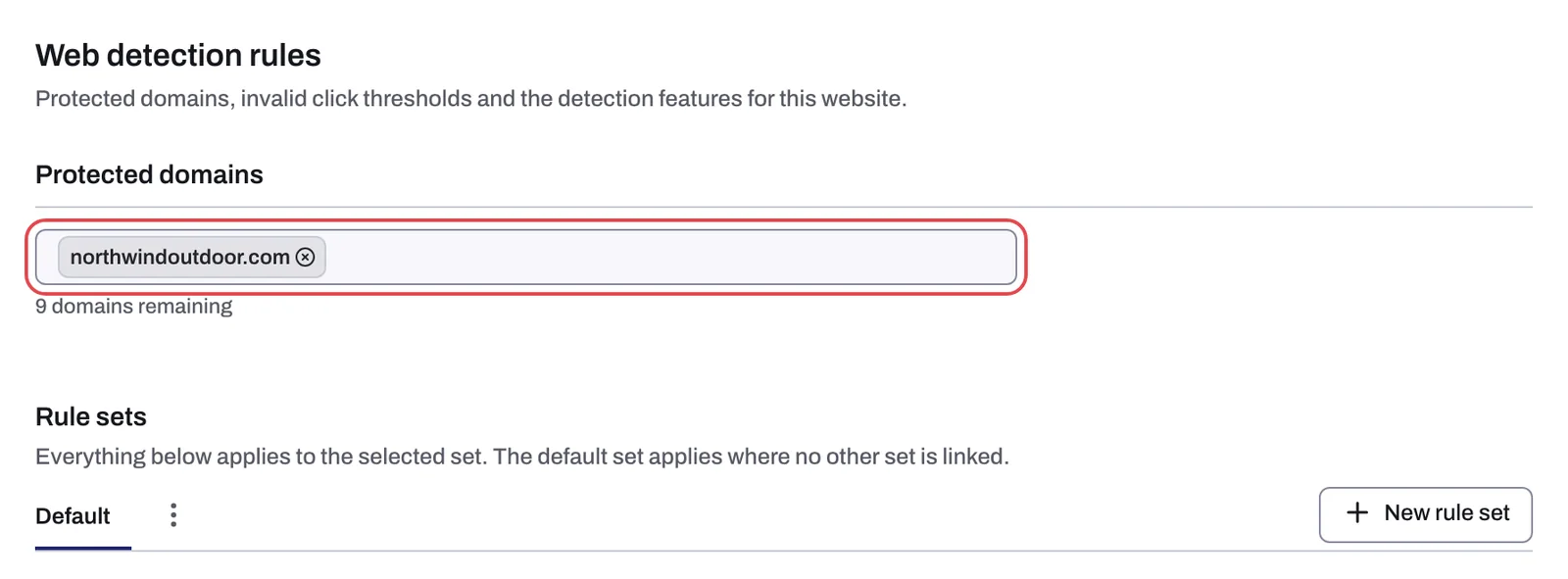
The domains the monitoring script runs on are not part of a rule set: they are under Protected domains in Setup > Website > Domains. Nor are IPs you exclude by hand: see Manually exclude IP addresses and ranges.
Click limits
Ad click limits. A visitor who clicks your ads more often than any of these limits is blocked. You can add as many as your plan allows.
- Each row reads Block after [N] clicks within [M] [unit], with Seconds, Minutes, Hours or Days. The trash icon removes a row; Add limit adds one.
- Suggest limits opens Choose your industry. Use suggested rules adds that industry's preset rows and saves them at once.
See Set invalid click thresholds and Suggested thresholds by industry.
Aborted ad clicks. This list does not decide the Aborted ad click flag, which comes from a check that is the same for every account. See Aborted ad clicks.
Detection features
Eight rows, in this order. A row without a chip has no recommendation.
| Control | Chip | What it does | New rule set |
|---|---|---|---|
| Block JavaScript-disabled browsers | Recommended: On | Blocks an IP when a browser with JavaScript turned off clicks your ads (usually a bot). | On |
| Block VPN traffic | Recommended: Off | Blocks any IP that uses a VPN (Virtual Private Network) to click your ads. | Off |
| Block suspicious click behavior | Recommended: On | Uses recorded user behavior to decide whether a click came from a valid or an invalid source. | On |
| Suspicious ad clicks | none | Blocks any IP that clicks this many times without any events on page. | 3 |
| Minimum seconds on site | none | Blocks any IP that spends less than this many seconds on your site. | 2 |
| Block repeat clicks from one device | none | Detects IPs used by the same device ID to click your ads repeatedly. | On |
| Block across ad platforms | none | Checks for invalid clicks and blocks them on Google, Meta and TikTok. | Off |
| Block tracking pixels for invalid traffic | Recommended: On | Stops Google Analytics and the Meta Pixel from firing for visitors Tapper blocked. | Off |
See Detection features: what each switch does, Suspicious ad clicks and minimum seconds on site, Device blocking, Cross-platform blocking and Pixel Guard.
Countries
Block by country decides which countries can reach your site from your ads, by the visitor's IP country: Block these countries (everyone else is allowed) or Only allow these countries (everyone else is blocked). See Block or allow clicks by country.
Monitor-only
One switch, chip Recommended: Off: "When on, Tapper flags invalid traffic for this set but does not block it." Every new rule set starts with it on, so Tapper writes no exclusions from what it detects until you switch it off. During a free trial it cannot be switched off. See Switch blocking on or off: what changes in your ad accounts.
Applies to
Which ad platforms, ad accounts and campaigns the set judges: Ad platforms (Add platform), Ad accounts (Add ad account) and Campaigns (Add campaigns). Campaigns this set protects shows the result. An ad account belongs to one rule set at a time. The default set covers every campaign not linked to another set.
What a new rule set starts with
Every new set starts with the values in the Detection features table and Monitor-only on. A custom set starts with no click limits. On a workspace with Block, onboarding fills the default set with your industry's preset, plus one Aborted ad clicks row (5 aborted clicks within 1 day), which does not decide the Aborted ad click flag. The last onboarding step, Set your detection rules, shows the default set's settings.
Related
Was this helpful?
Still need help?
Chat with our team and mention this article.