

Get started with Block
On this page
Lower your CPA by removing invalid traffic, not only bots. Tapper Block screens every ad click on your website. Once blocking is on, it writes exclusions into your ad accounts so invalid traffic stays away from your ads. Block is part of the Block, Vantage and Enterprise plans. Start here: set up Tapper in five steps walks through the whole setup wizard.
Where Block is in the app
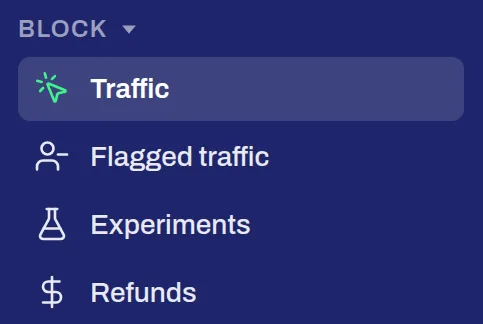
Block has its own section in the sidebar:
- Traffic: every ad click Tapper recorded, with its verdict, on the tabs Clicks and Sources.
- Exclusions: what Tapper excludes in your ad accounts. It reads Flagged traffic while your workspace is in monitor-only.
- Experiments: tests of what Block does for your campaigns.
- Refunds: the invalid clicks you can claim back from Google Ads.
Step 1: connect an ad account
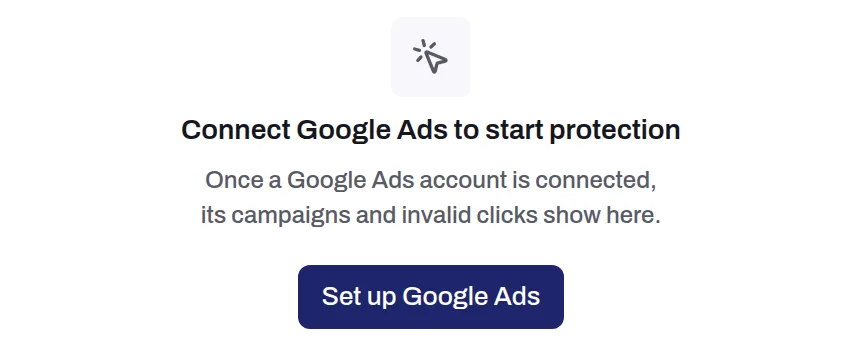
Until you connect one, Traffic reads Connect Google Ads to start protection. Press Set up Google Ads, or connect any ad account on Setup > Ad accounts. Block blocks on Google Ads, Meta Ads, Microsoft Ads, LinkedIn Ads, Snapchat Ads and Apple Ads, and records invalid traffic on TikTok Ads. See Connect Google Ads and What Tapper creates in your Google Ads account.
Step 2: install the monitoring script
The script watches each visit from an ad to your website. Install it on every page of your protected domains, pasted into the page or through Google Tag Manager. Find it on Setup > Website > Monitoring. See The monitoring script: what it does and where to find it.
Step 3: set your detection rules
Your rules decide what counts as invalid traffic. Set them per protected entity on Setup > Rule sets: ad click limits, switches such as Block VPN traffic and Block repeat clicks from one device, and a country rule. Suggest limits adds the presets for your industry. See Rule sets: every setting, tab by tab.
Step 4: switch blocking on
A new workspace starts in monitor-only: Tapper records and reports invalid traffic and blocks nothing. When the numbers look right, switch blocking on and Tapper starts writing exclusions. See Switch blocking on or off: what changes in your ad accounts and Monitor-only: why nothing is blocked yet.
Screen, part of Block
Screen checks every form submission for bots, fake emails and junk entries, so fake leads stay out of your CRM. See Screen, part of Tapper Block.
Related
Was this helpful?
Still need help?
Chat with our team and mention this article.