

Protect TikTok ad groups: Protect all or one at a time
Tapper Block protects TikTok ads one ad group at a time. Each ad group has a Protection switch on the entity's TikTok protection tab: switch it on and Tapper adds its 90-day invalid traffic audience to that ad group as an exclusion, switch it off and Tapper removes it. You can also protect every ad group in a list at once. Connecting a TikTok account does not switch any ad group on, so this is the step that starts protection on TikTok.
Before you start
- A Block + Lift workspace with a TikTok Ads account connected to the entity. See Connect TikTok Ads.
- The Owner or Admin role. Editor members can see the list but cannot change it.
- The account card on the Overview sub-tab shows Connected. If it shows Needs reconnect, reconnect TikTok first: see Reconnect an ad account that stopped working.
Open Manage ad groups
- In the sidebar, open Protected Entities and click the entity.
- In the left rail, under Ad platforms, click TikTok protection. The tab opens on the Overview sub-tab.
- Click the Manage ad groups sub-tab, or click Manage ad groups on an account card to open the list for that account.
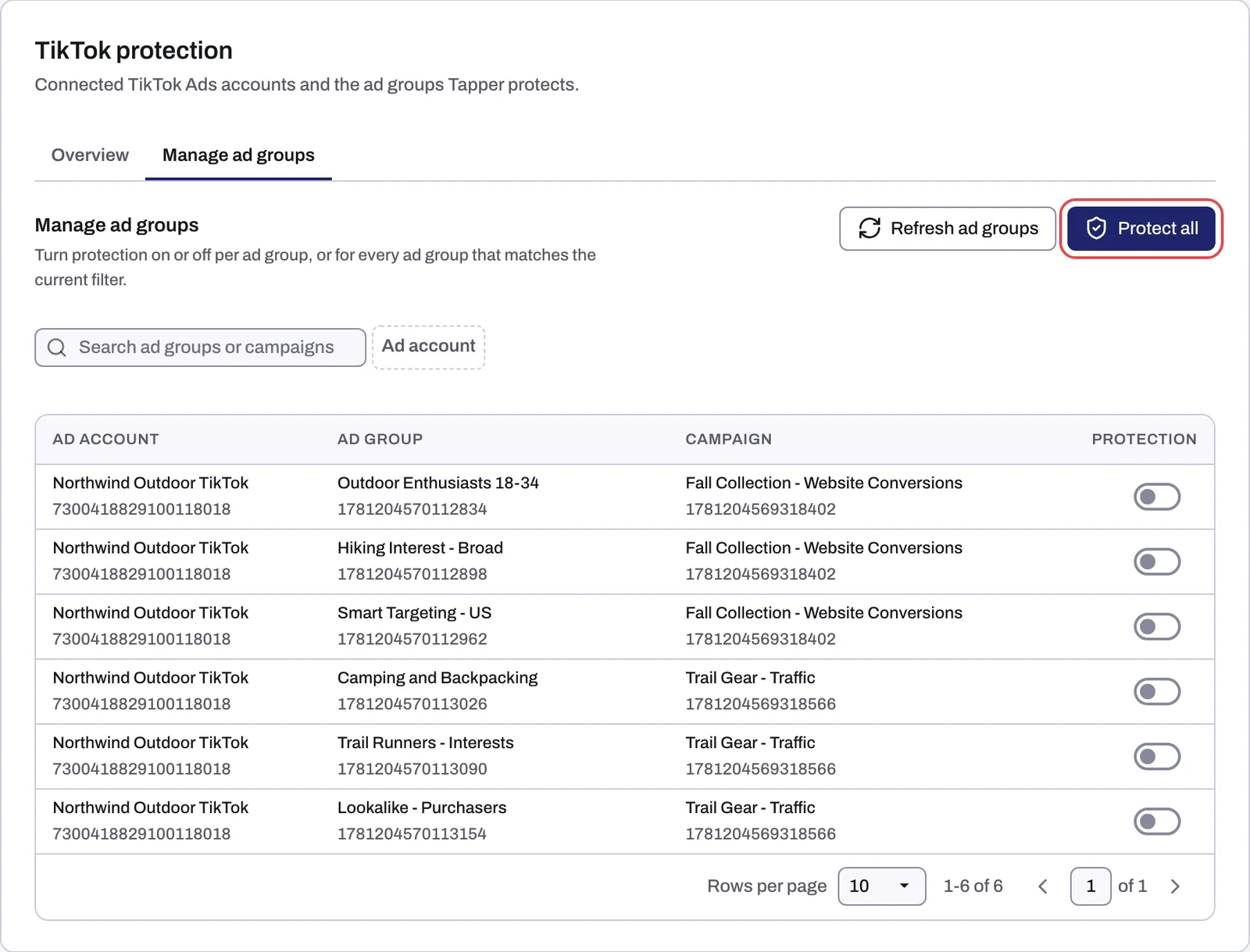
Each row shows:
| Column | What it shows |
|---|---|
| Ad account | The TikTok Ads account the ad group belongs to |
| Ad group | The ad group's name and ID |
| Campaign | The campaign the ad group belongs to, with its ID |
| Protection | The switch: on means the ad group excludes Tapper's audience |
Use the search box (Search ad groups or campaigns) and the ad account filter above the table to narrow the list. The buttons at the top act on everything that matches the current search and filter, not only the page you are looking at.
Protect one ad group
- Find the ad group in the list.
- Turn on its Protection switch.
The switch saves as soon as you click it. Turn it off to remove the exclusion from that ad group.
Protect every ad group at once
- If you only want some ad groups, narrow the list with the search box or the ad account filter first.
- Click Protect all. Tapper queues every ad group that matches the current filter. Tapper applies the change in the background, so refresh the page after a moment to see the switches on.
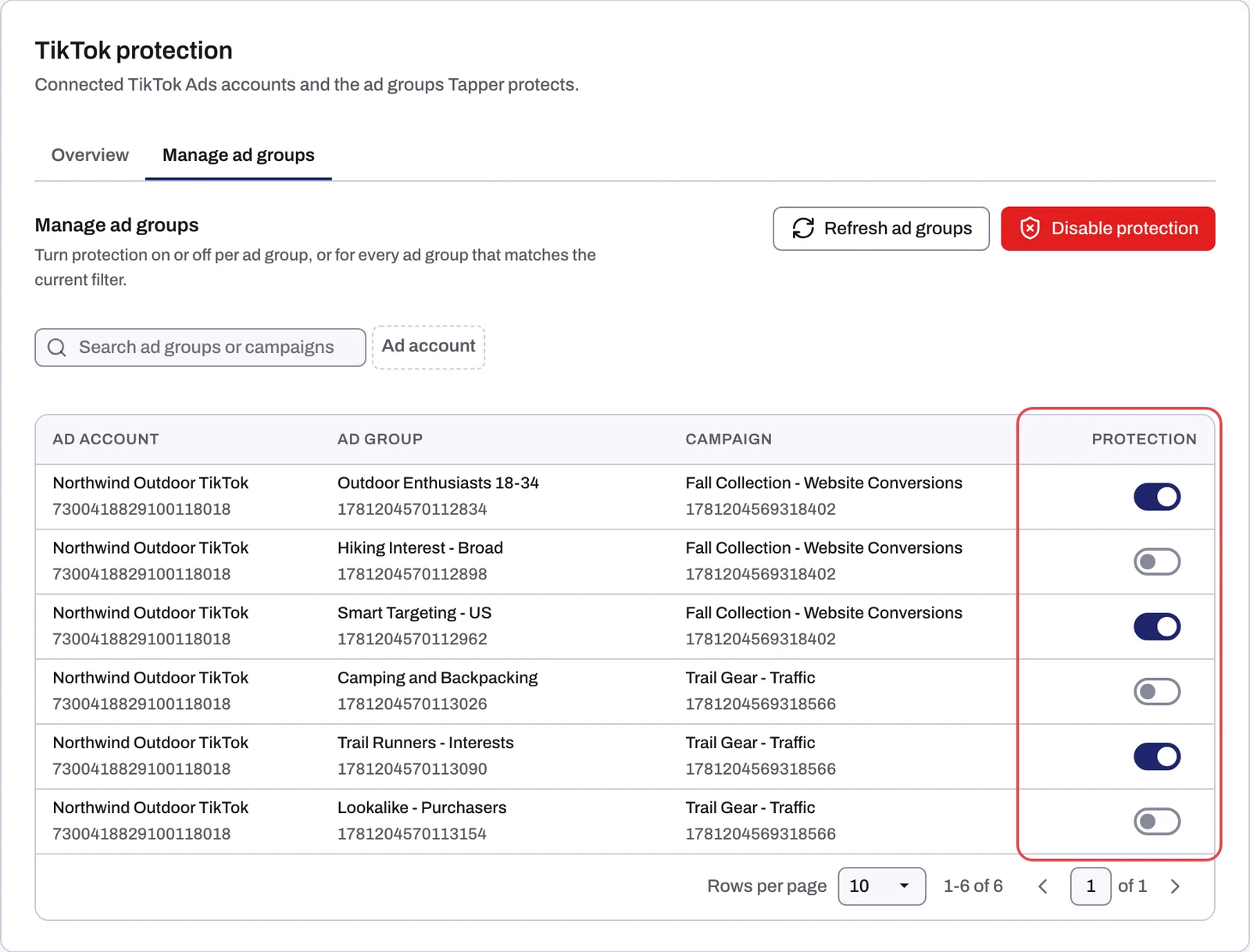
Protect all shows while none of the ad groups on the page you are viewing is protected. Once at least one is, the same button reads Disable protection and switches off every ad group that matches the current filter. To protect the rest of a list where some ad groups are already on, switch the others on one at a time.
Keep the list up to date
Refresh ad groups asks Tapper to read your campaigns and ad groups from TikTok again now. Tapper also reads them when you connect the account and then every 6 hours, so an ad group you created in TikTok a moment ago may be missing until you refresh. After a refresh, check new ad groups and switch on the ones you want protected.
Unlike the Meta tab, this tab has no Export button and no audience card.
What the switch changes in TikTok
Switching an ad group on adds the custom audience Tapper - Invalid traffic to it as an excluded audience. Switching it off removes the exclusion. People stay in the audience for 90 days. How the audience fills, the TikTok Pixel it relies on and the ad_id parameter your ads need are in How Block protects TikTok ads.
On a Lift only workspace
The TikTok protection tab is connect-only. You still see the account cards and the list of ad groups, but there is no Protection column and no Protect all or Disable protection, because Lift only creates no audience in your ad account. See Lift only: what your workspace includes and leaves out.
If something goes wrong
- "No ad groups found." Clear the search or pick another ad account. Ad groups created in TikTok after the last sync appear after Refresh ad groups.
- The switch fails with a message about the account. Tapper cannot change ad groups in an account it has lost access to. Check the account card on the Overview sub-tab and reconnect TikTok if it shows Needs reconnect.
- "Audience exclusion can't be created for this ad group." TikTok did not accept the change. Check that the ad group still exists in TikTok Ads Manager, click Refresh ad groups and try again. If it keeps failing, email support@tapper.ai with the entity name and the ad group ID.
Related
Was this helpful?
Related articles
Still need help?
Chat with our team and mention this article.