

Remove Tapper's tracking template from Google Ads
When you connect a Google Ads account to a workspace with Block, Tapper sets its own tracking template on that account. The cleanest way to take it off is to disconnect the account in Tapper: Tapper puts back the template you had before, or clears the field if there was none. Remove it by hand in Google Ads when Tapper can no longer reach the account, and for any copy of the template on a campaign, ad group or ad.
Before you start
- You need to be a workspace Owner or Admin to disconnect an account.
- If you had a template of your own before connecting, Tapper puts it back on disconnect. Keep a copy anyway in case you remove Tapper's template by hand.
Option 1: disconnect the account in Tapper
- In the sidebar, open Protected Entities and click the entity.
- In the left rail, under Ad platforms, click Google protection.
- On the account's card, open the ⋮ menu and click Disconnect.
- In the Disconnect account dialog, click Disconnect.
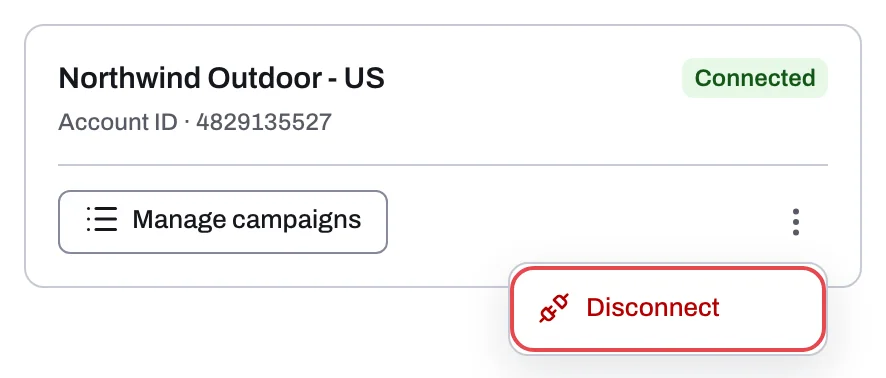
Tapper then restores the account-level template you had before you connected, or clears the field. Check the result in Google Ads under Admin, Account settings, Tracking.
Two cases need the manual steps below as well:
- The card shows Needs reconnect or Not active. Tapper can't use the account in that state, so it can't change the template. Fix the account first and then disconnect it, or remove the template by hand. See Reconnect an ad account that stopped working.
- Tapper's template is also on campaigns, ad groups or ads, because you pasted it there or because Fix tracking wrapped a template there. Disconnecting changes the account-level template only.
Option 2: remove it by hand in Google Ads
At account level
- Sign in to Google Ads.
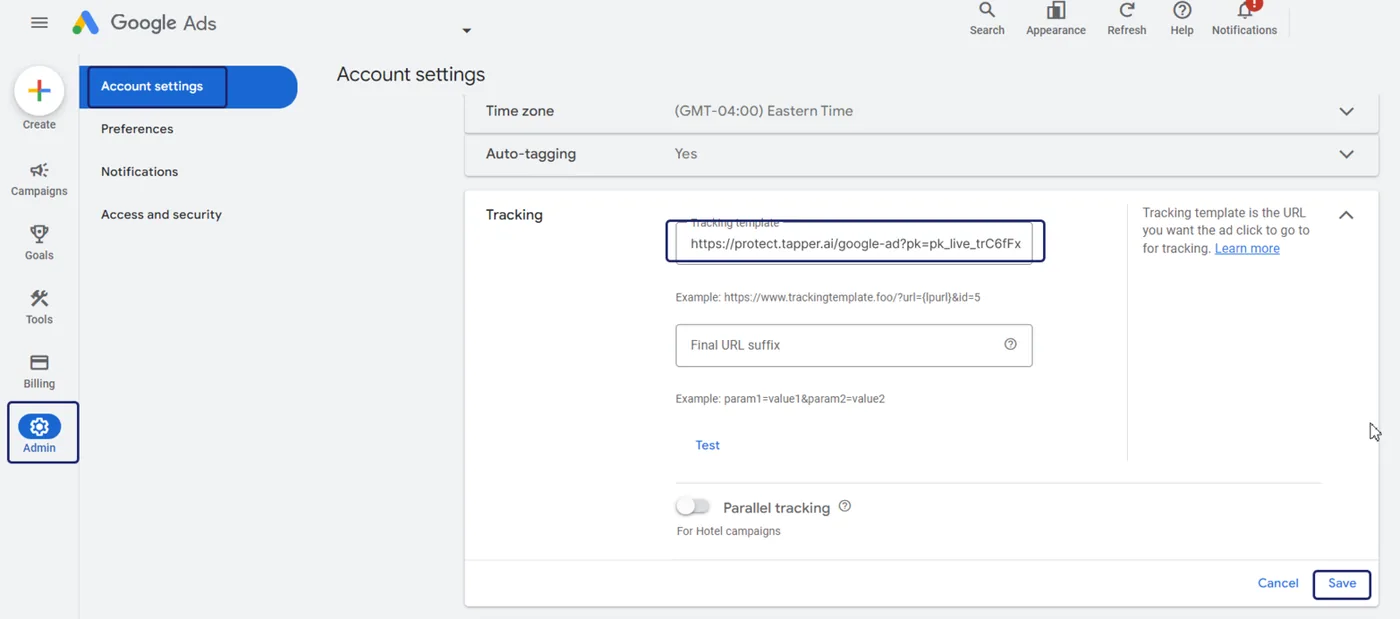
- In the left menu, click Admin, then Account settings.
- Open Tracking.
- In Tracking template, delete the address that starts with
https://protect.tapper.ai/google-ads/click. If you kept your own template from before, paste it back. - Click Save.
On a campaign, ad group or ad
- In the left menu, click Campaigns, then Campaigns.
- Open the Settings tab and click the campaign.
- Open Additional settings, then Campaign URL options.
- Delete the
protect.tapper.aiaddress from Tracking template and click Save.
Ad groups and ads have the same Tracking template field in their own URL options; clear any that holds a protect.tapper.ai address. If the address carries a template of your own after redirection_url= (which happens when Fix tracking wrapped it), put your original template back rather than leaving the field empty. It appears there percent-encoded, so use your own copy if you have one.
What changes once the template is gone
- Account disconnected: Tapper stops protecting the account's campaigns. Lift stops checking it too, and the account's open Lift cards close, with none of their money counted as saved.
- Template removed, account still connected: clicks no longer pass through Tapper, so Tapper can't see that account's Google Ads clicks, which is what Block works from. Lift keeps working: it reads the account through Google Ads and does not use the template.
Stop blocking but keep the template: Monitoring-only mode
When every rule set on the entity is in Monitoring-only mode (a switch on the Web detection rules tab), Tapper retracts its IP, audience, value rule and placement exclusions but keeps the tracking template and conversion actions. While any rule set still blocks, the entity keeps blocking. Tapper keeps recording invalid traffic, and when you switch blocking back on it resumes with new detections. See Switch blocking on or off: what changes in your ad accounts.
Related
Was this helpful?
Related articles
Still need help?
Chat with our team and mention this article.