

Add the ad_id parameter to your Meta ads
Add the URL parameter ad_id with the value {{ad.id}} to every Meta ad, so Tapper can tie each click to the exact ad that produced it. Meta does not put the ad's ID in your landing-page URL by default, and Tapper does not add it for you. You set it once per ad, in bulk or ad by ad, and it keeps working from then on.
Why it matters
With Block, Tapper judges a Meta visitor after the click, when its monitoring script sees the visitor arrive on your landing page. The ad_id in the URL is what tells Tapper which ad sent that visitor. Without it, Tapper cannot reliably attribute the click to the right ad. On a Lift-only workspace there is no monitoring script on your site, so you can skip this step.
Add it to many ads at once
- In Meta Ads Manager, select the ads you want to set up.
- Click Bulk Edit in the toolbar.
- Scroll to the Tracking section.
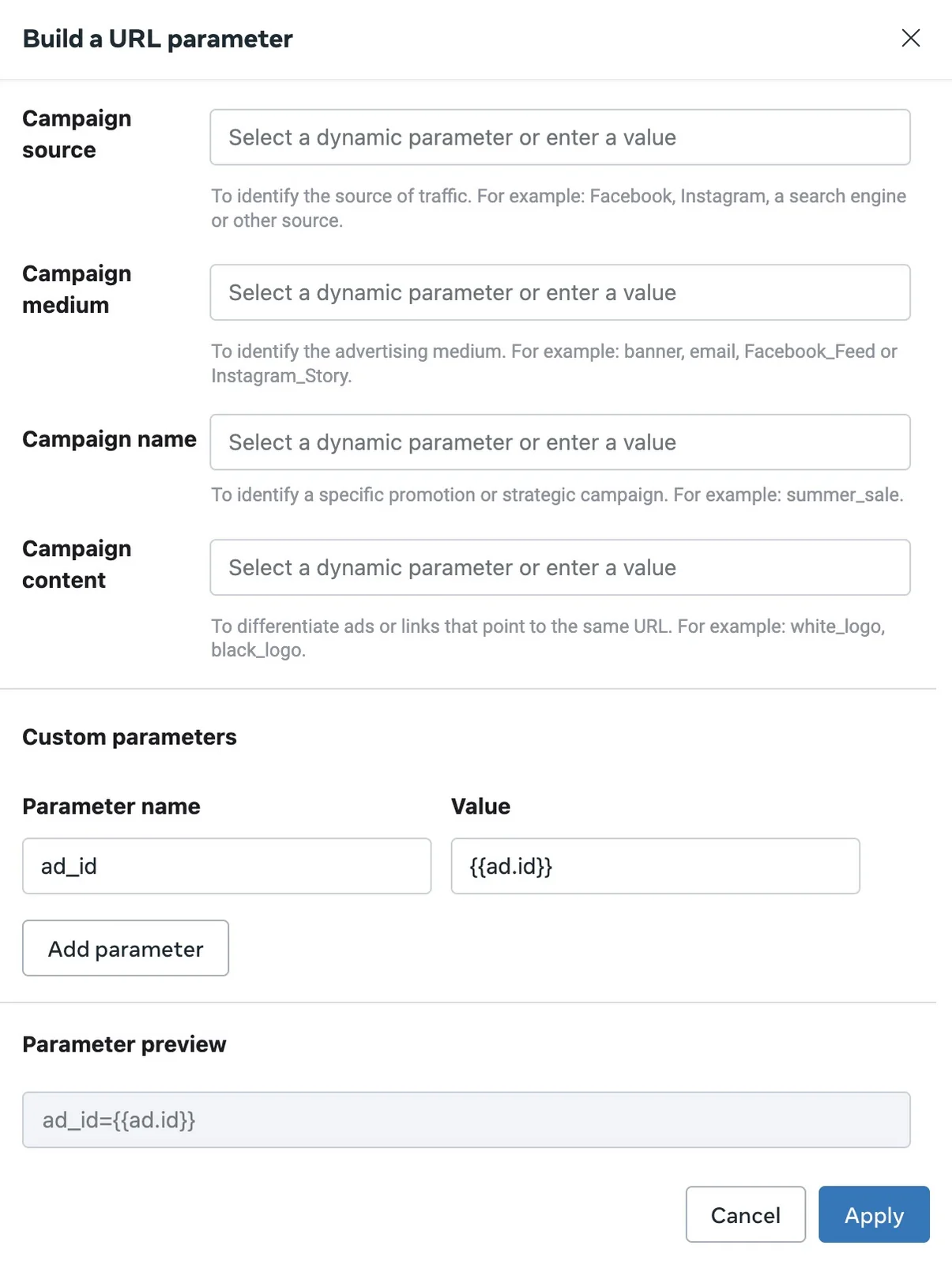
- Click Build a URL parameter, then Add parameter.
- Set the parameter name to
ad_idand select{{ad.id}}as the value. - Click Apply.
Add it to one ad
- In Meta Ads Manager, go to the ad and click Edit.
- Scroll to the Tracking section of the ad setup.
- Click Build a URL parameter, then Add parameter.
- Set the parameter name to
ad_idand select{{ad.id}}as the value. - Click Apply.
Review and publish
- Check that the parameter preview reads
ad_id={{ad.id}}on every ad you edited. Type the name exactly asad_id, and pick{{ad.id}}from Meta's list of dynamic values rather than typing an ID: Meta fills in each ad's own ID when the ad is served. - Publish the changes.
The same steps are in Tapper's public guide, URL Parameters for Meta Ads.
TikTok has the same step
TikTok ads need the same parameter, added differently: you append ?ad_id=__CID__ to the ad's destination URL (or &ad_id=__CID__ if the URL already has parameters). See Connect TikTok Ads.
Related
Was this helpful?
Related articles
Still need help?
Chat with our team and mention this article.