

Use the tracking template at campaign level when one Google Ads account serves several entities
Tapper sets its tracking template at the account level of every Google Ads account you connect to a workspace with Block. That template carries one entity's public key, the key of the entity you connected the account to. Each entity has its own key, and Google Ads holds only one account-level template, so if the same Google Ads account also runs ads for another entity (a second brand or website you set up as its own entity), those campaigns need that entity's template.
Before you start
- Your workspace is Block + Lift. A Lift only workspace has no tracking template.
- Each entity is set up with its own domains. See Protected entities: what they are and how to add one.
- Each campaign sends visitors to one entity only. A campaign carries one template, so a campaign that mixes two entities' websites can't be split between them. Separate those campaigns first.
- You can edit campaign settings in Google Ads. If the account is managed in Search Ads 360, read the last section first.
How Google picks the template
Google uses the most specific template it finds. An ad's template wins over its ad group's, an ad group's over its campaign's, and a campaign's over the account's. A template on a campaign therefore replaces Tapper's account-level template for every click on that campaign, and those clicks carry the key in the campaign's template.
Steps
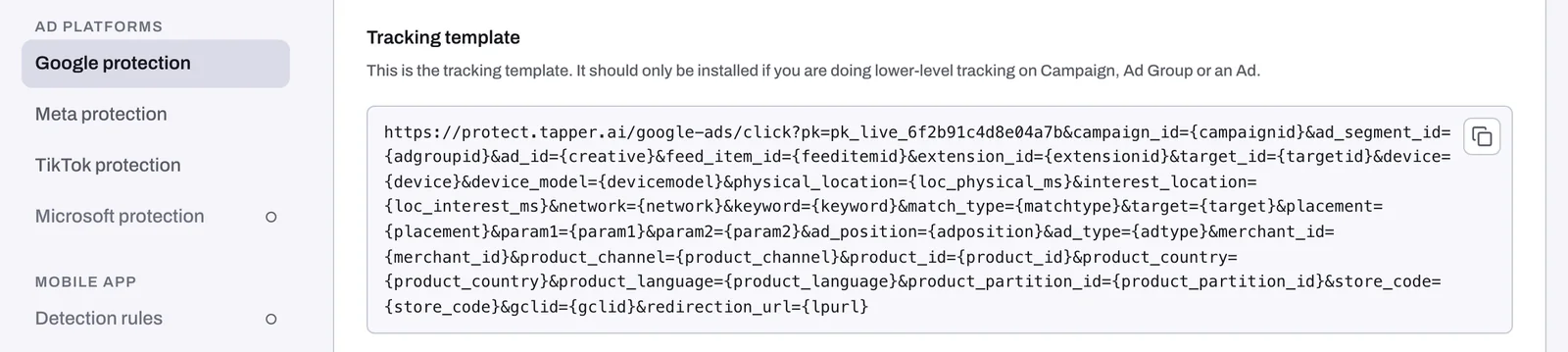
1. Copy the template of the first entity
- In the sidebar, open Protected Entities and click the entity.
- In the left rail, under Ad platforms, click Google protection. The Overview sub-tab opens.
- Scroll to Tracking template and click the copy button in the top-right corner of the code box.
2. Paste it on that entity's campaigns
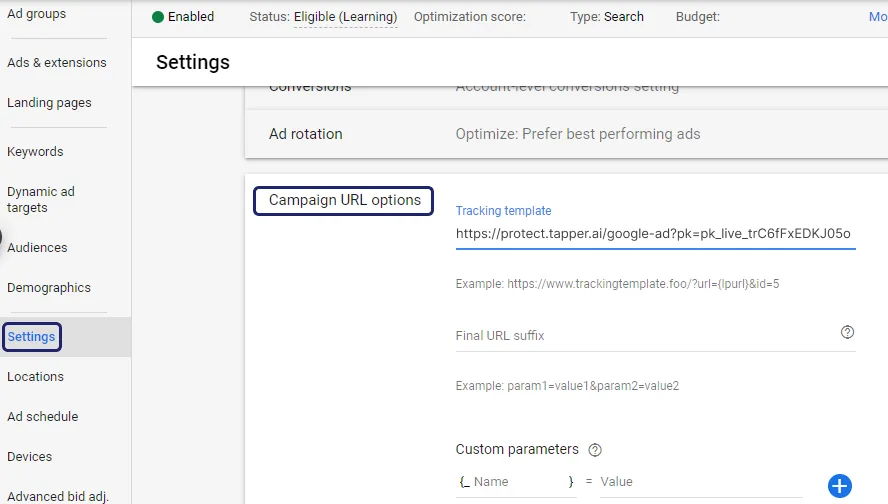
- In Google Ads, open Campaigns and click a campaign that sends visitors to this entity.
- Open Settings, then Additional settings, then Campaign URL options.
- Paste the template into Tracking template. Do not edit it: the
redirection_url={lpurl}part at the end is what sends the visitor on to your landing page. - Click Save.
- Repeat for every campaign of this entity.
3. Repeat for each other entity
Open the next entity, copy its template (its key is different) and paste it on its own campaigns. Campaigns without a template of their own keep using the account-level one.
4. Refresh campaigns in Tapper
- On the Google protection tab, open Manage campaigns.
- Click Refresh campaigns.
Tapper syncs campaign structure every 6 hours on its own; the refresh picks up your changes now.
What happens next
- Campaigns that carry a Tapper template, an address that starts with
https://protect.tapper.ai/google-ads/click?pk=, are not treated as overrides, so they do not set off the Some ads skip Tapper's tracking banner. If the banner appears, it lists templates that are not Tapper's. A fix there uses the key of the entity the Google Ads account is connected to, so if a listed item belongs to another entity, paste that entity's template on it yourself instead of pressing Fix all. See Fix campaigns, ad groups or ads that override Tapper's tracking. - A new campaign uses the account-level template until you give it its own. When you create a campaign for one of the other entities, paste that entity's template on it too.
- To check the result, open Clicks in the sidebar, choose Google Ads and filter by Protection script, which is the entity. Each entity's campaigns should show up under that entity.
If something goes wrong
- Your template disappears again. Accounts managed in Search Ads 360 get their templates rewritten on every sync. Make the change in Search Ads 360 instead.
- A campaign still shows no clicks. One of its ad groups or ads may have a template of its own, which wins over the campaign's. The dashboard banner lists it.
- There is no Tracking template block. The workspace is Lift only, which sets no template.
Related
Was this helpful?
Related articles
Still need help?
Chat with our team and mention this article.