

The Google protection tab: a tour of every section
The Google protection tab of an entity is where Tapper Block meets your Google Ads accounts. It lists the accounts connected to the entity, the campaigns Tapper protects in them, and the settings Tapper keeps in those accounts.
To open the tab, go to Protected Entities, open an entity and choose Google protection in the Ad platforms group on the left.
How the tab is laid out
The tab has two sub-tabs:
- Overview: your connected accounts, then the Tapper goals section, the Tracking template block and the Invalid Traffic Audience card, in that order.
- Manage campaigns: one table of the campaigns and ad groups in the connected accounts, with a Protection switch per campaign.
When a campaign's targeting in Google Ads conflicts with your detection rules, a panel sits above the two sub-tabs. It is covered at the end of this article.
If no Google Ads account is connected to the entity yet, the tab has no sub-tabs. It shows a Connect Google Ads button. See Connect Google Ads.
Overview: your Google Ads accounts
The first section is headed Google Ads accounts. Each connected account has a card:
| On the card | What it does |
|---|---|
| Status chip | Connected, Needs reconnect, Not active or Needs attention. When the account is in error, a sentence on the card says what happened and what to do. |
| Account ID | The account's Google Ads customer ID. |
| Manage campaigns | Opens the Manage campaigns sub-tab filtered to this account. |
| Reconnect | Appears only when the account is in error. |
| ⋮ menu | Holds Disconnect. |
Above the cards, Add account connects another Google Ads account to the same entity. When accounts are in error, each errored card also offers Select for reconnect, and the toolbar shows Reconnect N selected so one Google sign-in can repair several accounts at once.
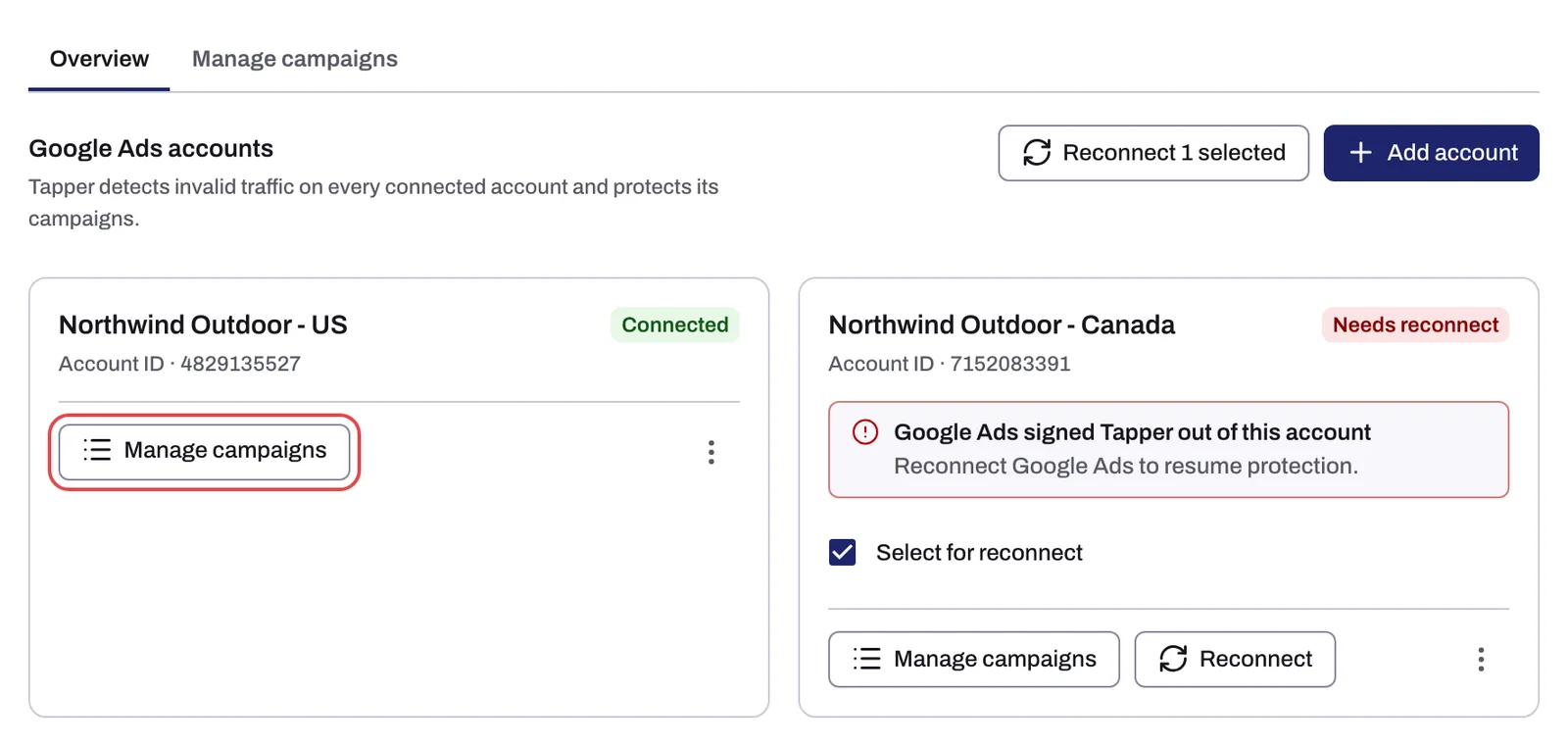
See Ad account status: Connected, Needs reconnect, Not active, Needs attention and Disconnect an ad account.
Overview: Tapper goals
The Tapper goals section belongs to Tapper Vantage. Each goal creates a conversion action and a custom goal in your Google Ads account, and you attach it to the campaigns that should bid on it. It has a New Tapper goal button and, when the entity has two or more Google Ads accounts, an All accounts filter. Each goal card shows:
- Active or Paused, with a switch.
- Observing, with Manage campaigns to see the campaigns feeding the goal.
- Bidding: "Not driving bidding yet" or "Driving N campaigns".
Nothing is created in Google Ads until you create a goal. See Tapper goals: let Google bid on predicted conversion value.
Overview: Tracking template
The Tracking template block has a Copy the tracking template button.
You do not need it to get started: Tapper sets the account-level tracking template itself when you connect the account. Copy it only where a campaign, ad group or ad has its own template that overrides the account one. The dashboard tells you when that happens with the banner "Some ads skip Tapper's tracking". See The Google Ads tracking template: what Tapper sets and why.
Overview: Invalid Traffic Audience
The Invalid Traffic Audience card shows the lists Tapper keeps in each connected account to exclude flagged visitors, with the columns Audience and Retention window. The Block segment for field on each row holds the number of days (1 to 540) a visitor stays blocked. Create audience appears only on a row whose list shows no Google Ads resource name.
See The Invalid Traffic Audience and its retention window.
Manage campaigns
The second sub-tab's toolbar has Refresh campaigns, which pulls the campaign list from Google Ads right away (Tapper also syncs it on its own every 6 hours), and Export (Campaigns view only), which downloads the campaign table as a CSV file. Below are two views, Campaigns and Ad groups, with a search box and an account filter.
| View | Columns |
|---|---|
| Campaigns | Account, Campaign, Protection |
| Ad groups | Account, Campaign, Ad Group, Protection |
In the Campaigns view, the Protection column holds a switch for Search, Display, Shopping, Demand Gen and Performance Max campaigns. On means Tapper protects the campaign; off removes Tapper's audience exclusions and value rules from it, and new IP exclusions skip it. Chips under the switch show what is applied: Audience Exclusion, Value Rule Exclusion, and Tapper goal for an attached goal ("Tapper goal:" followed by the goal's name when the account has more than one goal). The ⋮ menu at the end of a row holds Create shadow campaign (Search and Shopping campaigns that do not have one yet) and the goal actions Attach Tapper goal, Edit Tapper goal attachment and Detach Tapper goal.
The Ad groups view has no switch. An Audience Segment Exclusion chip marks the ad groups where Tapper's audience is excluded at ad group level, which is how Demand Gen campaigns are protected.
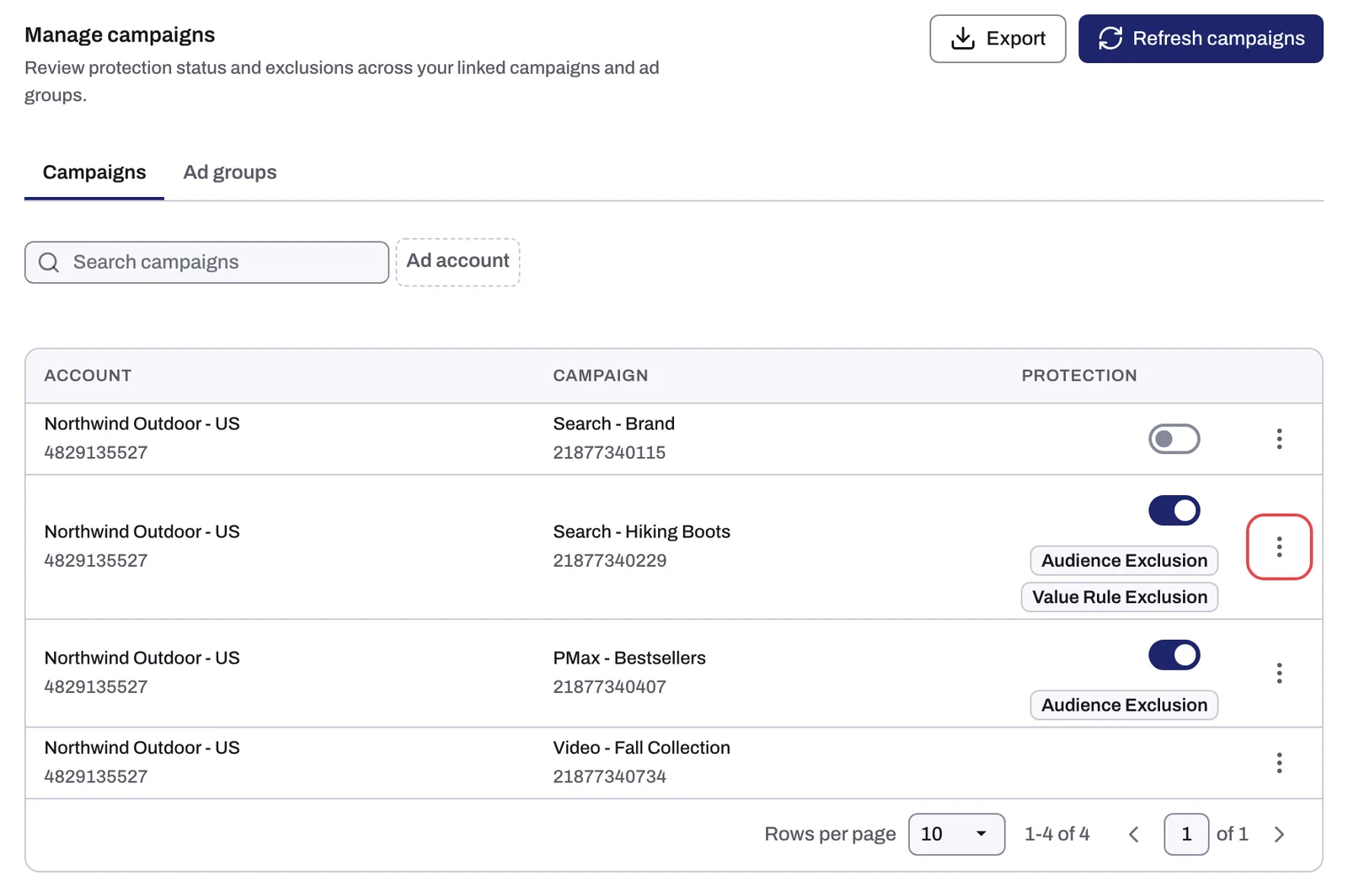
Read more in Choose which campaigns Tapper protects, Which exclusions Tapper applies to each Google Ads campaign type and Value rules and shadow campaigns: optional extras for Performance Max, Search and Shopping.
When Google Ads setup doesn't match your protection rules
Once a day, Tapper compares the countries your campaigns target in Google Ads with the countries your detection rules block. When campaigns target a country your rules block, a panel titled "Google Ads setup doesn't match your protection rules" appears above the sub-tabs. It says how many campaigns are affected and warns "Until this is resolved, budget is buying clicks Tapper is configured to discard."
| Action | What it does |
|---|---|
| Re-check now | Runs the comparison again. |
| Fix in Tapper | Adds the countries to your rule's allow-list. The dialog says "Nothing changes in Google Ads." |
| Fix in Google Ads | Changes the campaign in Google Ads. The dialog warns "This modifies your live Google Ads campaign settings." |
| Dismiss | Marks the mismatch as intentional, after asking "Why is this intentional?" |
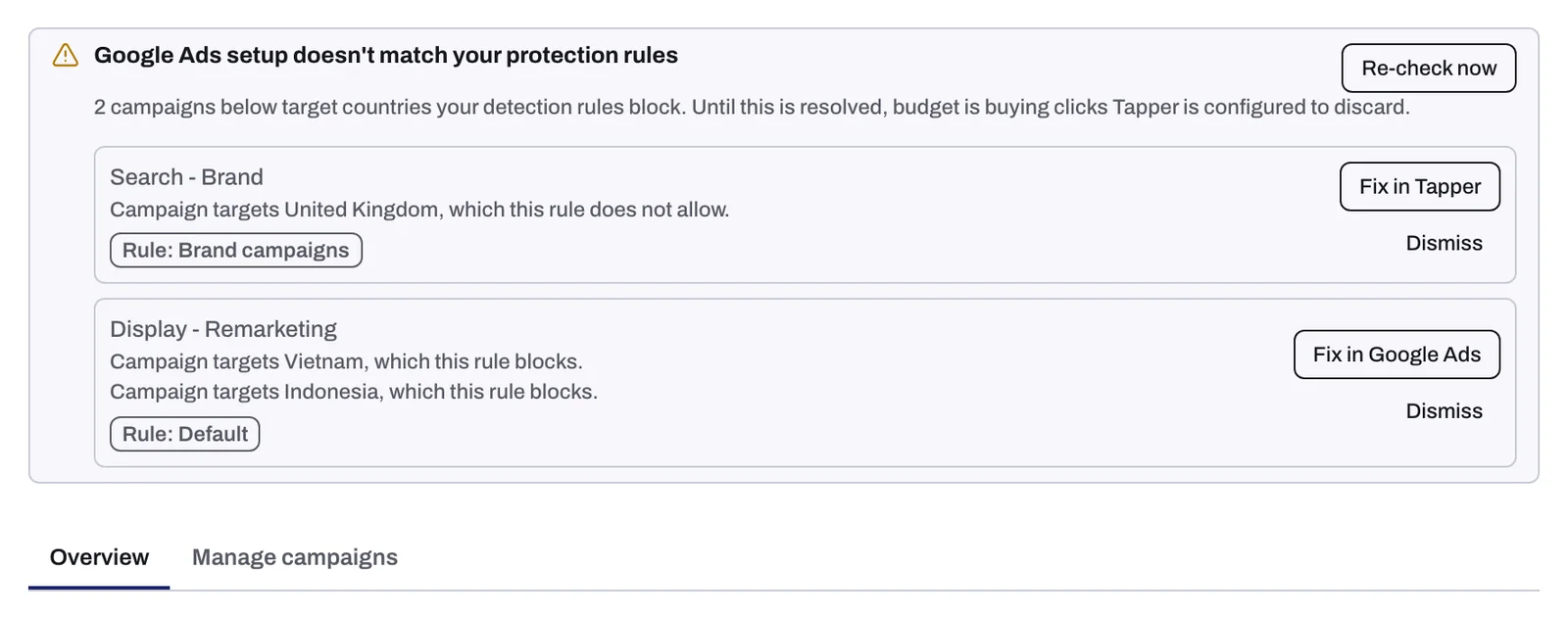
See Google Ads setup doesn't match your protection rules.
On a Lift only workspace
Lift only workspaces have this tab too, and an entity opens on it, without the parts that belong to Block. Lift checks every connected account daily. With no account connected the tab shows a Connect Google Ads button.
The Tracking template block, the Invalid Traffic Audience card, the Protection column and the setup panel are not shown. Tapper goals appears once Tapper enables Vantage for the workspace. See Lift only: what your workspace includes and leaves out.
What is not on this tab
- IP addresses and ranges you exclude by hand are on the entity's Auto IP blocking tab, in the Advanced group. See Manually exclude IP addresses and ranges.
- The visitors and placements Tapper excluded are on the Exclusions page. See The Exclusions page and the proof drawer.
- Thresholds and detection features are on the Web detection rules tab. See Web detection rules: every setting on the tab.
Related
Was this helpful?
Related articles
Still need help?
Chat with our team and mention this article.