

The Mobile dashboard tab: installs, sessions and MMP metrics
The Mobile tab is the dashboard view for your app-install campaigns. Its numbers come from your MMP (mobile measurement partner), not from the monitoring script on your website, so it reports installs, sessions, purchases and revenue for the apps connected to this workspace.
Before you see data
The Mobile tab needs an MMP integration on one of your protected entities. MMP integrations are part of Block, so a Lift-only workspace does not have this tab.
Until an integration exists, the tab shows the empty state No MMP integration connected with a Connect an MMP button.
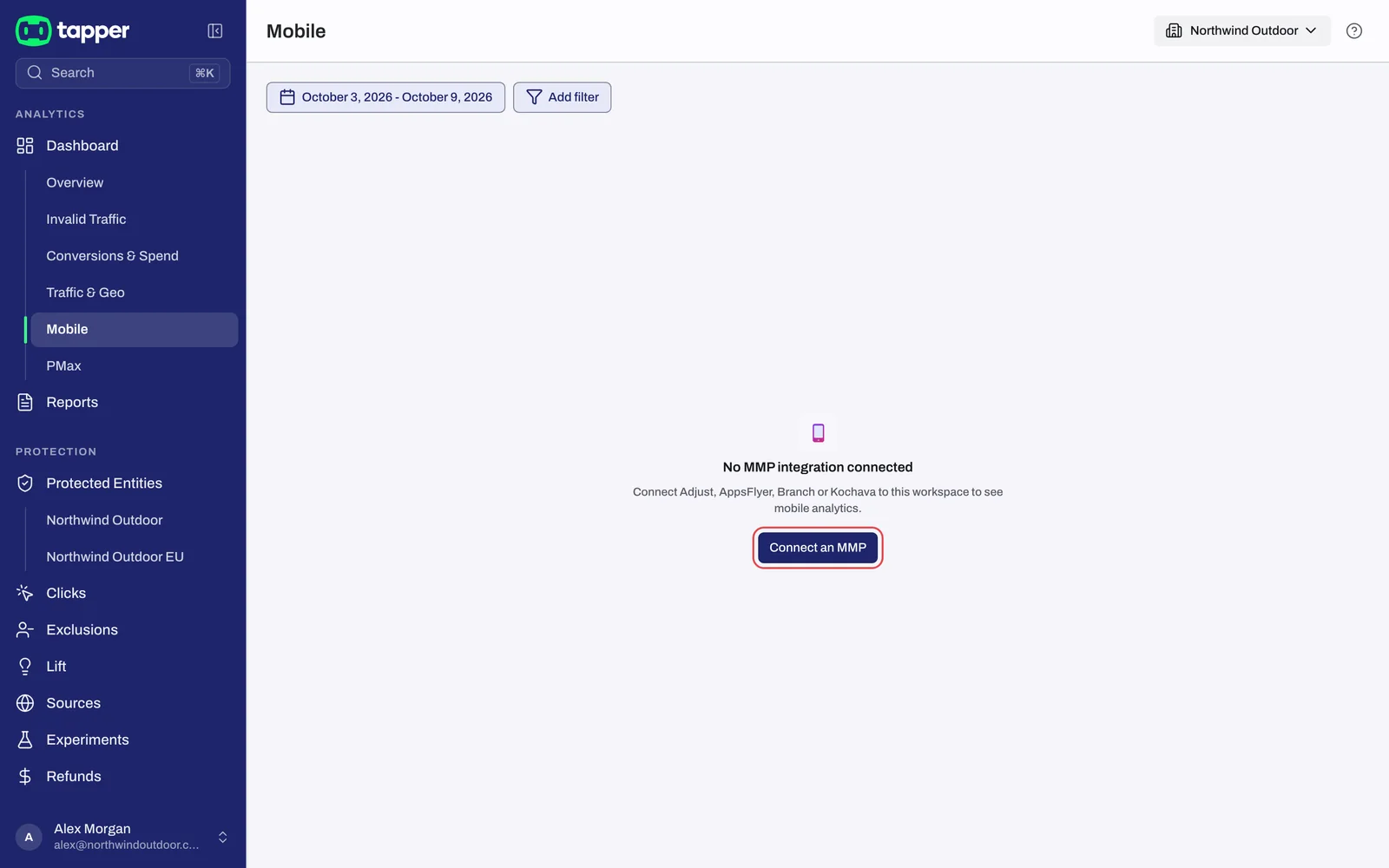
To connect one:
- Press Connect an MMP, which opens Protected Entities. Open the entity, go to its Mobile app protection tab and press Add integration.
- Follow Connect a mobile app through your MMP.
Where to find it
Open Dashboard in the sidebar's Analytics section and pick the child row Mobile.
What you see in Tapper
Controls
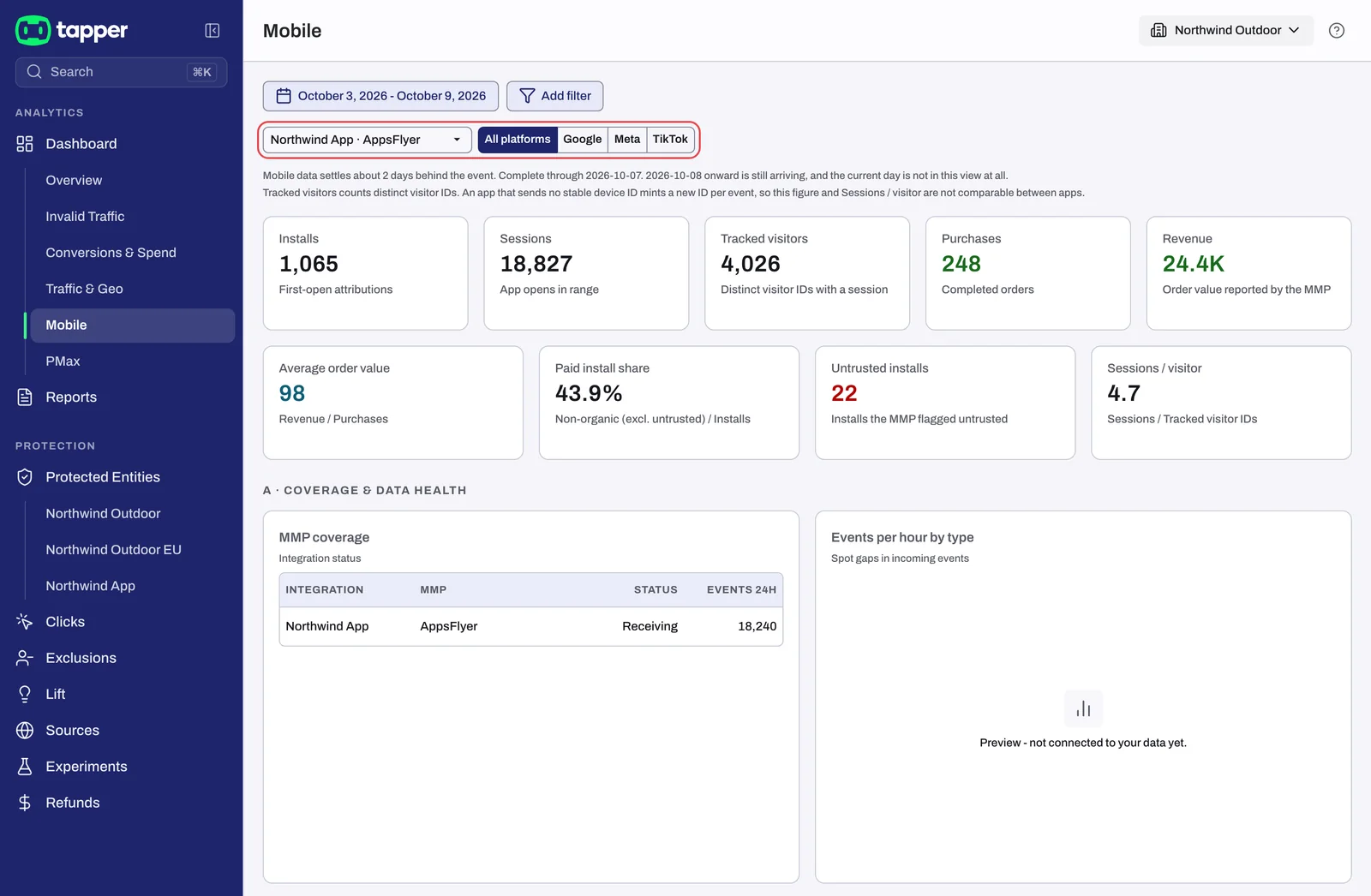
- An App picker. Pick the app you want to read; the KPIs and sections below follow it.
- A platform switch with All platforms, Google, Meta and TikTok. Microsoft Ads is not offered here.
- The dashboard-wide platform toggle and the Live / Demo switch are hidden on this tab.
KPI tiles
Nine tiles sit at the top of the tab, in this order:
| Tile | Sub-line |
|---|---|
| Installs | "First-open attributions" |
| Sessions | "App opens in range" |
| Tracked visitors | "Distinct visitor IDs with a session" |
| Purchases | "Completed orders" |
| Revenue | "Order value reported by the MMP" |
| Average order value | "Revenue / Purchases" |
| Paid install share | "Non-organic (excl. untrusted) / Installs" |
| Untrusted installs | "Installs the MMP flagged untrusted" |
| Sessions / visitor | "Sessions / Tracked visitor IDs" |
Each sub-line is the tile's definition. A note above the tiles adds that Tracked visitors counts distinct visitor IDs: an app that sends no stable device ID gets a new ID per event, so Tracked visitors and Sessions / visitor are not comparable between apps.
Mobile data settles about 2 days behind the event. When your date range reaches into those days, a line above the tiles says "Complete through" a date and that the days after it are still arriving.
The rules that decide what Tapper flags in your app live on the entity's Mobile app detection rules tab (see Mobile app detection rules).
Sections
Below the tiles come up to 14 lettered sections; a section shows only when it has at least one panel for the selected app. In order: A · Coverage & data health, B · Acquisition, C · Engagement, D · Funnel & commerce, E · Revenue, F · Signal quality, G · Value-based-bidding readiness, H · Consent & privacy, I · Device & tech, J · Attribution integrity, K · Retention & LTV, L · Product / basket, M · Cross-network & campaign and N · Spend & ROAS.
What is not on this tab
- Blocking controls. The tab is for reading; thresholds, CTIT anomaly detection, country rules and monitoring-only mode for your app are set on the entity's Mobile app detection rules tab.
- Web traffic. Clicks from the monitoring script and the ad platforms are on the other dashboard tabs, starting with Reading the Invalid Traffic tab.
Related
Was this helpful?
Related articles
Still need help?
Chat with our team and mention this article.