

The Google Ads tracking template: what Tapper sets and why
When you connect a Google Ads account to a workspace with Block, Tapper puts its own tracking template on that account. You do not install anything by hand.
Why Tapper needs a tracking template
A tracking template is a Google Ads setting. For every ad click, Google loads the address in the template, filled in with details about that click, and the visitor lands on your page. Tapper's template points to protect.tapper.ai and asks Google for the campaign, ad group and ad, the keyword and match type, the device, the location, the network, the placement and the GCLID, Google's ID for the click.
Tapper uses these details to judge each click and to tie it to the campaign it came from, so the exclusions Tapper writes land on the right campaigns. Clicks that skip the template are clicks Tapper can't see.
What Tapper sets, and when
| When | What happens to the account-level template |
|---|---|
| You connect the account | Tapper reads the template you had, keeps a copy and replaces it with its own. There is nothing to paste. |
| The account stays connected | Tapper's template stays in place, including when you switch a rule set to Monitoring-only mode. |
| You disconnect the account | Tapper puts back the template you had before, or clears the field if there was none. |
On a Lift only workspace Tapper sets no template at all.
The template
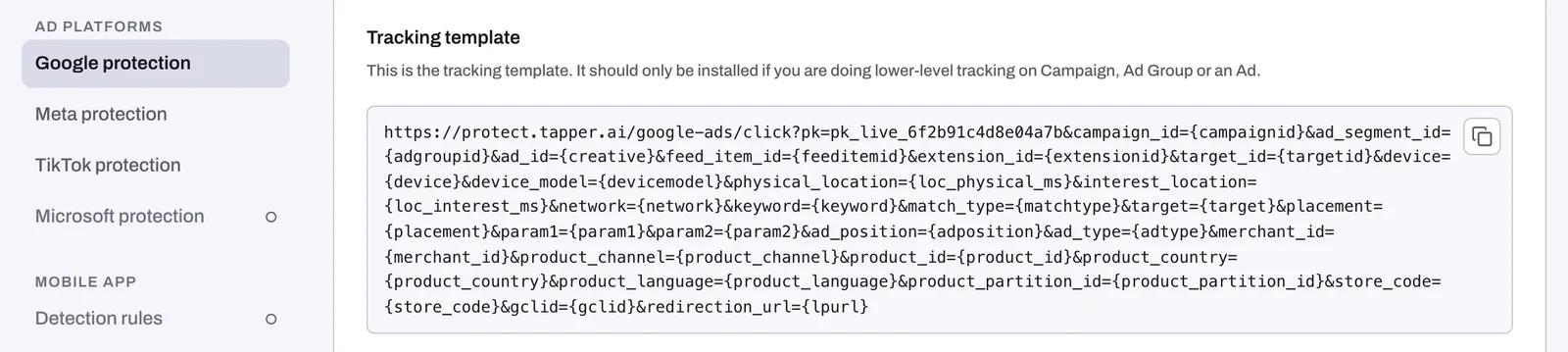
The Google protection tab shows the template with your entity's public key in pk:
https://protect.tapper.ai/google-ads/click?pk=YOUR_PUBLIC_KEY&campaign_id={campaignid}&ad_segment_id={adgroupid}&ad_id={creative}&feed_item_id={feeditemid}&extension_id={extensionid}&target_id={targetid}&device={device}&device_model={devicemodel}&physical_location={loc_physical_ms}&interest_location={loc_interest_ms}&network={network}&keyword={keyword}&match_type={matchtype}&target={target}&placement={placement}¶m1={param1}¶m2={param2}&ad_position={adposition}&ad_type={adtype}&merchant_id={merchant_id}&product_channel={product_channel}&product_id={product_id}&product_country={product_country}&product_language={product_language}&product_partition_id={product_partition_id}&store_code={store_code}&gclid={gclid}&redirection_url={lpurl}
The words in braces are Google's own placeholders (Google calls them ValueTrack parameters). Google replaces them with the values of each click. Two matter most:
gclid={gclid}carries Google's click ID.redirection_url={lpurl}carries your landing page, the address the visitor ends up on. Keep it exactly as it is.
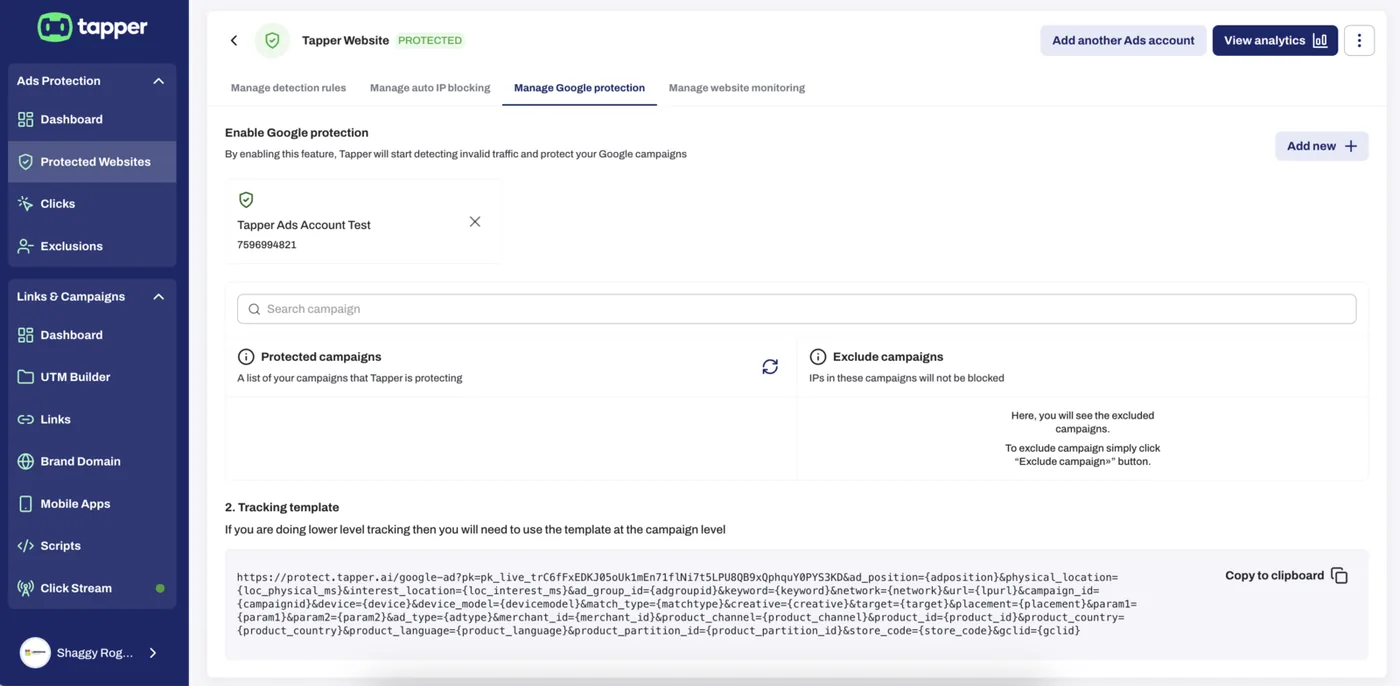
The rest describe where and how the click happened: campaign, ad group (ad_segment_id in this copy; the template Tapper sets on the account calls it ad_group_id), ad, keyword and match type, device, location, network, placement, ad position and ad type, plus product and store details for Shopping ads.
Copy the template from the app, not from this page, so it carries your own key.
Where to find a copy
- In the sidebar, open Protected Entities and click your entity.
- In the left rail, under Ad platforms, click Google protection. The Overview sub-tab opens.
- Scroll to Tracking template.
- Click the copy button in the top-right corner of the code box.
The block appears only on Block + Lift workspaces.
You paste this copy yourself in two cases only:
- One Google Ads account sends traffic to several entities. Each entity's template goes on its own campaigns. See Use the tracking template at campaign level when one Google Ads account serves several entities.
- A campaign, ad group or ad has its own template, which overrides the account one. The dashboard then shows Some ads skip Tapper's tracking with a Fix tracking button. See Fix campaigns, ad groups or ads that override Tapper's tracking.
Check the template in Google Ads
In Google Ads, open Admin, then Account settings, then Tracking. The Tracking template field holds an address that starts with https://protect.tapper.ai/google-ads/click?pk=. The rest of it matches the copy on the Google protection tab except for one parameter: the ad group travels as ad_group_id={adgroupid} instead of ad_segment_id={adgroupid}.
If you already use a template, or a tool sets one
Google Ads holds one tracking template per account. If you had one before connecting, whether your own UTM template or one set by a tool such as HubSpot or Search Ads 360:
- Copy it somewhere safe before you connect, so you have it at hand. Tapper also keeps a copy and puts it back when you disconnect.
- If the tool writes its own template back to the account after you connect, it replaces Tapper's, and the account's clicks stop passing through Tapper.
- If you manage the account in Search Ads 360, make template changes there: Search Ads 360 writes its templates back on every sync, so a change made in Google Ads is reverted.
- Tapper has no setup specific to HubSpot or to any other tool. Before you connect an account whose template a tool manages, write to support@tapper.ai and describe your setup.
The public guide Tracking Template covers the same setup.
Related
Was this helpful?
Related articles
Still need help?
Chat with our team and mention this article.