

Mobile app detection rules
The Mobile app detection rules tab tells Tapper what counts as invalid traffic for your app: how many ad clicks one device may make, which click-to-install times look wrong, and which countries installs and events may come from. It is the mobile counterpart of the Web detection rules tab, and it judges the installs and events your MMP sends to Tapper.
Before you start
- A Block + Lift workspace. The mobile app tabs are part of Block, and a Lift only workspace does not have them.
- A mobile app connected to the entity through its MMP. Until then the tab shows No mobile app connected and an Add mobile app button. See Connect a mobile app through your MMP.
- The Owner or Admin role to change rules.
Open the tab
- In the sidebar, open Protected Entities and click the entity.
- In the left rail, under Mobile app, click Detection rules. (A second Detection rules row sits under Website; that one is for your website.)
Rule sets and Applies to
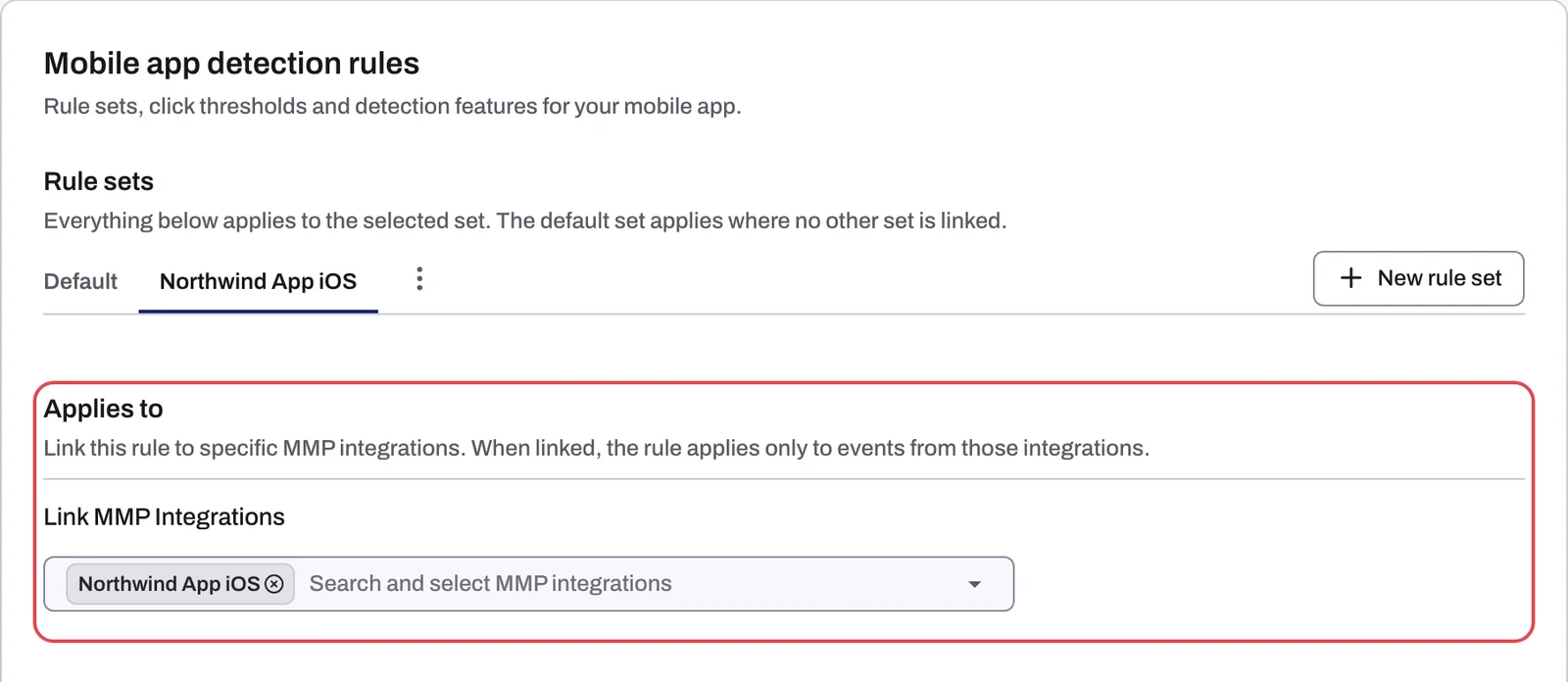
Everything on the tab belongs to the rule set selected in the Rule sets row. The default set applies where no other set is linked. Most apps need only the default set. Add a custom set when one MMP integration needs different rules, for example a separate integration for a second app.
- In the Rule sets row, click New rule set. (If the tab shows No mobile rules yet instead, click Create mobile rule.)
- In the Create mobile rule dialog, type a Name and click Create.
- Select the new set in the Rule sets row.
- Under Applies to, open Link MMP Integrations, pick one or more integrations and click Save link.
A custom set that is not linked yet carries the hint "Rule is not linked to any MMP integrations". Applies to does not appear for the default set.
What each section checks
| Section | What it does | How it saves |
|---|---|---|
| Invalid click threshold | Flags a device that makes too many ad clicks in a time window | Update threshold rules |
| CTIT anomaly detection | Flags installs whose click-to-install time is too short or too long | On its own, shortly after you stop typing |
| Block IPs by country | Blocks installs and events from listed countries, or allows only listed countries | Each change saves at once |
| Monitoring-only mode | Detects and flags without acting | When you click the switch |
Invalid click threshold
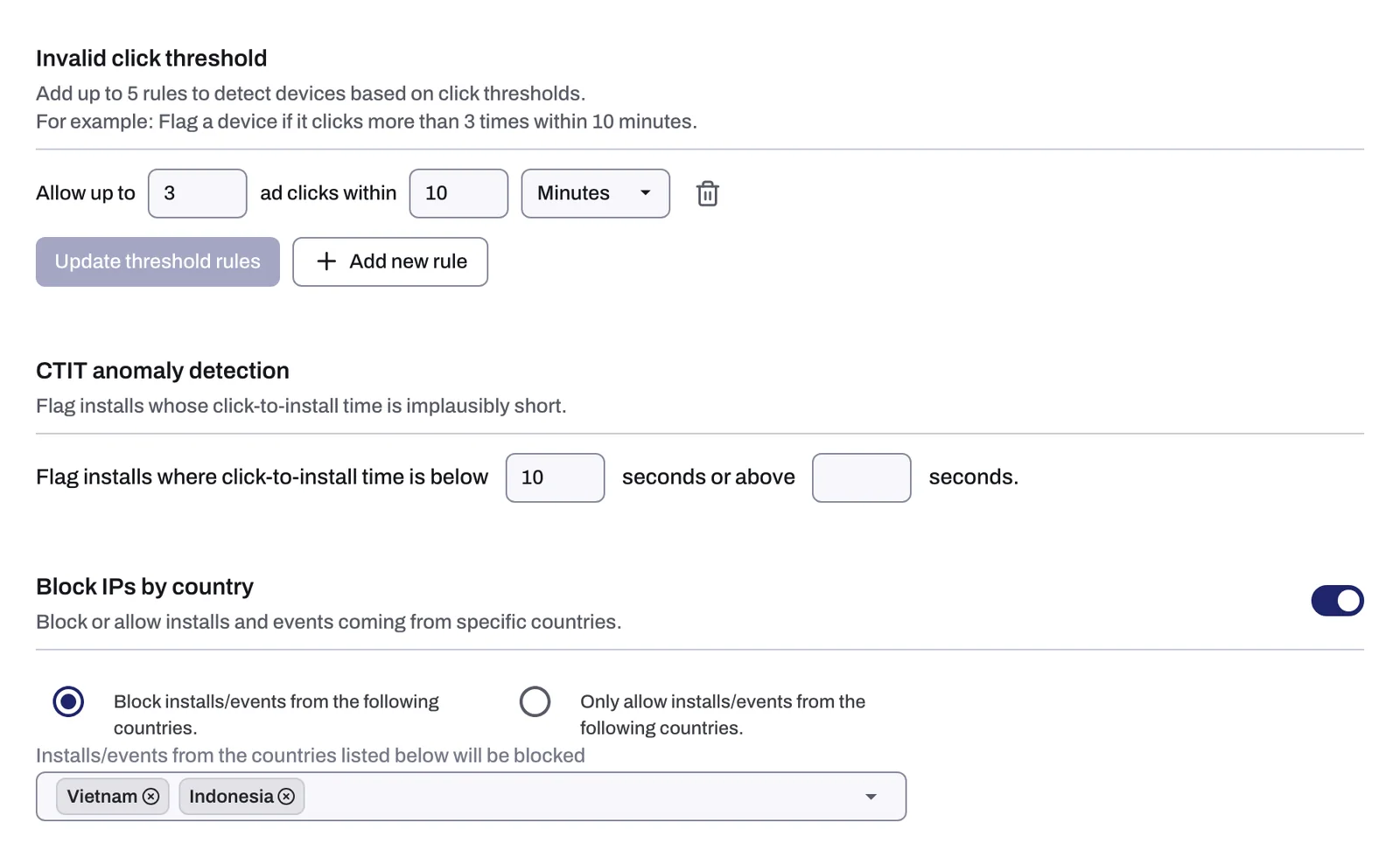
You can add as many rules as your plan allows. For example: flag a device if it clicks more than 3 times within 10 minutes. Each rule is one line: Allow up to a number of ad clicks within a time window. Unlike the web tab, the count is per device, not per IP address.
- Click Add new rule, then type the click count and the window and pick the unit.
- To remove a saved rule, click its trash icon. Saved rules are not edited in place: remove one and add a new one.
- Click Update threshold rules to save. Rules you have not saved this way are lost when you leave the page.
CTIT anomaly detection
CTIT is the click-to-install time: how long passes between the ad click and the install. A time too short for a real person to download and open the app is a common sign of click injection; a very long one can mean an earlier click claimed an install it did not cause. Fill in one value or both, in seconds.
Block IPs by country
Turn on the section's switch, then choose:
- Block installs/events from the following countries. Every country not on the list stays allowed.
- Only allow installs/events from the following countries. Every country not on the list is blocked.
Then add countries to the list.
Blocking: Monitoring-only mode
The last section, Blocking, has one switch: Monitoring-only mode, marked Recommended: Off. Like everything else on the tab, it applies to the selected rule set only, so check it on each set.
What happens next
The dashboard's Mobile tab reports your app's installs and events, including an Untrusted installs tile. See The Mobile dashboard tab: installs, sessions and MMP metrics. If the tab stays empty, check that your MMP sends all events to Tapper, not only attributed ones; Connect a mobile app through your MMP shows the setting for each MMP.
Related
Was this helpful?
Related articles
Still need help?
Chat with our team and mention this article.