

Tracking links that carry an ad click into your app through your MMP
Some ad networks, such as affiliate, incentivized, OEM or DSP networks, give you a click URL field to fill in for each campaign. For those networks, the Mobile app click tracking tab builds a tracking link that sends each ad click through Tapper and on to your MMP's click URL, so Tapper records the click before your MMP attributes the install.
When to use a tracking link
Tapper does not offer tracking links for Google Ads, Meta, TikTok or Snapchat (use your MMP's own integration there), and they are not for deep-link or re-engagement links.
Use a tracking link only when a network asks you for a click URL for an app-install campaign. The How this works button under the notice opens Tapper's public guide, Mobile App Protection, in a new tab.
How it works
- Someone clicks your ad, and the network sends the click to your Tapper tracking link, filling in the macros you set (campaign, ad, device advertising ID and so on).
- Tapper records the click: IP address, device and the parameters in the link.
- Tapper redirects the click to your MMP click URL, which takes the person to the app store.
- When your MMP attributes an install or an event, it sends a postback to Tapper through your MMP integration, and Tapper matches it to the click.
Before you start
- A Block + Lift workspace. The mobile app tabs are part of Block, and a Lift only workspace does not have them.
- An MMP integration on the entity. Without one, the tab shows No mobile app connected and an Add mobile app button. See Connect a mobile app through your MMP.
- Your MMP click URL for the campaign. It must start with
https://. - The Owner or Admin role.
Build a tracking link
- Open Protected Entities and click the entity. In the left rail, under Mobile app, click Click tracking. The tab is titled Mobile app click tracking.
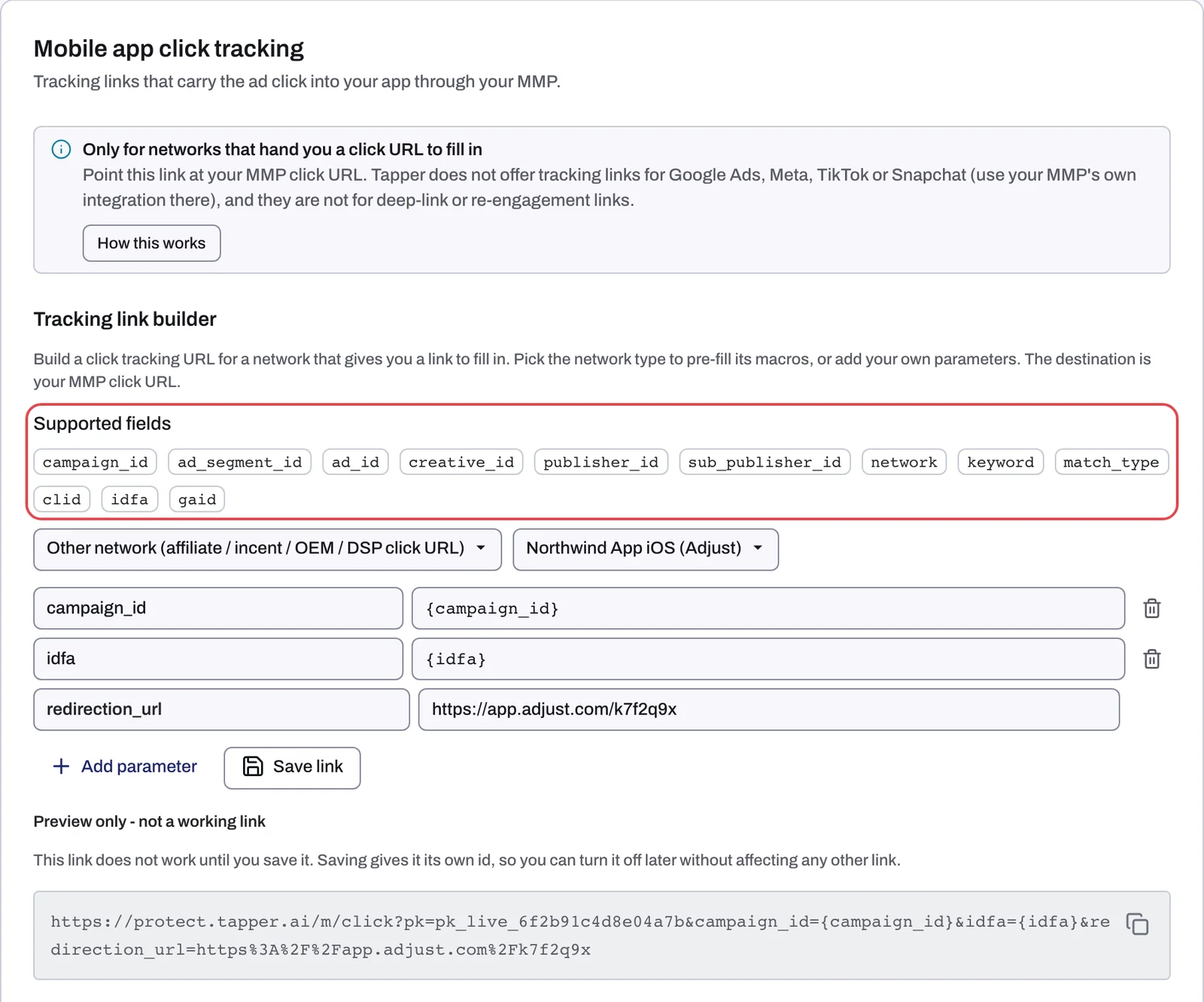
- Under Tracking link builder, pick the network type: Other network (affiliate / incent / OEM / DSP click URL) or Bidease (DSP). Bidease pre-fills its parameters; Other network starts empty.
- In the next list, pick the MMP integration the link belongs to. Each one shows its name and MMP; the default is No MMP integration.
- Add parameters. Click a field under Supported fields to add it as a row, or click Add parameter for an empty row. In each row, type the Parameter name and, under Value or macro, the macro your network uses for that value. Parameter names use lowercase letters, digits and underscores (1 to 64 characters).
- In the last row,
redirection_url, paste your MMP click URL, for examplehttps://app.adjust.com/abc123. - Click Save link, type a Tracking link name and click Save.
| Field | What it carries |
|---|---|
campaign_id | Ad campaign ID |
ad_segment_id | Ad group or ad set ID |
ad_id | Ad or creative ID |
creative_id | Creative variant ID |
publisher_id | Publisher or placement ID |
sub_publisher_id | Sub-publisher ID |
network | Traffic network |
keyword | Search keyword |
match_type | Keyword match type |
clid | External click ID from the ad platform |
idfa | iOS advertising ID |
gaid | Android advertising ID |
idfa and gaid are the two fields the web tracking links do not have. No network type pre-fills them, so ask your network for the exact macro it uses for each and type it in. Check pre-filled macros against your network's documentation too.
Above the saved links, Tapper previews the link it will build. The preview does not work until you save it, and the copy button works on saved links only.
Use and manage saved links
Saved tracking links lists every link with its Name, URL and Created date, and a Search tracking links box. On each row you can copy the URL, edit the link or delete it. Paste the copied URL into your network's click URL field.
A link built earlier for Google Ads, Meta, TikTok or Snapchat carries the chip Legacy - network no longer supported. It still works; rebuild it as Other network when you can. Other Legacy chips mark a value that is no longer accepted: such a link cannot be edited, so copy or delete it and build a replacement.
Manage your MMP integrations
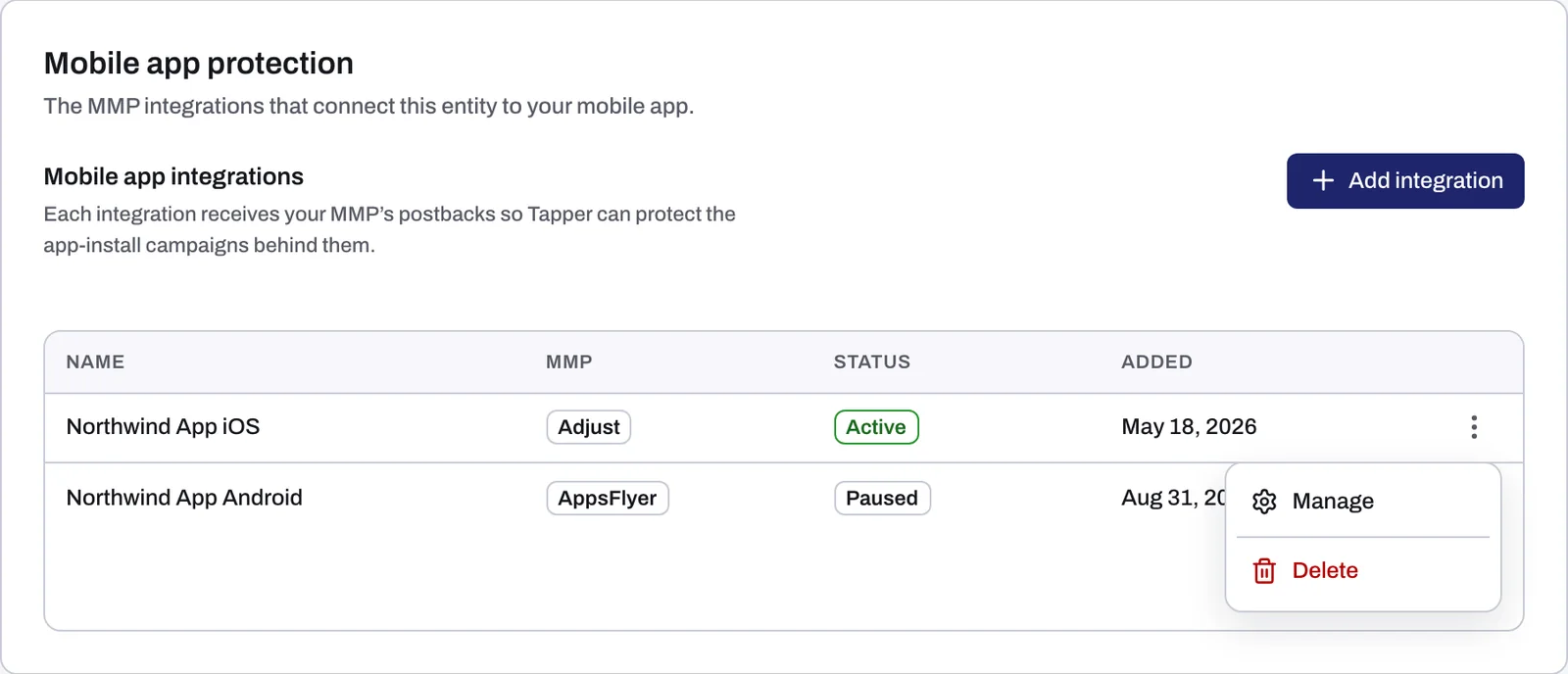
The integrations themselves live on the Mobile app protection tab (left rail: Mobile app, App protection).
- Add integration opens the Create MMP integration dialog for AppsFlyer, Adjust, Branch, Kochava or Singular; see Connect a mobile app through your MMP.
- The table has the columns Name, MMP, Status (Active or Paused) and Added.
- Each row's menu has Manage and Delete. Delete asks you to confirm in Delete MMP integration and removes the integration and its webhook URL from Tapper.
If something goes wrong
- "Destination must start with https://." The destination does not begin with
https://. Copy thehttps://version of the click URL from your MMP. Save stays disabled until the destination is valid. - "The link preview isn't available right now" Saved tracking links still work. If you need a new link's URL before the preview is back, email support@tapper.ai.
- The integration shows no events. Most MMPs send a partner only the events already attributed to it unless you change a setting. Make sure your MMP sends all events to Tapper; Connect a mobile app through your MMP names the setting for each MMP.
Related
Was this helpful?
Related articles
Still need help?
Chat with our team and mention this article.