

Frames on Google: put frames on your Performance Max asset groups and Demand Gen ads
On this page
Frames on Google puts your framed product images on the Performance Max asset groups and Demand Gen ads you already run. A frame is a layer drawn on a product photo: a sale badge, a label such as Best seller, the price. You design frames once, the way you do for your Meta catalog ads, then choose where they go.
Frames only adds. Your own images stay exactly as they are, and Tapper takes off only the images it put there.
Tapper switches Frames on Google on for your workspace. Until it is on, you can look at your asset groups and ads, but the Put frames on button stays off and nothing changes in your Google Ads account. Even when it is on, nothing is put on until a member of your team approves a template and presses Put frames on.
Where to find it
You need a connected Google Ads account. Then:
- Open Lift > Products and select the Frames tab.
- Choose Google Ads in the platform choice at the top of the tab.
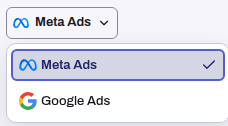
On Google, the tab has two views: Templates, where you make and approve a frame, and On asset groups, where you choose where it goes.
Make and approve a Google template
- On Templates, select New template and pick a starting point, Google banner or Google banner, dark. It comes in every size Google Ads runs, each with its safe margin.
- Edit it if you like, then select Approve on its version. Lift checks the template on your products first. Read any warning, then select Approve anyway or go back and fix it.
Only an Owner, Admin or Manager can approve. Approving sends nothing to Google: your Google Ads account stays as it is until you press Put frames on.
Choose an asset group or ad
On the On asset groups view, the Google asset groups card lists the Performance Max asset groups and the Demand Gen ads in your connected Google Ads accounts. Each row shows:
- The name, and the campaign and Google Ads account it belongs to.
- How many images it has, not counting logos, and what it sells: One product, Several products or Products not known.
- The kind, on the right: Performance Max or Demand Gen.
- A status chip once frames are on it or on their way (see below).
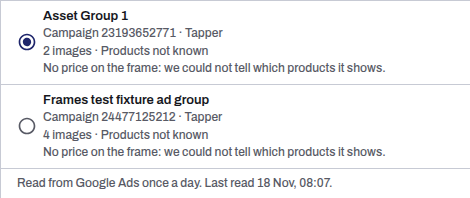
Search by name or campaign, then select a row to choose it. Lift reads your Google Ads accounts once a day, and the card says when it last did.
A frame shows the price only on an asset group or ad that sells One product. With several products, or products Lift can't tell, the row says so and the frame goes on without the price, because one price would be wrong for most of them.
Put frames on
Select an asset group or ad, choose the frame template if you have more than one, then press Put frames on. A box asks you to confirm: "Put frames on this one?". Tapper puts your framed product images on that asset group or ad: the notice says "Putting frames on now", and it takes a minute or two. Once a row has frames, Put frames on gives way to Undo last press and Remove frames.
Our pictures go beside your own images and never replace them. Your own images and your Merchant Center image are never touched.
Who can press it: your workspace's Owner, Admin and Manager. Anyone else sees who can, and no button.
You need an approved Google template first (see above). If there is none, the card says so and the button stays off.
If the asset group has room for the images, they go on. If Google's limit on images means the group is full, nothing is added and the row says Skipped; take one of your own images off in Google Ads, then press Put frames on again.
If the button is off, the line under it says why, for example that writes are not on for this account yet. On a Demand Gen ad it can also say that frames cannot be put on Demand Gen ads of that account yet; Performance Max asset groups can have them.
Undo last press
Undo last press takes back the last Put frames on: the framed images that press added come off, and nothing else does. A box asks you to confirm: "Undo the last press?". Use it when you pressed the wrong row or the wrong template.
If the row still has frames switched on, the next hourly check would put the frames on again. To stop frames for good, use Remove frames.
Remove frames
Remove frames stops frames for this asset group or ad and takes all of Tapper's framed images off it. A box asks you to confirm: "Remove frames from this one?". Your own images and the images from your Merchant Center feed stay. Use it when you no longer want frames on that row.
If an image can't be taken off at once, Tapper takes it off within the hour.
What the chip says
The chip on a row tells you where its frames are.
- Frames on: the framed images are on this asset group or ad in Google Ads.
- Putting on: a press has not finished. The next hourly check settles it.
- Not on yet: frames are set for this row and the next hourly check puts them on.
- Skipped: the group is full, so nothing was added. Free a place in Google Ads and press Put frames on again.
- Frames set: frames are set for this row, but Tapper could not read yet whether they are on.
- No chip: there are no frames from Tapper on this row.
Product tiles
Shopping ads, and the product tiles inside Performance Max, show the photo from your Google Merchant Center feed. Frames never changes your feed, so a frame goes on the images of an asset group or a Demand Gen ad, never on a tile. To label products in Shopping, use the label feed.
Related
Was this helpful?
Still need help?
Chat with our team and mention this article.