

The Results page: spend and campaign performance
On this page
Lift's Results page shows where your ad money went and what it brought back, for the dates you pick. It has your spend on each platform and campaign type, each one's share of spend against its share of conversions, and the campaign tables for Google Ads and Meta. The fixes applied from Lift are on the page's second tab, Activity: see Automatic fixes and the Activity tab.
Where to find it
In the sidebar, under Lift, select Results. The page is headed Lift, with "How your ad accounts perform, and what the changes you applied did." under it, and has two tabs: Results and Activity.
- Results is for the workspace's Owners, Admins and Managers. A Viewer can open the page, but its figures do not load and Export PDF is not shown. See Invite members and set their roles.
- The spend figures and the Google Ads and Meta tables cover every ad account in your workspace, whichever protected entity the switcher shows.
- In a white-label partner app, the page has no Export CSV, no Export PDF and no Adjust card.
From top to bottom the page shows the Adjust card (only when it applies), the filter row, Spend, Why behind the spend, Google Ads and Meta.
The dates and the Platform chip
The filter row at the top sets what the panels below it read.
- Dates. The page opens on the last 30 full days, ending yesterday. Spend arrives for whole days, so today is never counted. Press the dates to pick others: the quick ranges are Yesterday, Last 7 days, Last 30 days, Last 90 days, Previous month, Last 12 months and Last quarter, and each ends yesterday. You can also pick a first and last day on the calendar and press Apply. The dates you pick hold while you stay on the page; when you come back to it, it opens on the last 30 days again.
- Platform. The Platform chip picks one platform: Google Ads, Meta, TikTok or Microsoft Ads. With nothing picked, the page covers every platform. A platform's name in the Spend by platform table picks it too. To see every platform again, remove the chip's value or press Clear.
The Google Ads section shows only while the chip is empty or on Google Ads. The Meta panels follow your dates but not the chip.
Export CSV and Export PDF
Both buttons sit at the right of the filter row.
Export CSV downloads the spend figures behind the page, for your dates and platform, as one spreadsheet, for example "spend-google-ads-2026-09-21-to-2026-10-20.csv". It is off until the figures load, and when nothing was spent in your dates or in the same number of days before them. It is not the Lift report: it holds spend and results only.
| Column | What it holds |
|---|---|
| Level | What the row is: Total, Platform, Ad account, Campaign type, Top campaign or Day. Filter on Platform, Ad account, Campaign type or Day, and its rows in one currency add up to that currency's Total row. |
| From, To | Your dates. |
| Day | The day, on Day rows. |
| Platform, Ad account, Campaign type, Campaign | Where the row belongs, where the level has it. |
| Currency | The ad account's own currency. Each row is in one currency, and the Total level has one row per currency. |
| Spend, Spend (USD) | Spend in that currency, and in US dollars (empty when there is no exchange rate). |
| Previous spend, Previous spend (USD) | Spend in the same number of days just before your dates. |
| Change | The change the page shows, such as "+12%"; "no earlier data" when the data starts inside the earlier days; empty when nothing was spent then. |
| Conversions, Conversion value, Cost per conversion, ROAS | The platform's results, on the rows that have them. |
Amounts are exact: no currency sign and no thousands separator, so the rows add up to the totals to the cent. Top campaign rows are the campaigns with the most spend, up to ten per platform and currency.
Export PDF opens the Export Lift report dialog on your dates, with the picked platform's accounts chosen (every account when no platform is picked). On the page's default 30 days, the dialog opens on Custom with those same days, because its own Last 30 days ends today. When your workspace's ad accounts sit on more than one protected entity, the PDF covers the whole workspace, as the page does: in place of the account picker, the dialog says, for example, "Every Meta Ads account on the workspace (3)". For the dialog and what the report holds, see Export a Lift report as PDF.
Export PDF is not shown to a Viewer, or while your workspace's full recommendations wait for your agreement to start. When it is off, the reason is under the filter row:
| Message | Why |
|---|---|
| "Available once a Google Ads, Meta Ads or TikTok Ads account is connected." | The report covers Google Ads, Meta Ads and TikTok Ads accounts, and none is connected. |
| "No Meta account to put in the PDF." (or Google Ads, TikTok) | The platform you picked has no account for the report. |
| "Lift does not review Microsoft Ads, so there is no Microsoft Ads PDF. Its spend is in the All platforms PDF." | You picked Microsoft Ads. Clear the chip to prepare the PDF for every platform. |
The Adjust card
When the protected entity spent on app campaigns in Google Ads or Meta over the last 30 full days, and no Adjust app is connected, the page opens with Check your app campaigns against Adjust: "Connect Adjust so Lift can check Google's and Meta's numbers against your own Adjust numbers. Lift only reads campaign totals once a day and never changes anything in Adjust."
Set up Adjust opens Setup > Mobile app on the form for a new app. If an app's last check failed, it opens that app instead, where you fix its keys. The card leaves once an app is connected, or while Tapper confirms it. TikTok app campaigns do not bring it up. See Connect a mobile app through your tracking tool.
Spend
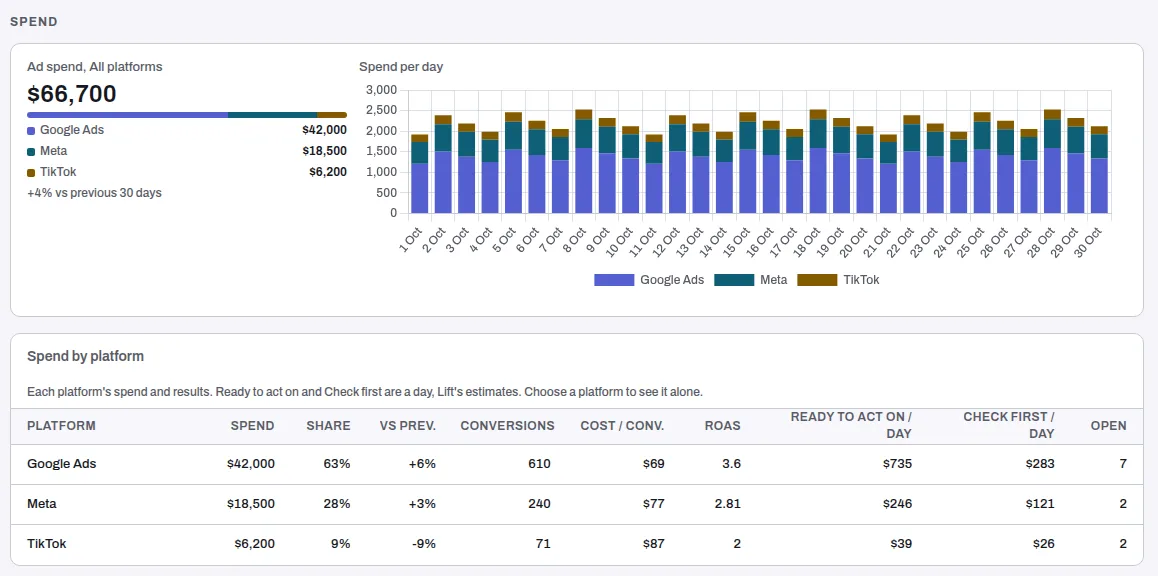
The panel opens with one card. On the left, Ad spend, All platforms (or the platform you picked) is the total for your dates, with its change against the same number of days just before them, for example "+12% vs previous 30 days". On the right (under it on a phone), Spend per day stacks each day's spend by platform. With every platform shown, a bar under the total splits it by platform, in the chart's colours.
The change line can also read:
- "No earlier data for the previous 30 days": an account's data starts inside those days, so there is nothing to compare with. It is not a fall.
- "No spend in the previous 30 days to compare with".
Currencies are never added together. When your accounts spend in several, a Currency switch above the card picks one, most spend first, and every figure in the panel is in that currency.
Spend by platform
With every platform shown, the card is followed by Spend by platform, one row per platform, most spend first.
| Column | What it shows |
|---|---|
| Platform | The platform. Press its name to see it alone. |
| Spend | Its spend in your dates. |
| Share | Its share of the total in this currency. |
| vs prev. | Its change against the days before, such as "+12%" or "-4%". It reads "no earlier data" when the platform's data starts inside those days, and "-" when it spent nothing then. |
| Conversions | The conversions it reports. |
| Cost / conv. | Its spend per conversion. |
| ROAS | Its return on ad spend. |
| Ready to act on / day | Money a day on its open recommendations that Lift is confident in. |
| Check first / day | Money a day Lift found on its open recommendations, but whose figure rests on a judgement: look before you act. |
| Open | Its open recommendations. |
Ready to act on / day, Check first / day and Open are your recommendations as they stand today, whatever dates you pick. Together the two money columns are Lift's savings estimate: see Impact.
One platform: by campaign type and top campaigns
With a platform picked, the card is followed by two tables.
Spend by campaign type has Campaign type, Spend, Share and vs prev. App campaigns are one row of their own, and a campaign with no type reads "No type".
Top campaigns by spend lists the platform's ten campaigns with the most spend, in the panel's currency, across all its accounts. With fewer than ten, it lists every campaign that spent. Its columns are Campaign, Campaign type, Spend, Share of spend, Share of conversions, Conversions and Cost per conversion. The shares are of that platform's spend and conversions, and Cost per conversion reads "None" for a campaign that spent and converted nothing.
When there is no spend
| Message | What it means |
|---|---|
| No spend data to show | "Your connected ad accounts have not sent any spend data. It shows here as soon as they do." |
| No spend in this range, with a platform picked | "Google Ads has no spend in this range. Choose another platform or other dates above." (with the platform you picked) |
| No spend in this range, on dates you picked | "No ad account spent anything on these dates. Go back to the last 30 days to see the latest spend." Show the last 30 days takes you back. |
| No spend in this range, on the default dates | "Spend and results show here once a connected ad account has spent." |
Why behind the spend
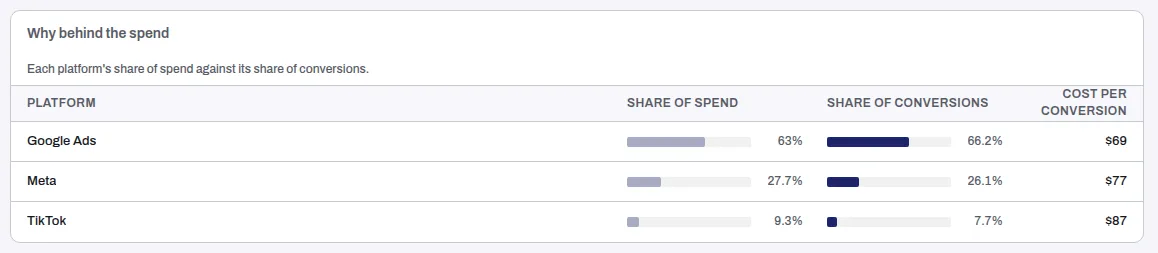
Why behind the spend follows the Spend panel, on the same dates and platform. It has one row per platform, or one per campaign type when you picked a platform.
| Column | What it shows |
|---|---|
| Platform (or Campaign type) | The line, most spend first. A name that repeats in two currencies carries its currency, such as "Google Ads (AED)". |
| Share of spend | Its share of the spend, as a pale bar on a 0 to 100% track, with the figure beside it. |
| Share of conversions | Its share of the conversions, as a solid bar, with the figure beside it. |
| Cost per conversion | Its spend per conversion, or "None" when it spent and converted nothing. |
The line under the title names the largest gap, when one line takes at least 10% of the spend and at least 10 points more of the spend than of the conversions. For example, "Google Ads took 62% of spend and 31% of conversions." or, with Google Ads picked, "Performance max took 48% of Google Ads spend and 20% of its conversions." With no such gap, it says what the bars compare. When a currency has no exchange rate, the line adds "No exchange rate for" that currency, "so no platform has a share of spend."
The table is left out when nothing was spent in your dates: the Spend panel already says so.
Google Ads
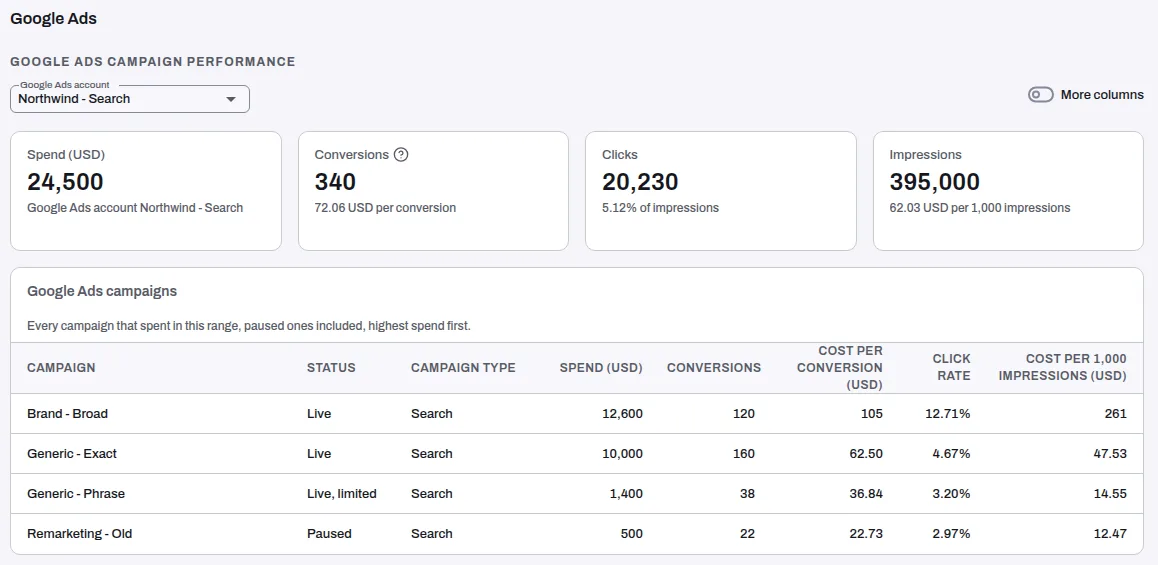
Google Ads campaign performance lists every campaign of one Google Ads account that spent in your dates, paused ones included, most spend first. It shows while the Platform chip is empty or on Google Ads, your workspace has a Google Ads account, and Google Ads spent in your dates. Top campaigns by spend above is one platform's top ten across all its accounts; this is every campaign of one account, with its clicks and impressions.
- Google Ads account: with several, pick the account to read. The page opens on the first.
- More columns adds Impressions, Clicks and, where a campaign reports it, Conversion value.
- The currency switch shows the account's currency and USD when the account does not spend in US dollars. Every money figure follows it, and each money column names its currency, such as Spend (AED).
The four tiles are the account's totals:
| Tile | What it shows |
|---|---|
| Spend | The account's spend, with its name under it. |
| Conversions | Google's count, with the cost per conversion under it. Its ? says: "Google's count of the account's primary conversion actions, as the account reports them. Data-driven attribution can split one conversion across campaigns." |
| Clicks | Clicks, with the click rate "of impressions" under it. |
| Impressions | Impressions, with the cost per 1,000 impressions under it. |
The Google Ads campaigns table has Campaign, Status, Campaign type, Spend, Conversions, Cost per conversion, Click rate and Cost per 1,000 impressions. Status is Live, Paused, Ended or Live, limited. With nothing to list, it reads "No campaign spent in this range."
Meta
The Meta section shows when your workspace has a Meta account. It has three panels, which read one Meta account at a time: with several, pick one in Meta account at the start of the first panel's row, and all three follow it.
When a store is connected, each panel's notes open with "Meta says: every figure here is Meta's own count, not your store's." Purchases, purchase value and return on ad spend carry "Meta says" in their names, such as Purchases (Meta says). Money figures also name the account's currency, such as Spend (USD) and Purchase value (USD, Meta says); below, they are written without it.
Meta campaign performance
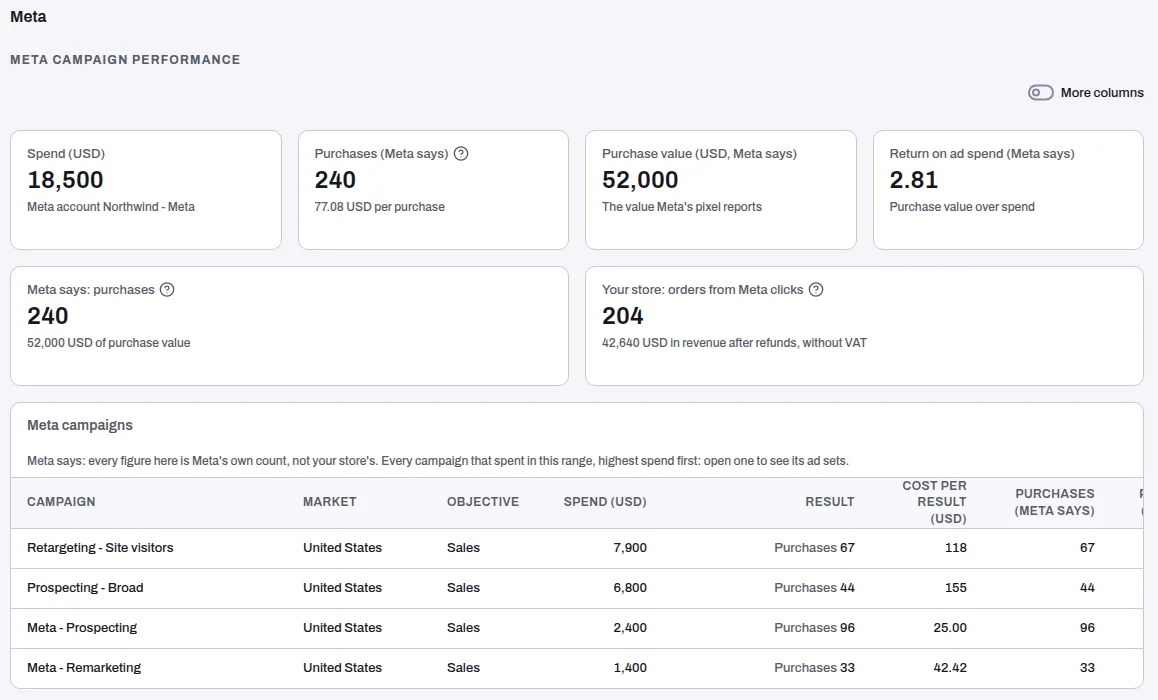
This panel lists every campaign of the Meta account that spent in your dates, most spend first.
- Market picks one or more markets, when the campaigns run in more than one. A worldwide set reads "Global". A campaign that targets several markets is listed only while no market is picked.
- Objective picks one or more objectives, when the account spends on two or more: Sales, Leads, App, Traffic, Awareness, Engagement or Other. The tiles keep the account's (or the one market's) figures.
- More columns adds the rest of the columns, and the currency switch shows the account's currency and USD when the account does not spend in US dollars.
The tiles start with Spend, then the results of up to three objectives the account spends most on:
| Objective | Its tiles |
|---|---|
| Sales | Purchases (Meta says), Purchase value (Meta says) and Return on ad spend (Meta says) |
| Leads | Leads and Leads on lead-goal ad sets |
| App | Installs |
| Traffic | Landing page views |
| Awareness | Impressions |
| Engagement | Messaging conversations |
An objective with no figure on the campaigns shown has no tiles, and one line under the tiles says so, for example "Purchase figures are not available for these campaigns in this range." A second row can add Your store: orders from Meta clicks (orders your store received from a Meta link, test and cancelled orders left out) with Meta says: purchases beside it, both for the whole account, and ThruPlays.
The table is Meta campaigns. Press a campaign's name to see its ad sets (Meta ad sets), and an ad set's name to see its ads (Meta ads). The trail above the table, starting at All campaigns, takes you back up.
| Column | What it shows |
|---|---|
| Campaign (Ad set, Ad) | The name. Press it to open the level below. |
| Market | Where it runs. |
| Objective | Its objective. |
| Spend | Its spend. |
| Result | Its own result, named, with its count. Mixed is a campaign whose ad sets count different results, never added together: open it to see each. |
| Cost per result | Its spend per result. |
| Purchases (Meta says), Purchase value (Meta says) | Shown when a row has them. |
| Return on ad spend (Meta says) | Shown when a sales row is listed; other rows read "-". |
| Reach | Meta's people reached, when Meta sends it. |
| Click rate, Cost per 1,000 impressions | Clicks over impressions, and spend per 1,000 impressions. |
More columns adds Link clicks, Cost per link click, Landing page views, Adds to cart, Checkouts, Registrations, 3 second video plays, ThruPlays and Cost per ThruPlay (where a row has them), Frequency and Cost per 1,000 reached (with reach), Impressions, Clicks, Link click rate, Leads, Cost per lead, Leads on lead-goal ad sets and Cost per lead on lead-goal ad sets (left out when they repeat Leads on every row), and Cost per purchase.
Meta's reach for new dates takes about a minute: the line under the title says "Meta's reach for these dates shows here in about a minute." and the page checks again on its own for about five minutes.
Meta placements, age and gender
This panel compares each placement's share of spend, or each age and gender's, with its share of leads, for one scope at a time.
- Placement and Age and gender switch the breakdown.
- Scope picks a market, a campaign or an ad set. Markets are never added together.
- Leads and Results switch the count: Leads is Meta's lead action (instant forms and website), Results is each ad set's own result. Results is off for a scope whose ad sets count different results.
The table has Placement (or Age and gender), Spend, Spend share, Leads (or Results), Lead share (or Result share), Cost per lead (or Cost per result) and 95% range: the range the cost per lead or result is likely to fall in. Rows with too few leads or results to read are greyed.
A scope whose ad sets all count purchases shows purchases instead, with no Leads and Results switch: Purchases (Meta says), Purchase share, Purchase value (Meta says), Value share, Return on ad spend (Meta says) and Cost per purchase.
- The line under the title says what it counts. Show details opens the rest of the notes, including "Nothing here is called waste until qualified leads or sales come back from your CRM, and no age or gender change is suggested."
- A scope that holds a campaign under Meta's housing special ad category has no age and gender split, and the table says why.
- The panel reads at most 92 days. On longer dates it says "This panel reads at most 92 days. Pick a shorter range to see it."
- When Meta does not send a breakdown, the table says so, for example "Meta did not return this breakdown for the range, so it is not known (not zero)."
- Days are Meta's own, in the ad account's time zone, as the table's Ad account time zone footer says.
Meta results by audience type
This panel has one table per goal, titled with the goal, its spend and its counts. Each row is an audience type: Advantage+ audience, Retargeting, Customer list, Lookalike, Interests, Broad or Custom audience, kind not known. "Each ad set counts once a day, under the warmest audience it targets." Exclusions never set the type.
- The columns are Audience type, Ad sets, Spend, Spend share, Leads (or Results) and Cost per lead (or Cost per result). The Leads and Results switch works as in the placements panel.
- A goal whose ad sets count purchases shows Purchases (Meta says), Purchase share, Purchase value (Meta says), Value share, Return on ad spend (Meta says) and Cost per purchase, greyed under 10 purchases. Leads are never added to purchases.
- Spend on days with no targeting snapshot is not given a type: a line under the tables starts "Not classified:" with that spend.
- Figures start on 8 Oct 2026, the first day of the targeting history. Dates that start earlier show a Since chip with the first day counted; dates that end earlier show a sentence in place of figures.
- Like the placements panel, it reads at most 92 days.
Reading the tables
- Each table shows 8 rows a page, with a pager under it when there are more. A wide table scrolls sideways inside its card.
- A dash (-) means the figure is not known. It is never a zero.
- Each money column names its currency once, in its heading.
Related
Was this helpful?
Related articles
Still need help?
Chat with our team and mention this article.