

Connect Adobe Analytics
On this page
The Adobe Analytics row in the Analytics group of Setup > Data sources connects one Adobe Analytics report suite to Tapper, read-only. Its line says what it is for: "Find your leads in Adobe Analytics and match them to your Google Ads campaigns."
What it gives you
Once the daily read is on, Tapper reads your lead metric for each tracking code every day, the last 90 days the first time, and matches the tracking codes to your Google Ads campaigns. The leads sit in the connection; the Lift, Vantage and Block screens do not show them.
Before you start
- You need the Owner or Admin role in the workspace. Anyone else sees the row with Owners and admins and "Only a workspace owner or admin can see or change the Adobe Analytics connection. Ask one of them to do it."
- Someone in your Adobe org creates a credential for Tapper. The form lists the steps under Before you start, in your own Adobe org:
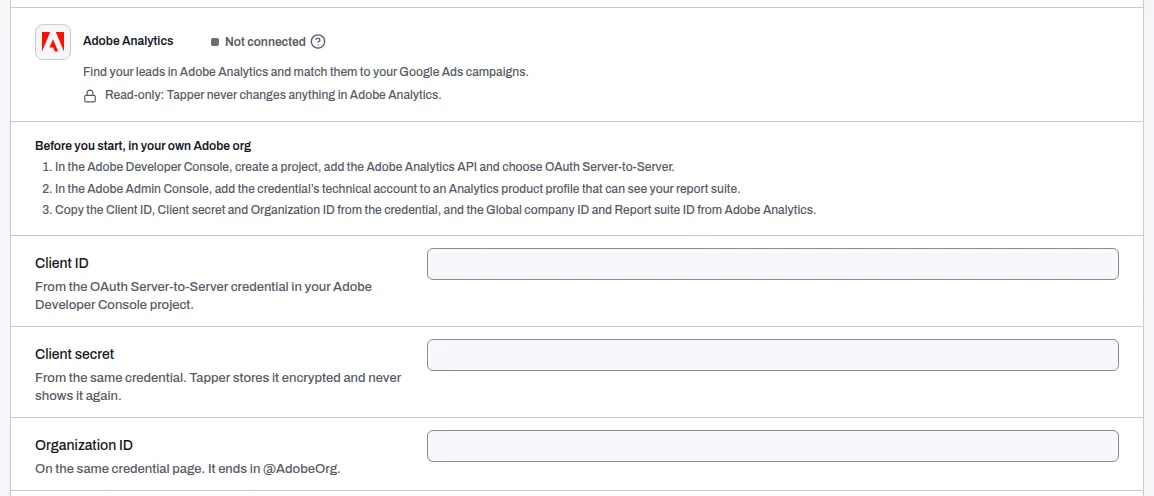
- In the Adobe Developer Console, create a project, add the Adobe Analytics API and choose OAuth Server-to-Server.
- In the Adobe Admin Console, add the credential's technical account to an Analytics product profile that can see your report suite.
- Copy the Client ID, Client secret and Organization ID from the credential, and the Global company ID and Report suite ID from Adobe Analytics.
- Know which metric counts a lead, for example
metrics/event12, or a calculated metric ID that starts withcm.
Tapper uses the credential to ask Adobe for a token and run reports. It cannot change anything in Adobe Analytics.
Connect a report suite
- If your workspace has more than one protected entity, pick the entity in the switcher at the top of the sidebar.
- In the sidebar, under Setup, click Data sources. Adobe Analytics is in the Analytics group.
- On the Adobe Analytics row, click Set up. The form opens under the row.
- Enter the Client ID, Client secret, Organization ID, Global company ID, Report suite ID and Lead metric ID. Under Optional, you can add a Lead metric name (optional), a Segment ID (optional) to count only the leads in one segment, a Campaign dimension (optional) (empty means the tracking code) and a Campaign ID pattern (optional) that says where a Google Ads campaign ID sits in a tracking code.
- Click Save on the bar that appears at the bottom of the page. A message confirms "Adobe Analytics saved. Test the connection to check it."
Test the connection and start the daily read
- On the Adobe Analytics row, click Manage.
- Click Test connection at the top of the page, then open the Activity tab. The answer says whether the test passed, names the report suite and its time zone, and counts the leads in a recent sample.
- On the Settings tab, turn on Read leads every day. The switch turns on once a test has passed.
Once connected
- The row reads Connected, with the report suite and the result of the last test.
- Settings shows the stored values (the secret only by its last characters) and the Read leads every day switch. Edit changes them.
- Activity shows the Last test, the Last read and when the First 90 days read finished.
- Disconnect deletes the stored secret and stops reading. To end the access on Adobe's side too, delete the credential in the Adobe Developer Console.
If something goes wrong
- The row reads Needs reconnecting. The daily read stopped, and the row says why. Fix it, then choose Reconnect and save the connection with the Client secret entered again. That clears the stop, and the next daily read runs.
- The switch stays off. Run Test connection first. The daily read can be turned on once a test passes.
- "Too many connection tests." Tapper allows 30 tests an hour for each address and each workspace. Try again in an hour.
Related
Was this helpful?
Related articles
Still need help?
Chat with our team and mention this article.