

Connect Mailchimp
On this page
The Mailchimp row in the Leads and customers group of Setup > Data sources connects your Mailchimp account to Tapper. Its line says what it is for: "Match your customers and orders to your Shopify orders and the ad clicks behind them, so Vantage learns who comes back."
What it gives you
Tapper reads the contacts, customers and orders of the audiences and e-commerce stores you choose. For a Mailchimp store that is paired with a Shopify store in your workspace, it matches those orders to your Shopify orders and links customers to the ad click behind them, for Vantage. The Overview tab shows how much it has read and matched.
Before you start
- You need the Owner or Admin role in the workspace to connect Mailchimp.
- You need someone who signs in to the Mailchimp account that holds your audiences and e-commerce stores, and approves Tapper on Mailchimp's own page.
Connect Mailchimp
- If your workspace has more than one protected entity, pick the entity in the switcher at the top of the sidebar.
- In the sidebar, under Setup, click Data sources. Mailchimp is in the Leads and customers group.
- On the Mailchimp row, click Continue with Mailchimp.
- Sign in to Mailchimp and approve Tapper. You come back to Data sources, and a message confirms "Mailchimp connected. Choose the audiences and stores to read below."
Choose what Tapper reads
A new connection reads nothing until you start it.
- On the Mailchimp row, click Manage, then open the Settings tab.
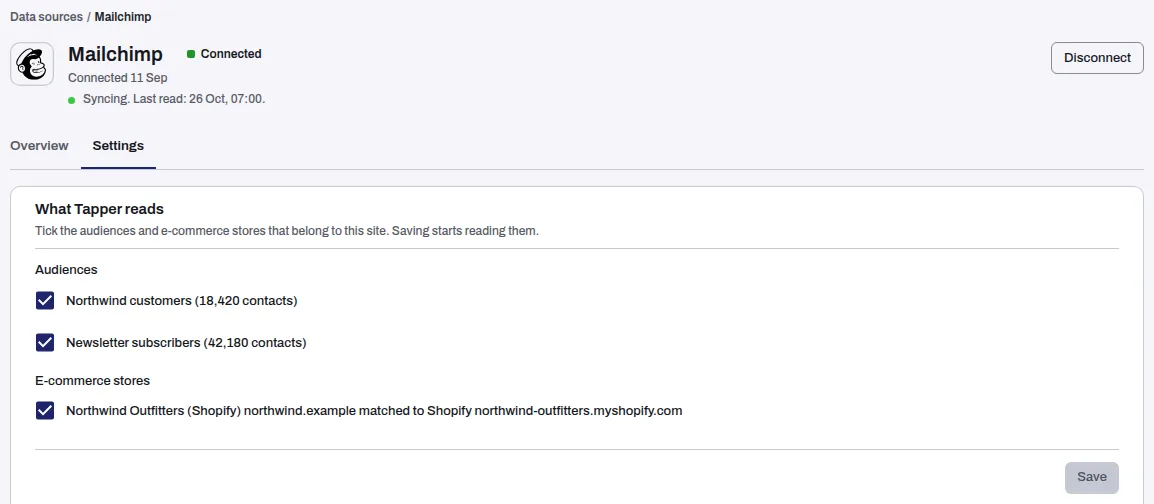
- Under What Tapper reads, every audience and e-commerce store starts ticked. Keep ticked the Audiences and E-commerce stores that belong to this site and untick the rest. A store paired with a Shopify store says "matched to Shopify" and the shop's address.
- Click Start reading. Later changes are saved with Save.
Once connected
The row reads Connected, with the state of the read and the last read: Reading during the first read, then Syncing. Not reading means nothing is chosen yet.
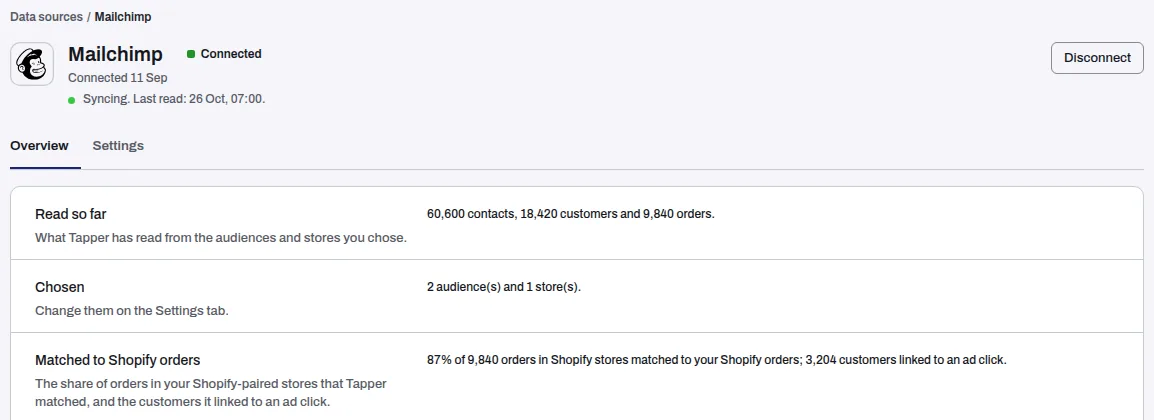
The Overview tab shows:
- Read so far: the contacts, customers and orders Tapper has read.
- Chosen: how many audiences and stores you chose.
- Matched to Shopify orders: the share of orders in your Shopify-paired stores that Tapper matched, and how many customers it linked to an ad click.
Mailchimp has no connection test: the read itself shows that the connection works.
Disconnect deletes Tapper's access and stops reading. To remove Tapper on Mailchimp's side too, remove it from the connected apps in your Mailchimp account.
If something goes wrong
- The row reads Needs reconnecting. The Mailchimp sync stopped, and the row says why. Click Reconnect and approve Tapper again.
- Matched to Shopify orders says there is nothing to match. No chosen store is paired with a Shopify store in this workspace. Connect the store's Shopify row first: see Install Tapper on a Shopify store.
- "Mailchimp could not be read just now" on the Settings tab. Tapper could not reach your account to list its audiences and stores. Try again later.
Related
Was this helpful?
Related articles
Still need help?
Chat with our team and mention this article.