

Connect BigQuery
On this page
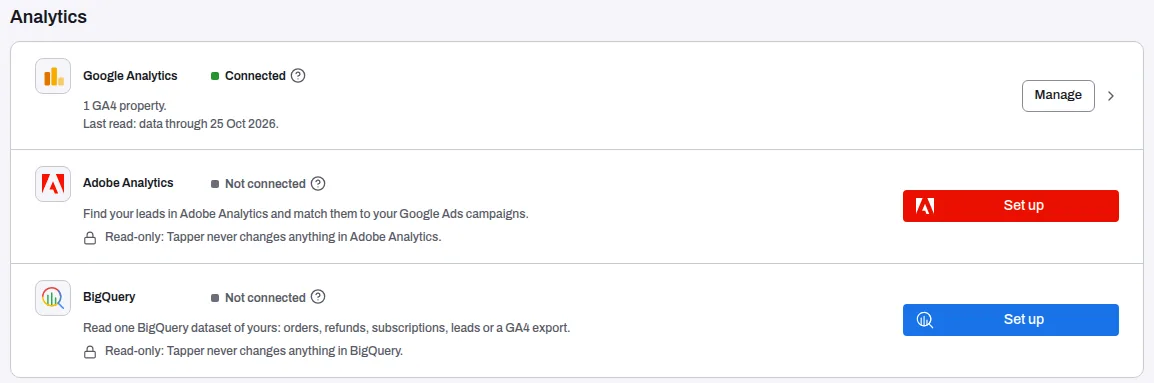
The BigQuery row in the Analytics group of Setup > Data sources connects one BigQuery dataset of yours to Tapper, read-only. Its line says what it is for: "Read one BigQuery dataset of yours: orders, refunds, subscriptions, leads or a GA4 export."
What it gives you
A connected dataset shows the tables Tapper can see, and you choose which of them Tapper reads and what each one holds. The connection is read-only.
Before you start
- You need the Owner or Admin role in the workspace. Anyone else reads "Only a workspace owner or admin can connect or change BigQuery. Ask one of them to do it."
- You need someone who can share the dataset in your Google Cloud project, to grant one role on it.
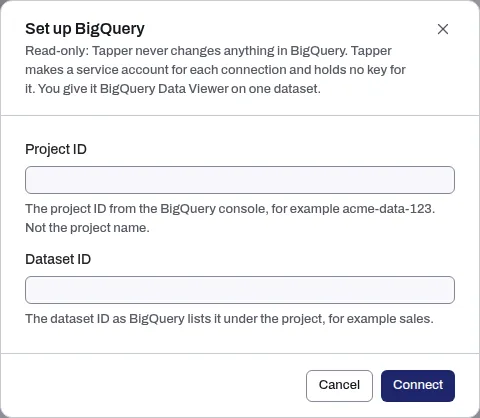
- Have the Project ID (not the project name) and the Dataset ID ready, as the BigQuery console shows them.
Tapper makes a Google service account for each connection and holds no key for it. You give that account BigQuery Data Viewer on the one dataset, nowhere else in the project.
Connect a dataset
- If your workspace has more than one protected entity, pick the entity in the switcher at the top of the sidebar.
- In the sidebar, under Setup, click Data sources. BigQuery is in the Analytics group.
- On the BigQuery row, click Set up.
- In Set up BigQuery, enter the Project ID and the Dataset ID, then click Connect. A message confirms "BigQuery connected. Give its service account BigQuery Data Viewer on the dataset, then press Test."
Grant access and test
- On the BigQuery row, click Manage, then open the Settings tab.
- Under Service account, copy the address with Copy. If it reads "Tapper is making this connection's service account. Its address shows here in a moment.", wait a moment.
- Follow the steps under Give it BigQuery Data Viewer: open the dataset in the BigQuery console, choose Share, choose Add principal, paste the address, give it the role BigQuery Data Viewer and save.
- Back in Tapper, click Test at the top of the page. A new account can take a minute before Google accepts it. If the test fails, fix what its answer names and click Test again.
The answer lists the Tables Tapper can see, with each table's location, partitioning and clustering. Tapper reads the tables' structure for this, not their rows.
Once connected
- The row reads Connected, with the dataset, project, location and the time of the last test. Until a test passes, the row reads Not connected and its line starts with Waiting for access.
- The page has two tabs. Overview shows the Last test. Settings shows the Project ID, Dataset ID, Location (with Change), the service account, and Tables Tapper reads, where Map a table tells Tapper what a table holds.
- Add another on the row connects a second dataset.
- Disconnect deletes the connection's service account, so it can no longer read the dataset. Remove its grant on the dataset too.
If something goes wrong
- The test fails right after you connect. The grant is missing or Google has not accepted the new account yet. Check the grant, wait a minute, then click Test again.
- A test says the dataset is somewhere else. Click Change next to Location and enter the dataset's location, for example
EUoreurope-west1. - The row shows Reconnect. Tapper could not make the connection's service account. Click Reconnect to try again.
Related
Was this helpful?
Related articles
Still need help?
Chat with our team and mention this article.