

Connect Salesforce Marketing Cloud
On this page
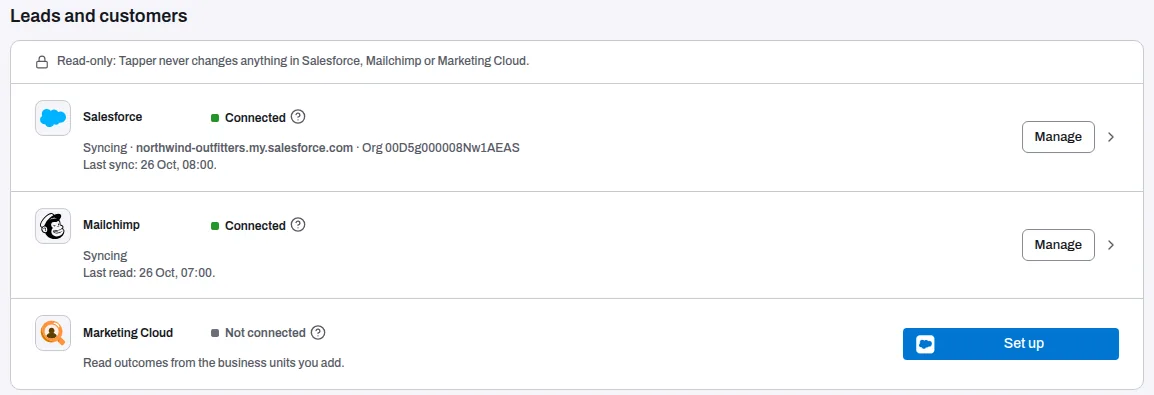
The Marketing Cloud row in the Leads and customers group of Setup > Data sources connects Salesforce Marketing Cloud to Tapper, read-only. Its line says what it is for: "Read outcomes from the business units you add."
What it gives you
The connection holds your installed package's keys and the business units you add, and Test connection checks each unit with read permissions only. It is a read-only link to your business units for the outcomes they hold.
Before you start
- You need the Owner or Admin role in the workspace to connect or change Marketing Cloud. Managers can see the connection. Anyone else sees the row with Owners and admins.
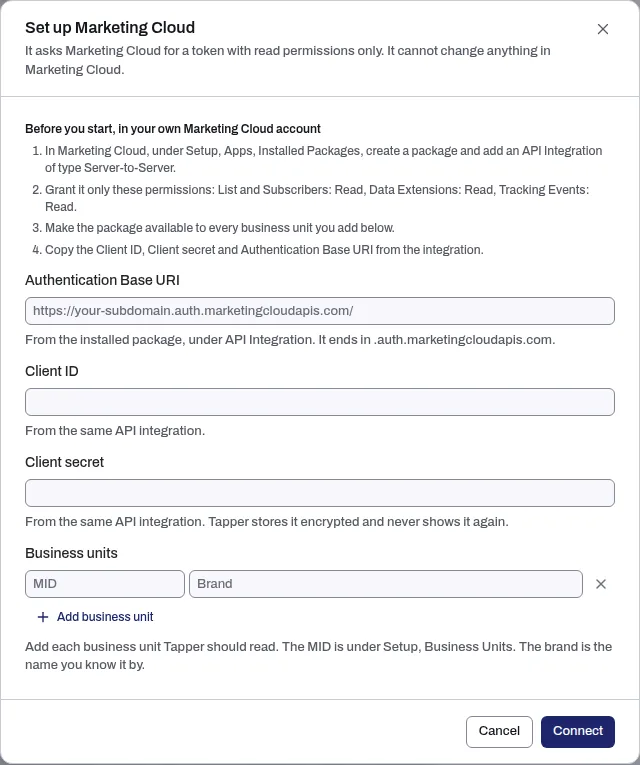
- Your Marketing Cloud admin creates a package for Tapper. The form lists the steps under Before you start, in your own Marketing Cloud account:
- In Marketing Cloud, under Setup, Apps, Installed Packages, create a package and add an API Integration of type Server-to-Server.
- Grant it only these permissions: List and Subscribers: Read, Data Extensions: Read, Tracking Events: Read.
- Make the package available to every business unit you add below.
- Copy the Client ID, Client secret and Authentication Base URI from the integration.
- Have the MID of each business unit ready. It is under Setup, Business Units, in Marketing Cloud.
Tapper asks Marketing Cloud for a token with read permissions only. It cannot change anything in Marketing Cloud.
Connect Marketing Cloud
- If your workspace has more than one protected entity, pick the entity in the switcher at the top of the sidebar.
- In the sidebar, under Setup, click Data sources. Marketing Cloud is in the Leads and customers group.
- On the Marketing Cloud row, click Set up.
- In Set up Marketing Cloud, enter the Authentication Base URI (it ends in
.auth.marketingcloudapis.com), the Client ID and the Client secret. - Under Business units, enter each unit's MID and the Brand you know it by. Add business unit adds a row; you can add up to 30.
- Click Connect. A message confirms "Marketing Cloud saved. Test the connection to check it."
Test the connection
- On the Marketing Cloud row, click Manage.
- Click Test connection at the top of the page, then open the Activity tab. It shows whether the test passed and the result for each business unit.
Once connected
- The row reads Connected, with the result and time of the last test. A failed test shows its line in red.
- Settings shows the Authentication Base URI, the Client ID, the Client secret (only its last characters) and the Business units. Edit changes them.
- Activity shows the Last test and the last test of each business unit.
- Disconnect deletes the stored secret. To end the access on Salesforce's side too, delete Tapper's API integration from the installed package.
If something goes wrong
- A business unit fails its test. Check that the package is available to that business unit and that its MID is right, then test again.
- "The save failed. Paste the Client secret again." The secret is never kept after a failed save. Paste it again and press Connect or Save.
- "Too many connection tests." Tapper allows 30 tests an hour for each address and each workspace. Try again in an hour.
Related
Was this helpful?
Related articles
Still need help?
Chat with our team and mention this article.