

Set up Meta value sending
On this page
Meta value sending is alone in the last group of Setup > Data sources, Values sent to ad platforms. It is the one source Tapper writes to: your own Meta dataset, through Meta's Conversions API.
What it gives you
You connect the dataset your ads optimise on, and Send test event sends one test event to it and shows Meta's answer. The connection is in Test mode: Tapper sends only the test event you ask for, and no purchase values. The mode is not set on this page.
Before you start
- You need the Owner or Admin role in the workspace to connect or change Meta value sending. Managers can see the connection.
- You need someone with access to your Meta Events Manager. The form lists the steps under Before you start, in your own Meta Events Manager:
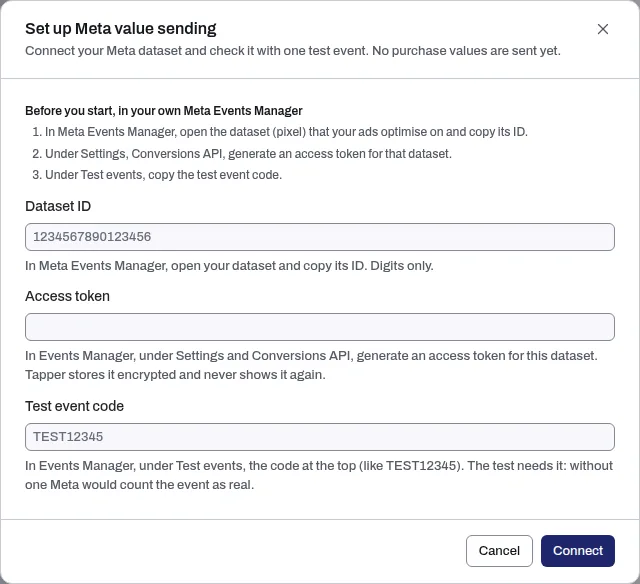
- In Meta Events Manager, open the dataset (pixel) that your ads optimise on and copy its ID.
- Under Settings, Conversions API, generate an access token for that dataset.
- Under Test events, copy the test event code.
Connect your dataset
- If your workspace has more than one protected entity, pick the entity in the switcher at the top of the sidebar.
- In the sidebar, under Setup, click Data sources. Meta value sending is in the Values sent to ad platforms group.
- On the Meta value sending row, click Set up.
- In Set up Meta value sending, enter the Dataset ID (digits only), the Access token and the Test event code, then click Connect. A message confirms "Meta value sending saved. Send a test event to check it."

Send a test event
- On the Meta value sending row, click Manage.
- Click Send test event. Meta's answer shows above the tabs. "Meta received the test event. It shows under Test events." means the dataset and the token work.
- In Events Manager, open Test events on the dataset to see the event.
The test sends its event with your test event code, so Meta does not count it as real. Without a code the button is off and the page reads "Add the test event code first. Without it Meta would count the event as real."
Once connected
- The row reads Connected, with the mode and the result and time of the last test.
- Settings shows the Dataset ID, the Access token (only its last characters), the Test event code and the Mode, Test mode. Edit changes them.
- Activity shows the Last test, Meta's answer, the Events received and Meta's Trace ID, which Meta support may ask for.
- Disconnect deletes the stored access token and the test event code. To end the access on Meta's side too, revoke the token in Events Manager.
If something goes wrong
- Meta refuses the access token. Generate a new one for this dataset in Events Manager, under Settings, then click Edit and paste it.
- "The save failed. Paste the access token again." The token is never kept after a failed save. Paste it again and save.
- "Too many test events." Tapper allows 30 an hour for each address and each workspace. Try again in an hour.
Related
Was this helpful?
Related articles
Still need help?
Chat with our team and mention this article.