

Connect your data: Setup > Data sources
On this page
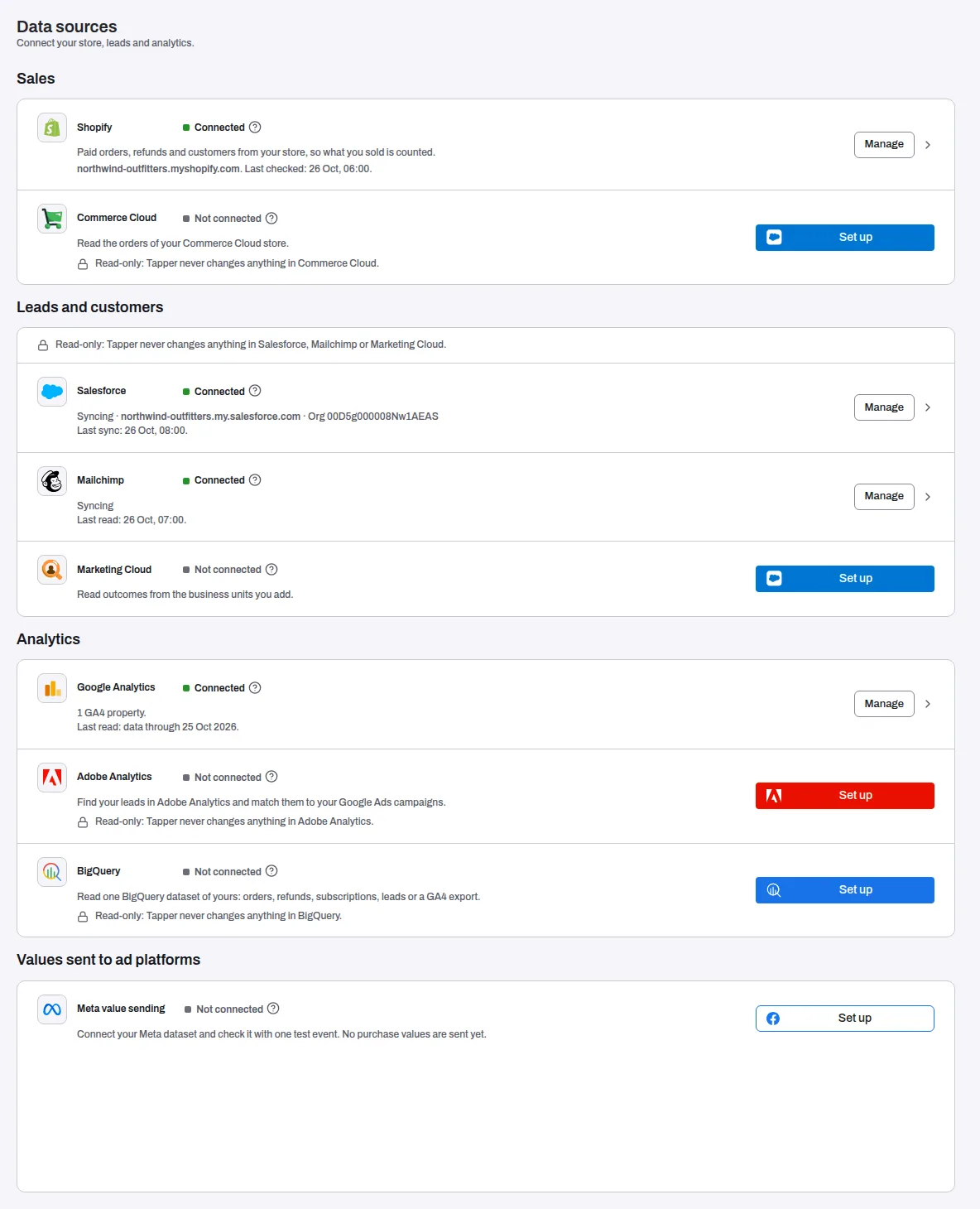
Setup > Data sources is the one page where you connect the systems that hold your own results: your store, your leads and customers, and your analytics. Each protected entity has its own page. Lift, Vantage and the goals link to it, straight to the row of the source they need.
To open it, pick the entity in the switcher at the top of the sidebar if your workspace has more than one, then click Data sources under Setup. The page reads "Connect your store, leads and analytics." and lists the sources in four groups.
How a row works
Every source is one row: its logo and name, a status, one line on what it gives you, and a button.
- Status. Not connected, Connected or Needs reconnecting. A row your role cannot open reads Owners and admins.
- What you need. The ? next to the status opens What you need: what you or your admin set up on the vendor's side before you connect.
- The button. Continue with Shopify, Continue with Salesforce, Continue with Mailchimp and Continue with Google take you to the vendor to sign in and approve. Set up opens a form for keys you copy from the vendor. A connected row says Manage and opens the source's own page, with tabs such as Overview, Settings and Activity.
Connecting most sources takes the Owner or Admin role in the workspace. Each source's article says who can connect it.
Sales
| Source | What it gives you |
|---|---|
| Shopify, one row per store | "Paid orders, refunds and customers from your store, so what you sold is counted." Lift compares your store's real orders with what Google and Meta report. Vantage can send the value of each order to Google Ads on a goal Tapper switches on with you. See Install Tapper on a Shopify store. |
| Commerce Cloud | Commerce Cloud connections are not open: a store cannot be connected from this row, and no product reads Commerce Cloud data. See Salesforce Commerce Cloud on Data sources. |
Leads and customers
The card opens with one line for all three: "Read-only: Tapper never changes anything in Salesforce, Mailchimp or Marketing Cloud."
| Source | What it gives you |
|---|---|
| Salesforce | Vantage matches each lead's real outcome to the ad click behind it, so Google bids for revenue, not form fills. See Connect Salesforce (read-only). |
| Mailchimp | Tapper reads the contacts, customers and orders of the audiences and stores you choose, and matches them to your Shopify orders and the ad clicks behind them, so Vantage learns who comes back. See Connect Mailchimp. |
| Marketing Cloud | A read-only connection to the business units you add, checked unit by unit with Test connection. Tapper only reads. See Connect Salesforce Marketing Cloud. |
Analytics
| Source | What it gives you |
|---|---|
| Google Analytics | Lift checks the purchases Google reports against your site's own analytics. The dashboard gets a Google Analytics tab, and the Exclusions page shows Google Analytics proof for an excluded click. See Connect Google Analytics and read the Google Analytics tab. |
| Adobe Analytics | Tapper reads your lead metric for each tracking code every day and matches the tracking codes to your Google Ads campaigns. The leads sit in the connection. See Connect Adobe Analytics. |
| BigQuery | A read-only connection to one dataset of yours, with Test listing the tables Tapper can see and a map of the tables Tapper reads. Tapper only reads. See Connect BigQuery. |
Values sent to ad platforms
| Source | What it gives you |
|---|---|
| Meta value sending | Connects your own Meta dataset and checks it with one test event, in Test mode. No purchase values are sent. See Set up Meta value sending. |
The read-only promise
Every source in Sales, Leads and customers and Analytics is read-only: Tapper reads from it and never changes anything in it. The Commerce Cloud, Adobe Analytics and BigQuery rows say so in one line, "Read-only: Tapper never changes anything in ...", and the Leads and customers card says it once for Salesforce, Mailchimp and Marketing Cloud. The Shopify and Google Analytics rows carry no such line, but Tapper only reads from them too.
Mailchimp's approval cannot be limited to reading, so Tapper's own connection only ever reads. Meta value sending is the one source Tapper writes to: your own Meta dataset, and only the test event you send.
Your ad accounts are not on this page: they connect on Setup > Ad accounts. A mobile app's tracking tool connects on Setup > Mobile app: see Connect a mobile app through your MMP.
Related
Was this helpful?
Related articles
Still need help?
Chat with our team and mention this article.