

How to connect Meta Ads to an existing workspace
To add a Meta Ads account to a workspace you already use:
- In the sidebar, under Setup, click Ad accounts. With several protected entities, pick the entity in the switcher under the workspace name first.
- Click Add ad account, or Connect Meta Ads if the page has no account yet. Both open Add an account.
- On the Meta Ads row, click Continue with Facebook.
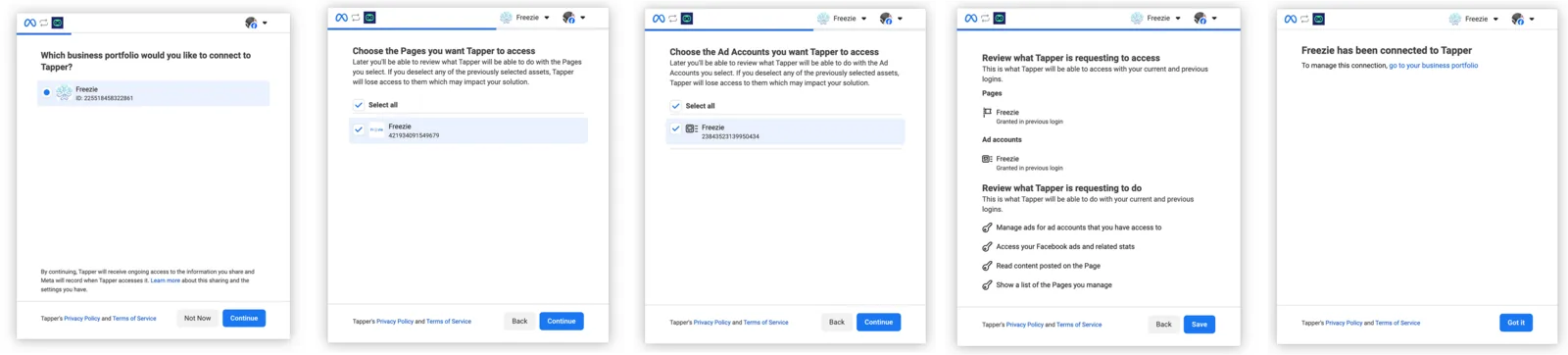
- Follow Meta's screens in the popup: select your business portfolio, choose the Pages and the ad accounts to give Tapper access to, review the permissions and click Save. When Meta says your business has been connected to Tapper, click Got it.
- In Tapper, tick the Meta Ads accounts to protect, click Accept the terms on Meta for each one to accept Meta's Custom Audience terms, then click Finish.
- The account is listed on the Meta Ads page of Setup > Ad accounts. On the Ad sets tab, switch Protection on per ad set, or click Protect all. Tapper then starts detecting and filtering invalid traffic.
Each ad account needs a Meta pixel. See Before you connect Meta: permissions, the pixel and the Custom Audience terms and Connect Meta Ads.
Was this helpful?
Related articles
Still need help?
Chat with our team and mention this article.