

Rule sets: apply different rules to platforms, ad accounts or campaigns
On this page
A rule set (Setup > Rule sets) holds click limits, detection features, a country rule and a Monitor-only switch. Every protected entity starts with one, and that is enough for most sites. Create a custom rule set when one platform, ad account or campaign needs different rules, for example a tighter click limit on a brand campaign.
How it works
- The default set. Every entity has a set named Default. It applies wherever no other set is linked. You can rename it but not delete it.
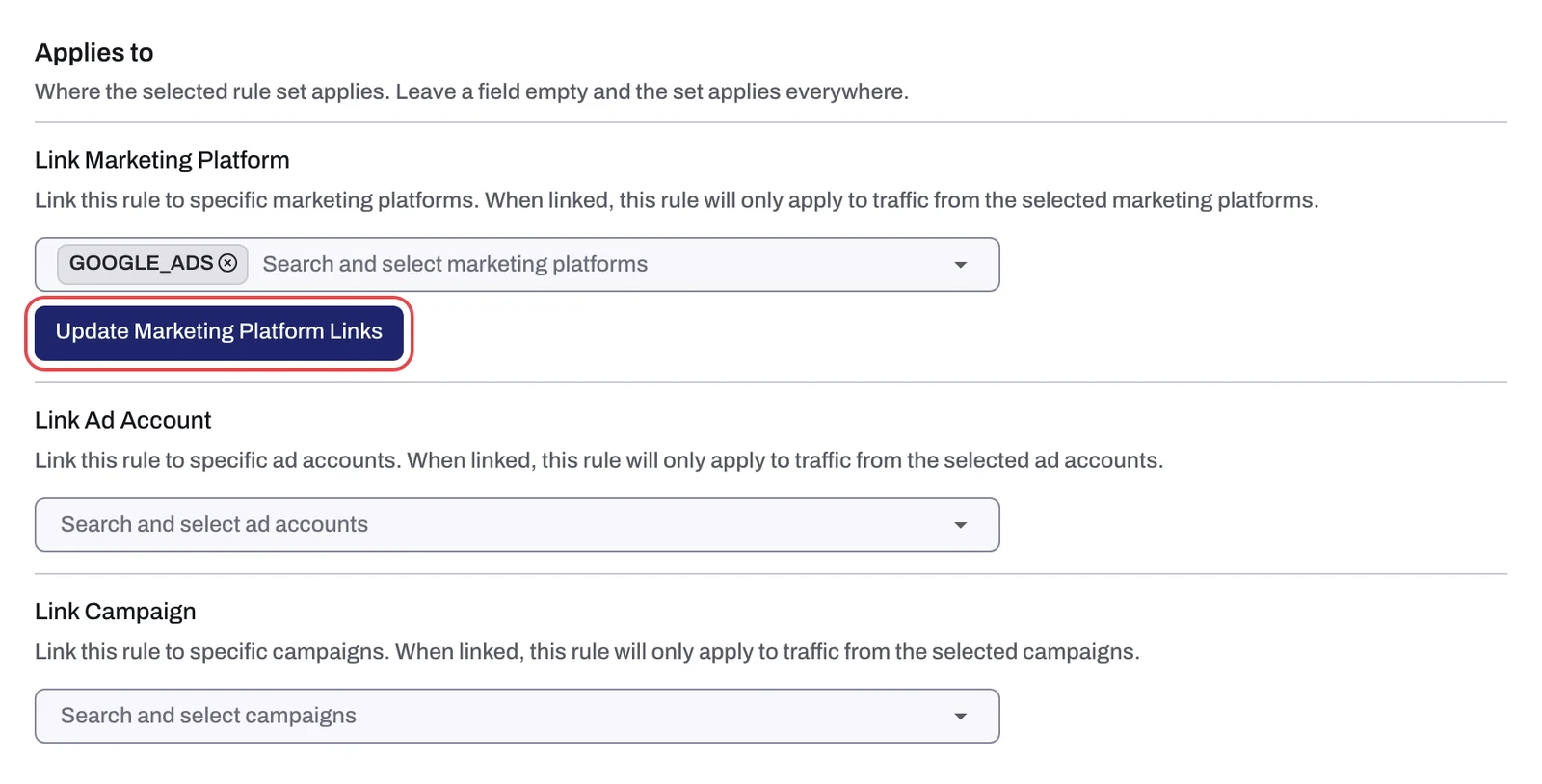
- Custom sets. A custom set has its own settings. Its Applies to tab says where it applies: ad platforms, ad accounts or campaigns.
- One set per campaign. A campaign linked to a custom set is judged by that set instead of the default. An ad account belongs to one rule set at a time.
Onboarding sets up only the default set. You create custom sets in Setup > Rule sets. You need the Owner, Admin or Manager role; Viewer members can only look.

Create a rule set
- If your workspace has more than one protected entity, pick it in the switcher at the top of the sidebar.
- In the sidebar, under Setup, click Rule sets, then New rule set.
- In Create rule set, type a name and click Create. The set opens on its tabs: Click limits, Detection features, Countries, Monitor-only and Applies to.
- Set its rules. Its ad click limit list starts empty; everything else starts with the defaults in Rule sets: every setting, tab by tab.
- Link the set on Applies to (next section). Until you do, it reads Not linked in the list of rule sets.
Scope a set with Applies to
| List | What you add | Button |
|---|---|---|
| Ad platforms | Every campaign on these platforms that no other rule set already covers | Add platform |
| Ad accounts | Every campaign in these ad accounts. An account belongs to one rule set at a time. | Add ad account |
| Campaigns | Single campaigns from accounts this set does not cover in full | Add campaigns |
- Pick the custom set under Ad campaigns and open Applies to.
- Add platforms, ad accounts or campaigns. To take one off, click the x on its chip.
- Click Save in the Unsaved changes bar at the bottom of the page.
Campaigns this set protects shows the result, with Why it is here for each campaign. On the default set, the tab lists every campaign not linked to another set.
Applies to decides which rules judge a click. It does not switch protection on or off; that is the Protection switch on the Google Ads page of Setup > Ad accounts (Choose which campaigns Tapper protects).
Rename or delete a rule set
Open the set's ⋮ menu:
- Rename opens Rename rule set. Change the name and click Save.
- Delete (custom sets only) asks Delete rule set?. Anything linked to the set falls back to the default set.
Monitor-only is per rule set
Every new rule set starts with Monitor-only on, on its Monitor-only tab. While it is on, Tapper detects invalid traffic for the clicks the set covers but blocks nothing. So a custom set left in monitor-only only monitors its campaigns, even when the default set blocks.
Switching one set to monitor-only while others still block removes only that set's audience exclusions. What happens when the whole entity goes monitor-only, and back: Switch blocking on or off: what changes in your ad accounts.
Related
Was this helpful?
Still need help?
Chat with our team and mention this article.