

Add your affiliate networks
Networks keeps the affiliate networks you work with, the commission you pay each, and whether each network's terms let its affiliates bid on your brand name. Open it from the sidebar: Block, Affiliates, Networks. Owners, Admins and Managers add and change networks. Viewers see the list.
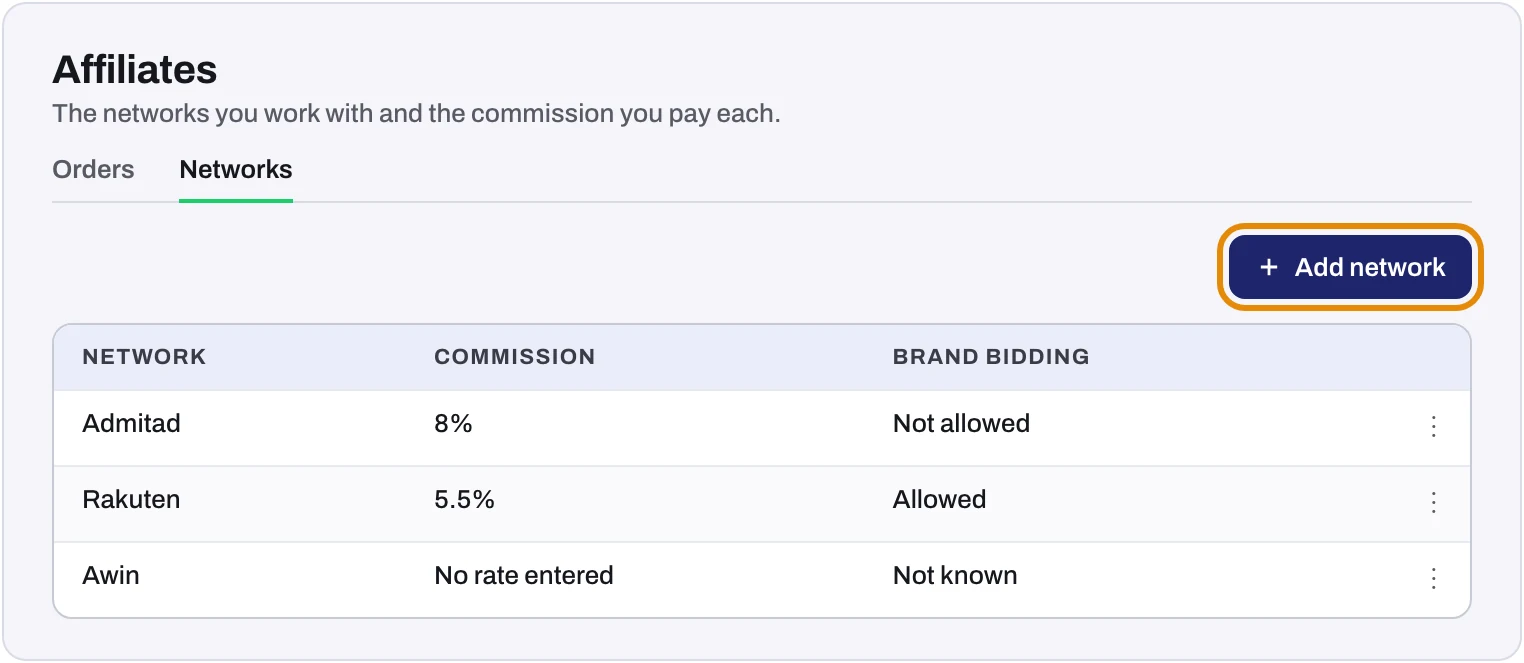 Example: drawn with made-up networks and figures. The box marks Add network.
Add a network
- Click Add network.
- Network: pick a network or type its name. Networks found on your orders are listed under Seen on your orders.
- Commission: choose Percent of each order and enter the percent, or Amount per order and enter the amount in one of your stores' currencies. Choose No rate entered when you don't know it.
- Brand bidding: choose Allowed, Not allowed or Not known, from what the network's terms say.
- Click Add network.
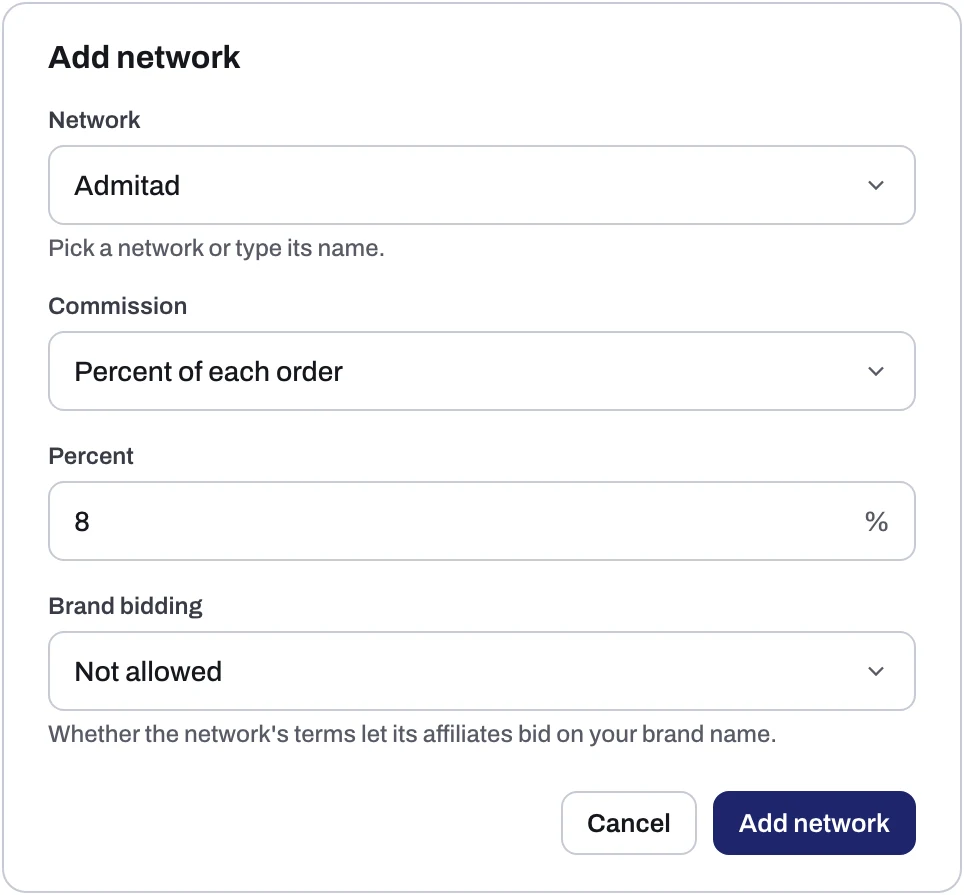 Example: drawn with made-up answers.
Change or delete a network
Open the menu at the end of the network's row and choose Change or Delete. Delete asks first, and you can add the network again at any time. To rename a network, delete it and add it again.
Check your programme's terms
A network acts on the rules written in your programme. Check that your terms forbid affiliates from bidding on your brand name in search ads. If they say nothing about it, add the rule now, so the next orders can be declined. Then set Brand bidding to match.
How to send a network the orders it should decline: Report affiliates who buy Google ads on your brand.
Was this helpful?
Related articles
Still need help?
Chat with our team and mention this article.