

Affiliate orders: what each result means
Orders lists the orders credited to your affiliate networks that began with a click on a Google ad, newest first, and says for each one whether its commission is owed. Open it from the sidebar: Block, Affiliates, Orders. Owners, Admins and Managers see it.
The columns
- Order: the order number your store and the network show.
- Day: the day of the order.
- Network: the affiliate network credited with the order.
- Store: the store the order was placed on.
- Value: what the order was worth, in the store's own currency. Values in different currencies are never added together.
- Result: whether the commission is owed.
What each result means
- Not owed: the click was not from your ads. Someone else paid for the Google ad that started the order.
- From your ad: the click was on one of your own Google ads.
- Can't be checked: the click can't be compared with your ads, for example when its click ID reached your store cut short.
- Not checked: Tapper hasn't decided this order.
Narrow the list
- Dates: the tab opens on the last 30 days. Click the dates to choose others.
- Result: show only some results, for example Not owed.
- Network: show one network's orders.
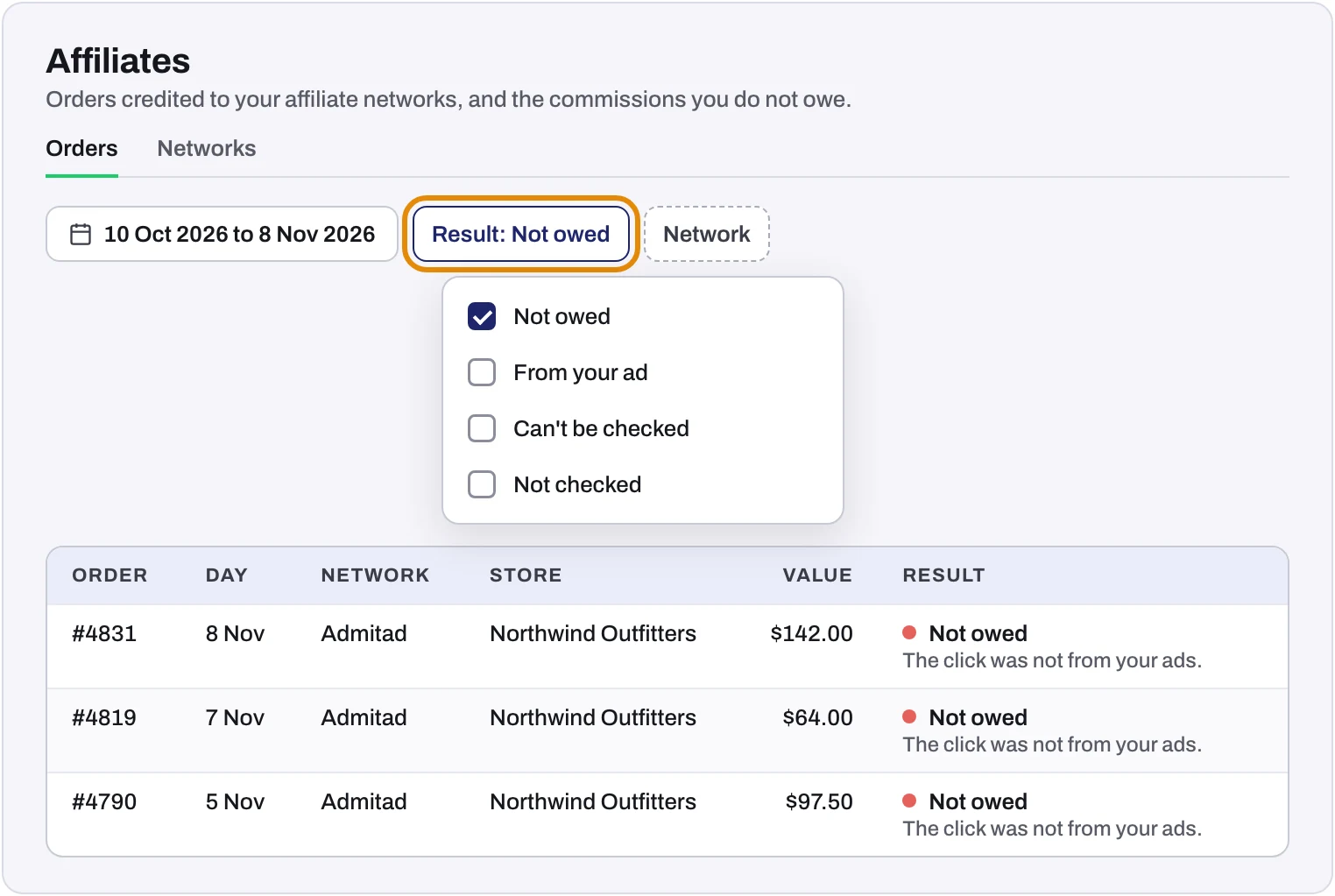 Example: drawn with made-up orders and figures. The box marks the Result filter.
When the dates hold more orders than one page can show, the tab says so. Choose a shorter range to see them all.
What to do with Not owed orders
- On Networks, check the network's Brand bidding answer. When its terms don't allow brand bidding, the order is one the network should decline. See Add your affiliate networks.
- Send the network its orders before its validation period ends. Most networks let you decline an order only until then.
- Use Download evidence pack on the Brand affiliates card in Lift for the order lists, and follow the steps for Admitad, Rakuten, Optimise and other networks in Report affiliates who buy Google ads on your brand.
Was this helpful?
Related articles
Still need help?
Chat with our team and mention this article.